
How to Manage Workspace Collaborators
Published: Updated:
Managing collaborators in ClickFunnels ensures that the right team members have access to your workspace with the appropriate permissions. Knowing how to update these settings helps keep your team organized and working efficiently. In this article, you will learn how to add, edit, and remove collaborators.
Requirements
Section titled “Requirements”- An active ClickFunnels account
Accessing the Collaborator Menu
Section titled “Accessing the Collaborator Menu”-
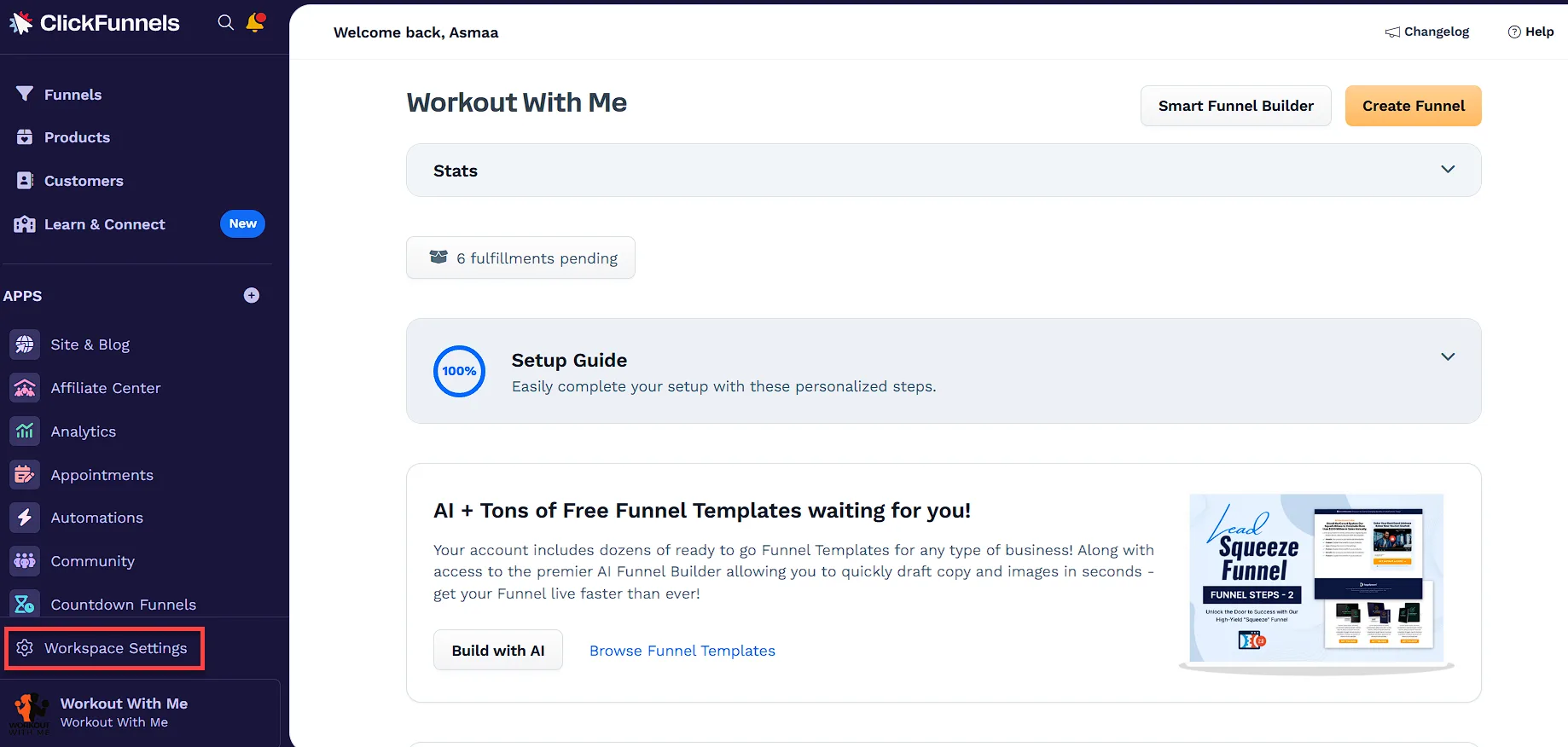
Navigate to Workspace Settings from the left menu.
-
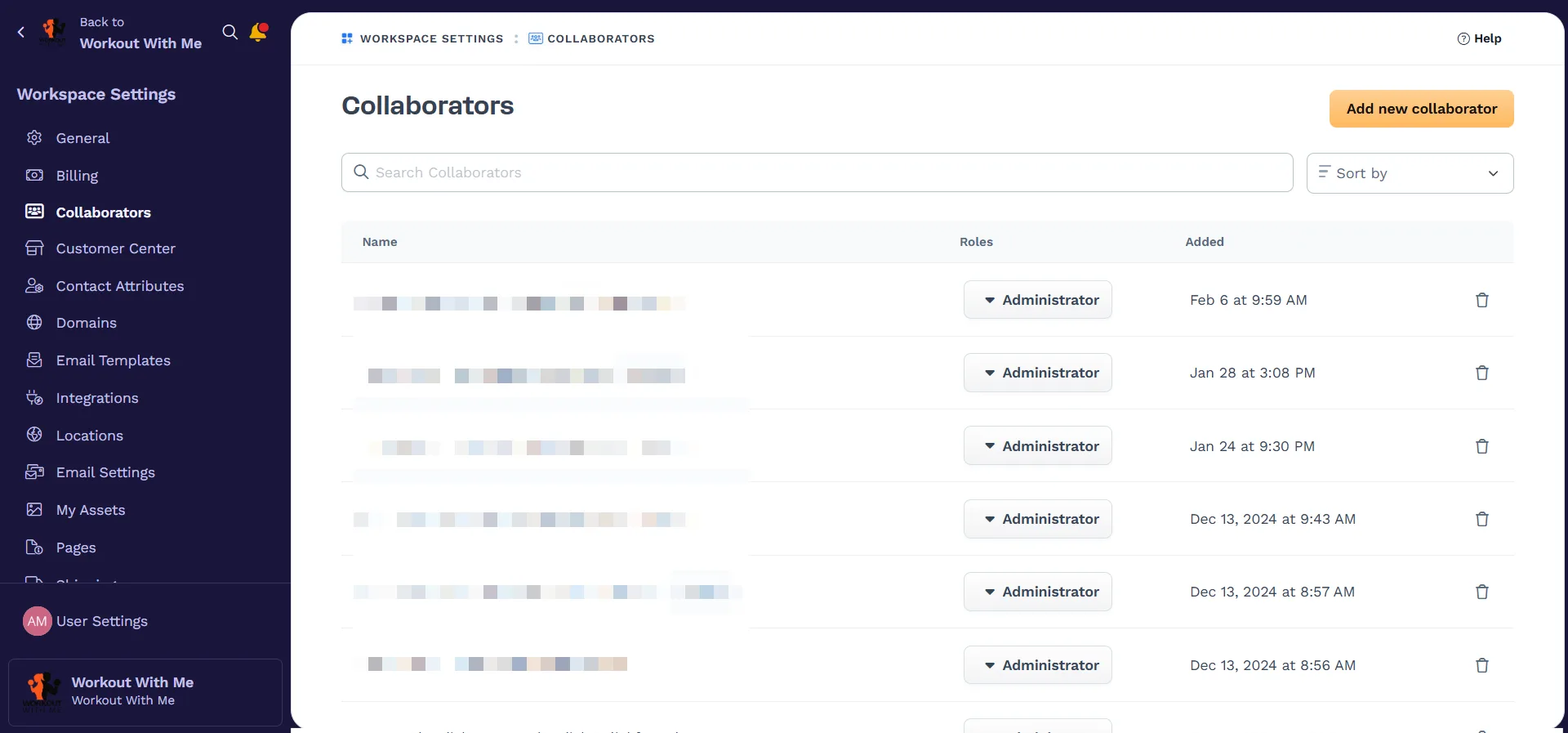
Select Collaborators from the submenu.
Adding a Collaborator
Section titled “Adding a Collaborator”-
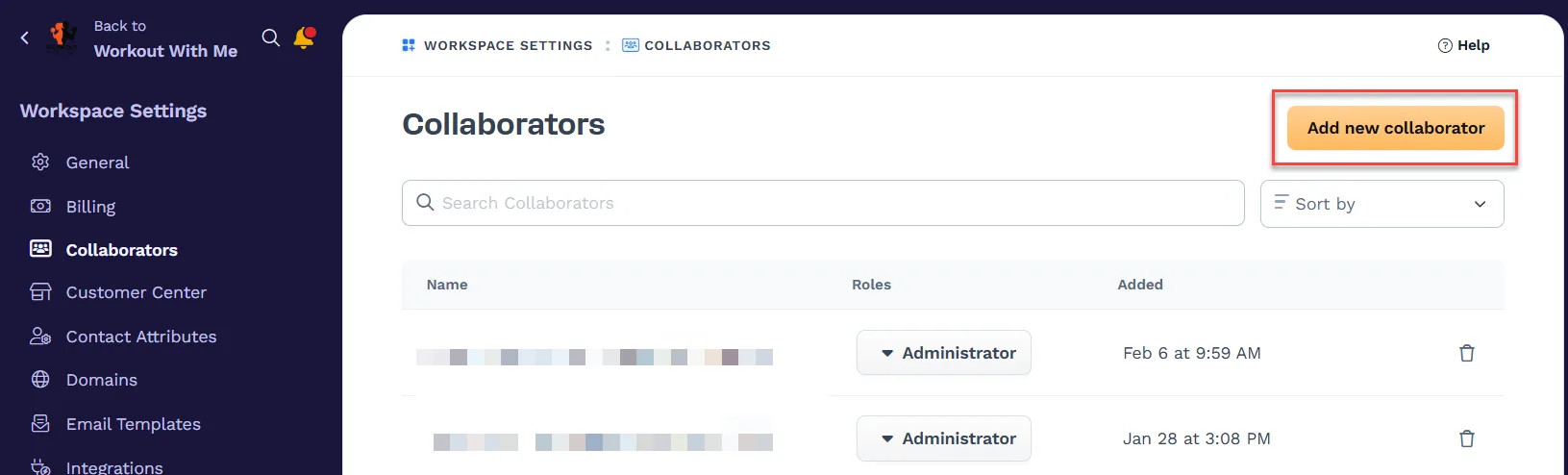
Click Add new collaborator.
-
Select a Team Member from the drop-down menu.
-
If the team member is not listed, click (+ Add new) to add them manually.
-
Enter the email address, first name, and last name of the new collaborator.
-
Click Create. The new team member will now appear in the list.
-
-
Assign Roles to the collaborator, then click Create collaborator. Learn more about Collaborator Roles.
Remove a Collaborator
Section titled “Remove a Collaborator”-
Click the Delete icon next to the collaborator that is being removed.

-
Click Proceed to confirm the removal.
Editing a Collaborator
Section titled “Editing a Collaborator”-
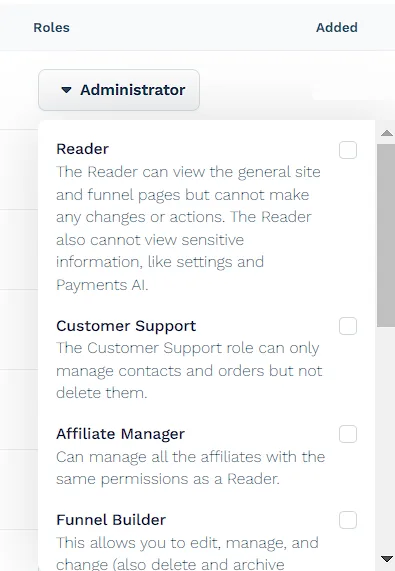
Click the collaborator’s name or the drop-down menu to modify their roles.
-
Select or change the role(s) as needed.