
Enable Two-Factor Authentication (2FA) in ClickFunnels Account
Published: Updated:
Two-factor authentication (2FA) provides an added layer of security to your ClickFunnels account, ensuring that even if someone obtains your password, they won’t be able to access your account without a second form of verification. In this article, you will learn the importance of enabling 2FA and how to set it up in your ClickFunnels account.
Requirements
Section titled “Requirements”-
An active ClickFunnels account
-
Authenticator app (e.g., Google Authenticator, Authy)
Why 2FA is Important
Section titled “Why 2FA is Important”Enabling 2FA in your ClickFunnels account is a simple but powerful way to protect your data and business. Here are a few benefits:
-
Enhanced Security: It adds an extra step to the login process, making it harder for unauthorized users to access your account.
-
Protection from Phishing: Even if your password is compromised through phishing, the attacker won’t have access without the second verification code.
-
Compliance with Security Standards: Implementing 2FA ensures that you adhere to higher security standards, protecting your account from unauthorized access.
How to Enable 2FA in Your ClickFunnels Account
Section titled “How to Enable 2FA in Your ClickFunnels Account”-
Access Your User Settings:
-
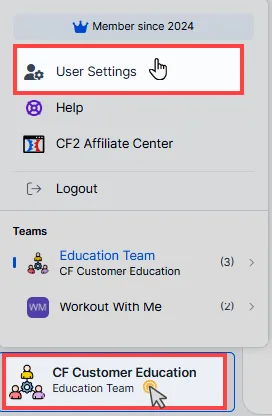
From your ClickFunnels dashboard, click on your Workspace Name in the screen’s bottom left corner.
-
Select User Settings from the dropdown menu.
-
-
Navigate to Two-Factor Authentication:
-
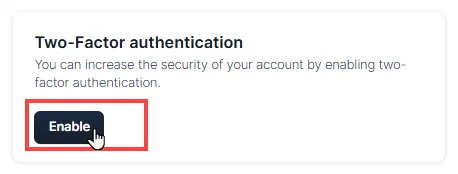
On the Profile tab, scroll down until you see the Two-Factor Authentication section.
-
Click on the Enable button.
-
-
Select an Authenticator App
-
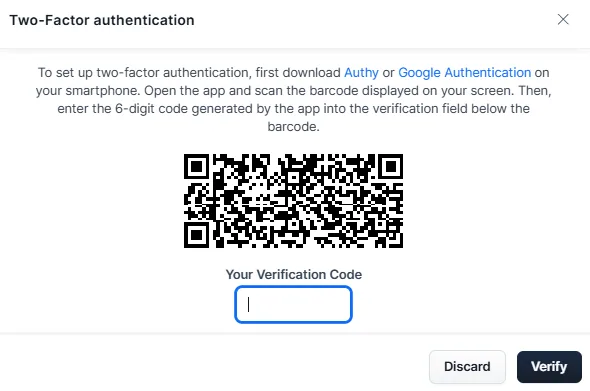
A popup will appear with a QR code. You can use an authenticator app such as Google Authenticator or Authy to scan the QR code. You can download one of these apps in your phone from Google Play or App Store.
-
Open the authenticator app on your phone, scan the code, and a 6-digit verification code will be generated.
-
-
Verify the Code:
-
Enter the 6-digit code from the authenticator app in the verification field.
-
Click Verify.
-
-
Backup Codes:
-
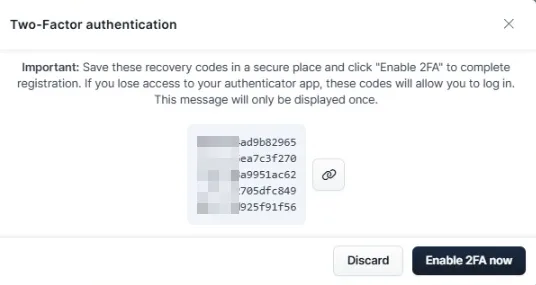
After verification, you will be provided with backup codes. Make sure to save these codes in a secure location. These codes can be used to access your account in case you lose access to your authenticator app.
-
Click Enable 2FA Now to complete the setup.
-
How to Log In After Enabling 2FA
Section titled “How to Log In After Enabling 2FA”Once you have enabled two-factor authentication (2FA) in your ClickFunnels account, the login process will require an additional step:
-
Enter Your Password: As usual, start by entering your ClickFunnels account email and password.
-
Enter the 6-Digit Code: After submitting your password, you will be prompted to enter a 6-digit code generated by your authenticator app (e.g., Google Authenticator, Authy).
-
Access Your Account: Open your authenticator app, retrieve the code, and input it in the verification field. Once the code is entered correctly, you will be logged into your ClickFunnels account.
Resetting 2FA
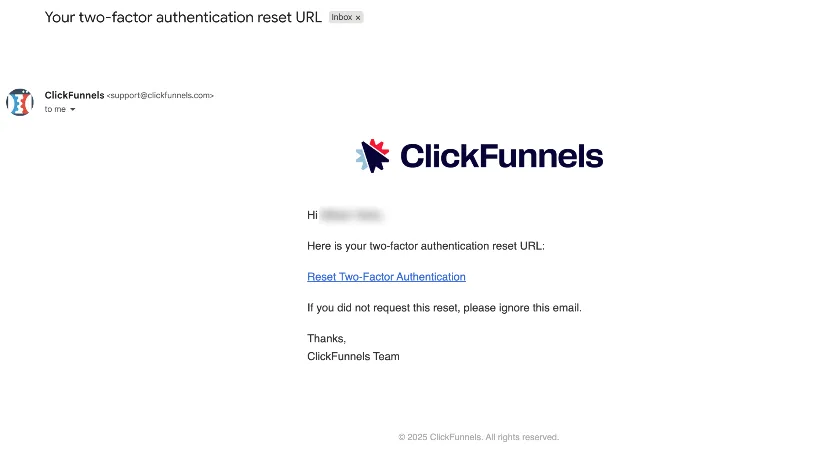
Section titled “Resetting 2FA”If you lose your backup codes or no longer have access to the authentication app, you must contact ClickFunnels Support to reset your two-factor authentication. If you’ve requested a 2FA reset, you’ll receive an email from our team with a secure reset link.
Steps to Complete the Reset
Section titled “Steps to Complete the Reset”-
Open the 2FA reset email and click the link provided.
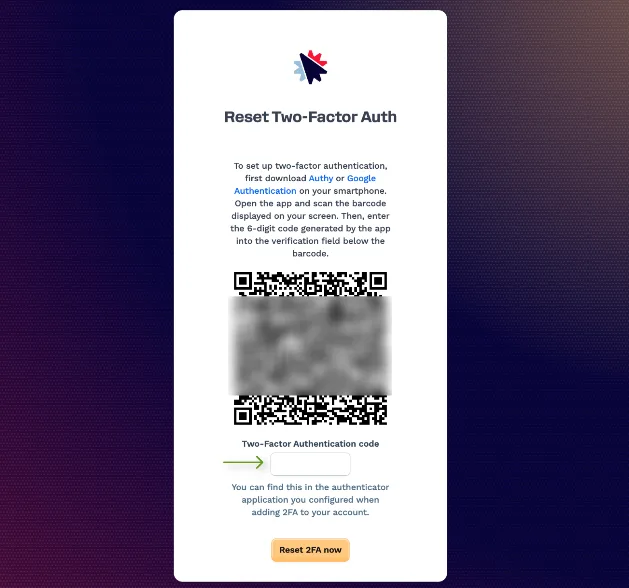
This will take you to the reset page.
-
Open your Authenticator app on your phone or device.
-
Add a new code:
-
Tap the “+” icon in your Authenticator app.
-
Choose Scan QR code (or “Scan barcode,” depending on your app).
-
Use your phone to scan the QR code displayed on your computer screen.
-
-
Enter the new code generated in your Authenticator app into the reset page.
-
Click “Reset 2FA now” to complete the process.
-
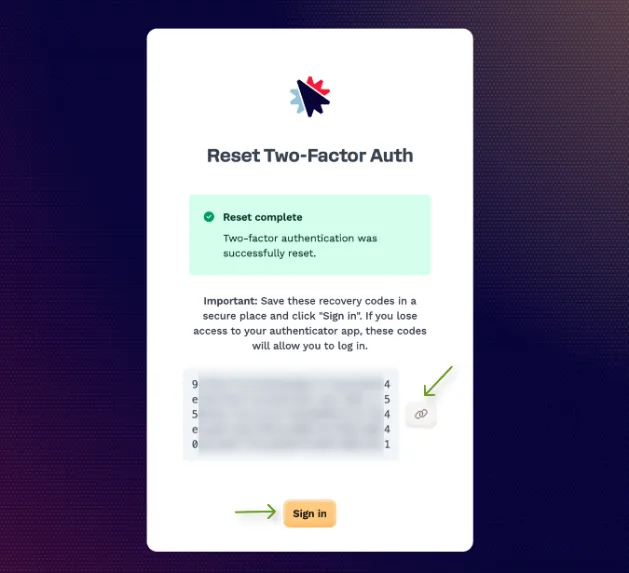
Save your new recovery keys that appear after the reset. These are your new backup keys — store them in a secure location.
-
Once completed, you’ll be able to sign back in using your login credentials and your new Authenticator code.