
Getting Started: Setting Up Payments in ClickFunnels
Published: Updated:
ClickFunnels allows you to sell products through Funnels and the Online Store, making it easy to manage and scale your business. You can sell digital or physical products, subscriptions, and memberships while providing a seamless checkout experience. Payments in ClickFunnels run through Payments AI, our payment gateway, and you can bring your existing Stripe account into Payments AI. In this article, you will get an overview of how to set up payments in ClickFunnels.
Step 1: Choose a Payment Gateway
Section titled “Step 1: Choose a Payment Gateway”Payments AI is the recommended payment gateway in ClickFunnels, set up directly from your workspace. It provides multi-gateway payment processing:
Note:
ClickFunnels charges no additional fees beyond the standard processor rates listed below.
-
✔️ Standard Base Fee (2.9% + $0.30)
-
✔️ Billing/Tax/Invoicing++ (0.5% all inclusive)
-
✔️ Provides backup of all payment methods
-
✔️ Gateway Routing rules & Backup gateway support
-
✔️ Supports PayPal Integration
-
✔️ Bring existing gateways (
Stripe,NMI,PayPal, etc.)
Already use Stripe? Connect your Stripe account to Payments AI, and Payments AI processes your ClickFunnels payments through Stripe. Refer to Using Stripe with Payments AI.
Step 2: Connect Your Payment Gateway
Section titled “Step 2: Connect Your Payment Gateway”Set up payments from the Set Up Payments dialog inside your workspace.
-
Log in to your ClickFunnels Workspace.
-
Open the Set Up Payments dialog. You can reach it from the Set Up Payments banner on the Store page (shown until a payment processor is connected), the Set Up Payments card on the Products page before you create your first product, or the Connect a payment processor step in your Getting Started checklist.
-
Under Recommended, click Select Payments AI.
-
Follow the on-screen instructions to create or connect your Payments AI account.
-
Once connected, you can collect payments in your ClickFunnels workspace. To process payments through your Stripe account, connect it inside Payments AI as described in Using Stripe with Payments AI.
Not ready to connect a live account yet? In the same dialog, under Other Options, choose Not sure? Start with test mode setup for now. This creates a test account so you can build and test your checkout right away, then switch to live payments when you are ready. Refer to How to Test Orders in ClickFunnels Without a Payment Gateway.
Step 3: Configure Payment Settings
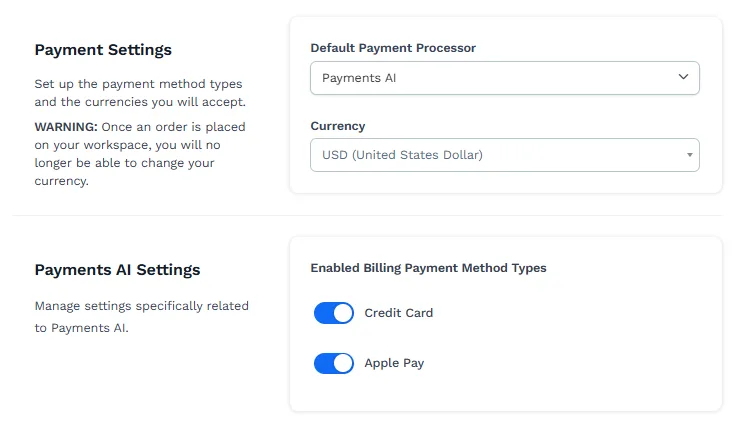
Section titled “Step 3: Configure Payment Settings”After connecting your payment gateway, configure key settings to ensure a smooth payment process. To access the Payment Settings, navigate to the Workspace Settings » General » Payment Settings.
-
Default Payment Processor: Select a processor to set as the default for the entire workspace (e.g.,
Payments AI,Stripe). This option appears when more than one payment processor is connected. The Store uses the default payment processor unless you choose a different one in the store’s Store Settings, and funnels set to Workspace Default use it as well. -
Currency: Choose the currency in which you will accept payments. ClickFunnels allows you to set a single currency per workspace, so ensure that your chosen currency matches your business’s operational region.
-
Payment Methods: The payment options you can offer depend on your selected gateway. With Payments AI, turn them on or off under Enabled Billing Payment Method Types in the Payments AI Settings section, which appears on this page once Payments AI is activated. With a direct Stripe connection, refer to Dynamic Payment Methods. These options may include:
-
Credit/Debit Cards (Visa, MasterCard, American Express, etc.)
-
Apple Pay
-
PayPal (Payments AI only)
-
Link Payment (direct Stripe connection only)
-
Accepted Payment Methods
Section titled “Accepted Payment Methods”ClickFunnels supports various payment methods depending on the integrated payment gateway. Here are the primary options:
Credit/Debit Cards
Section titled “Credit/Debit Cards”-
Accepted cards include Visa, MasterCard, American Express, and Discover.
-
Payments can be processed through Payments AI, or through Stripe in workspaces with a direct Stripe connection.
Apple Pay
Section titled “Apple Pay”-
Allows customers to pay using Apple devices with stored payment details.
-
Payments can be processed through Payments AI, or through Stripe in workspaces with a direct Stripe connection.
Learn more about enabling Apple Pay in the Checkout in the article, Enable Apple Pay in ClickFunnels Checkout.
PayPal
Section titled “PayPal”-
A widely used payment solution that allows customers to pay using their PayPal balance, bank accounts, or linked credit/debit cards.
-
Available only through Payments AI in ClickFunnels.
Learn more about enabling PayPal in the Checkout in the article, Enable PayPal in ClickFunnels Checkout.
Link Payment
Section titled “Link Payment”-
A secure payment method that allows customers to save their payment details for faster future purchases.
-
Available only through a direct Stripe connection in ClickFunnels.
Creating a Product
Section titled “Creating a Product”Before you can accept payments, you need to create the products that customers will be purchasing:
-
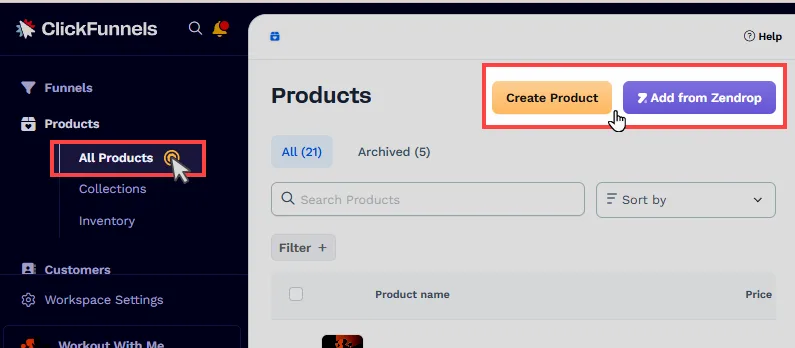
Navigate to the Products menu and select All Products.
-
Click Create Product to create a new product, or choose Add from Zendrop to import a product from your Zendrop account.
-
In the Create Product dialog, choose what you’re selling (Digital or Physical), enter the Product name, choose how customers will pay (One-time, Subscription or Payment plan) and enter the price, then click Create Product. The product opens in the product editor, where you can add more prices, variations and access on its tabs.
Each product needs at least one price, and a price is one of three types: a one-time payment, a subscription that bills until it is cancelled, or a payment plan that stops after a set number of payments. Refer to Products - How to Add and Manage Pricing.
If your workspace has a direct Stripe connection, you can import your existing Stripe products and prices instead of rebuilding them — refer to Importing Products and Prices From Stripe Into ClickFunnels. Stripe recurring prices import as subscriptions, and an imported subscription that has not been sold yet can be converted into a payment plan.
Configuring products accurately is crucial for a seamless checkout process. For more detailed guidance, refer to our existing article on Products - How to Create and Manage Products for more comprehensive guidance.
Accepting Payments in the Store and Funnels
Section titled “Accepting Payments in the Store and Funnels”ClickFunnels allows you to accept payments through both the Online Store and Funnels, providing flexibility in how you sell products.
Accepting Payments in the Store:
Section titled “Accepting Payments in the Store:”When you create a product and turn on its Store sales channel (on the product’s Sales channels tab), it will automatically appear in the Storefront. This means you do not need to manually attach products to the Store app. ClickFunnels handles the display automatically with dynamic collection elements. Customers can browse the storefront and purchase products seamlessly.
To learn more about setting up and customizing the Store, refer to the article Getting Started with ClickFunnels Store.
Accepting Payments in a Funnel:
Section titled “Accepting Payments in a Funnel:”To sell a product through a funnel, you must create a Checkout Page that includes the Checkout element. Once the checkout page is set up, attach the product to the funnel step where the checkout occurs. This setup ensures that payments can be collected directly within the funnel.
After adding the checkout page and linking the product, test the process to ensure smooth transactions.
Learn more about funnel steps in the article, How to Add and Manage Funnel Steps.
Testing Payments
Section titled “Testing Payments”Testing your payment setup is essential to ensure smooth transactions and prevent issues before going live. ClickFunnels provides various testing options for both the Store and Funnels, allowing you to verify payment flows without processing real transactions.
Testing Payments in the Store
Section titled “Testing Payments in the Store”You can test your store checkout process by temporarily turning off the product’s Store and Customer Center switches on its Sales channels tab and setting its Payment mode to Test on its Product page tab. Once these settings are adjusted, visit the product link to complete a test purchase using the test card number (e.g., 4111-1111-1111-1111) and validate the checkout experience.
For a detailed guide, refer to the article How to Test Store Checkout in TEST Mode.
Testing Payments in the Funnel
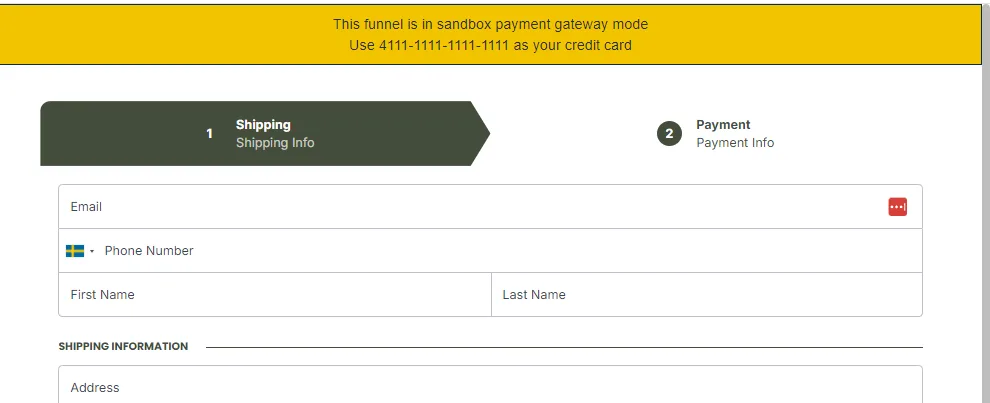
Section titled “Testing Payments in the Funnel”To test payments in a funnel, turn off Live Mode (Payments) in your Funnel Settings. Once it’s turned off, a Test Card number (e.g., 4111-1111-1111-1111) will be displayed at the top of the Checkout Page, allowing you to simulate transactions without using real payment information.
For step-by-step instructions, refer to the article How to Test Funnel Checkout in Test / Sandbox Mode.
Testing Payments Without a Payment Gateway
Section titled “Testing Payments Without a Payment Gateway”If you want to test the order flow without connecting a payment gateway, ClickFunnels offers an alternative method. This allows you to verify the checkout experience and ensure that orders are being processed correctly, even before integrating a payment provider.
For more details, refer to the article How to Test Orders in ClickFunnels Without a Payment Gateway.
Payments FAQs
Section titled “Payments FAQs”What are the processing fees for payments in ClickFunnels?
ClickFunnels does not charge any fees for processing payments. However, transaction fees are determined by the payment gateway you choose. Payments AI and Stripe each have their own pricing structures, and you should review their respective documentation for up-to-date information on transaction fees and any additional costs.
What countries are supported?
ClickFunnels does not determine the availability of supported countries to process payments. For the most up-to-date information on whether your country is supported, please refer to the Payments AI and Stripe help centers.
Can I use Payments AI and a direct Stripe connection in the same workspace?
Yes, if your workspace has a direct Stripe connection. The Store App uses the default payment processor set in the workspace settings unless you choose a different one in the store’s Store Settings, while a Funnel can use one payment processor designated in the funnel settings.
Can I collect sales tax (VAT) while taking payments?
Yes. ClickFunnels allows you to collect and configure sales tax (VAT) while processing payments. For details on how to set this up, refer to the article Products - Setting Up Sales Tax in ClickFunnels.
Can I use PayPal as a payment gateway?
Yes. You can connect your PayPal business account through Payments AI, and once verified, your customers can pay using PayPal. Payments will be collected directly into your PayPal business account.
Can my users pay using Apple Pay?
Yes. Apple Pay is supported and available through Payments AI and a direct Stripe connection, allowing customers to complete transactions seamlessly using their Apple devices.
Can my users pay using Google Pay?
Yes, with a direct Stripe connection. Google Pay is one of Stripe’s dynamic payment methods: once you turn it on in your Stripe Dashboard, it can appear at checkout when it is available to the customer. Google Pay is not available through Payments AI in ClickFunnels.
I am located in Europe. Is 3D Secure Payment supported?
Yes. ClickFunnels supports 3D Secure authentication (3DS) for European transactions using a payment gateway that provides 3DS support, such as Payments AI and Stripe. This feature adds an extra layer of security by requiring cardholder authentication during checkout.
Can I connect Stripe directly to ClickFunnels instead of through Payments AI?
New workspaces set up payments through Payments AI, and you can connect your Stripe account to Payments AI to process payments through Stripe. If you need a direct Stripe connection, contact ClickFunnels Support. If your workspace already connected Stripe directly, it keeps working and you do not need Payments AI to process transactions with it.
Can I manage orders in ClickFunnels, such as invoicing, refunds, or subscriptions?
Yes. You can manage orders, issue refunds, and handle subscriptions from the Customers menu within your ClickFunnels workspace.