
How to Enable Under Attack Mode
Published: Updated:
How to Enable Under Attack Mode
Section titled “How to Enable Under Attack Mode”Overview
Section titled “Overview”Under Attack Mode allows you to apply additional security protection to individual domains in your workspace. When enabled, Cloudflare performs extra security checks on incoming traffic to help mitigate layer 7 attacks such as automated fraud, bots, and denial-of-service (DDoS) attempts.
Each domain has its own protection level: Off, Standard, or Strong. Standard shows visitors a challenge that most of them pass automatically, while Strong requires visitors to complete a short interactive step — which stops automated (headless) bots that pass the Standard challenge.
This feature is intended for temporary use during active or suspected attacks and can be changed at any time from Workspace Settings.
When to use Under Attack Mode
Section titled “When to use Under Attack Mode”Enable Under Attack Mode if:
- You experience sudden or abnormal traffic spikes
- Automated or scripted traffic is impacting site performance
- Fraud attempts increase unexpectedly
- Your domain becomes slow or unresponsive due to traffic volume
Under Attack Mode is designed as a last-resort mitigation tool, not a permanent security setting.
Protection levels
Section titled “Protection levels”| Protection level | What visitors experience | When to use it |
|---|---|---|
| Off | No extra security checks. Traffic reaches your pages normally. | Normal operation. |
| Standard | A managed challenge. Most real visitors are verified automatically within a few seconds without doing anything. | Traffic spikes, general bot noise, or suspected DDoS activity. |
| Strong | An interactive challenge. The visitor has to complete a short verification step (for example, clicking a checkbox) before the page loads. | Fraudulent orders, card testing, or bot traffic that continues even while Standard is on. |
Key points:
- The levels are mutually exclusive — a domain is either Off, Standard, or Strong
- Standard is the behavior Under Attack Mode has always applied
- Strong is stricter: automated clients that run without a real browser cannot solve an interactive challenge, so they are stopped even when they submit requests directly to your pages or order endpoints
- Strong asks something of every visitor, so it should be used while you are actively dealing with an attack rather than left on permanently
Accessing Under Attack Mode
Section titled “Accessing Under Attack Mode”- Open Workspace Settings
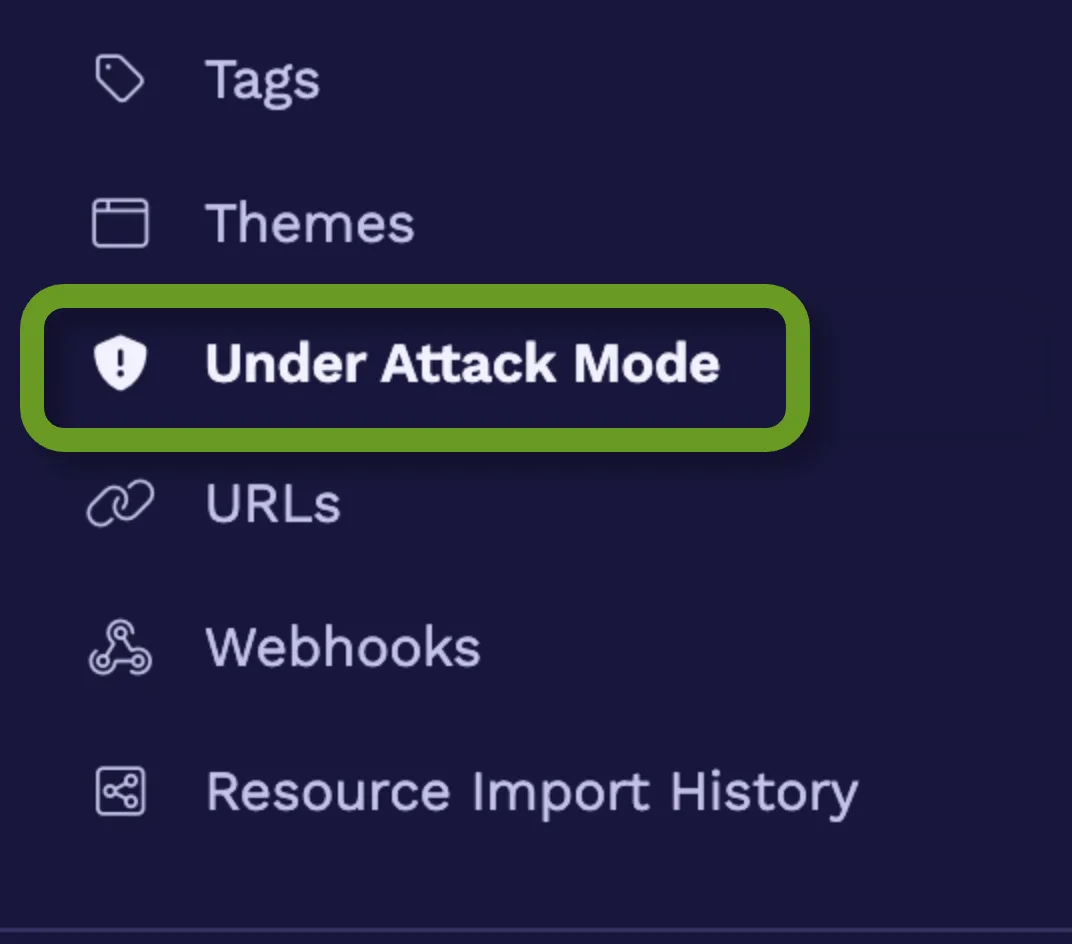
- Select Under Attack Mode
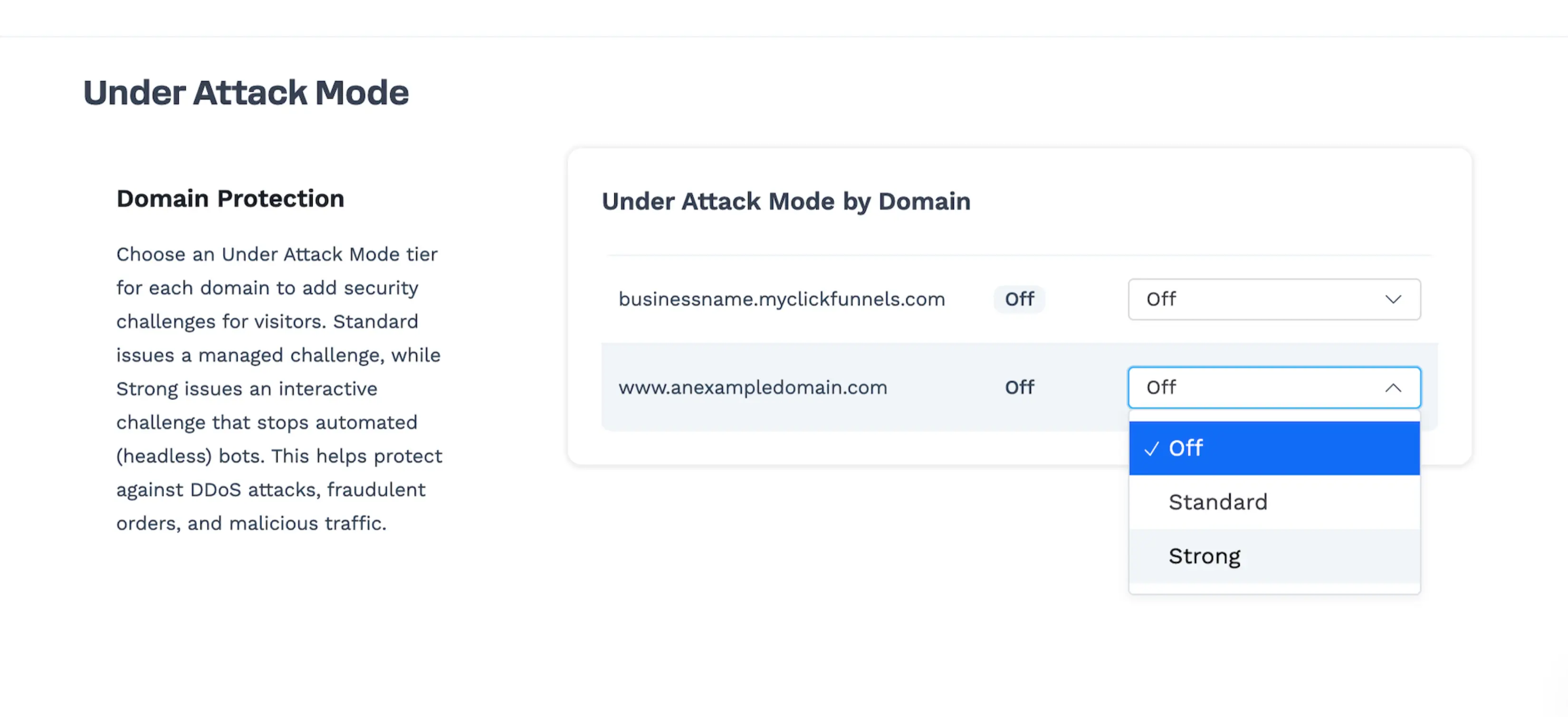
- Under Domain Protection, review the Under Attack Mode by Domain table
The table lists every domain that is ready for use in the workspace — including your workspace’s *.myclickfunnels.com domain — with its current Status badge and a Protection Level selector. Each domain is set independently.
Setting a domain’s protection level
Section titled “Setting a domain’s protection level”-
Go to Workspace Settings → Under Attack Mode
-
Locate the domain you want to protect
-
Open the Protection Level dropdown for that domain
-
Choose Standard or Strong
The change is saved as soon as you select it — there is no separate save button. The Status badge for that row updates to match the level you chose, and a confirmation message appears.
You can move a domain straight from Standard to Strong (or back) with the same dropdown; you do not need to turn protection off in between.
Expected behavior
Section titled “Expected behavior”- Changes may take several seconds to propagate
- New visitors may see a Cloudflare verification screen
- Existing verified visitors may not see the challenge again
Turning protection off
Section titled “Turning protection off”- Go to Workspace Settings → Under Attack Mode
- Set the domain’s Protection Level to Off
Expected behavior
Section titled “Expected behavior”- The challenge may continue briefly after switching to Off
- Normal access resumes once the change fully propagates
Visitor experience
Section titled “Visitor experience”Standard
When a domain is set to Standard, visitors may see a message similar to:
Checking your browser before accessing…
- The challenge typically completes within a few seconds
- No user action is required beyond waiting
- Once verified, visitors are automatically redirected to the site
Strong
When a domain is set to Strong, visitors see a verification screen that requires them to interact with it — for example, clicking a checkbox to confirm they are not a bot — before the page loads.
- Real visitors can complete the step in a few seconds, but they must act
- Automated clients that cannot render and interact with a page are blocked
- Because it adds a step for everyone, expect some drop-off on high-traffic pages while Strong is active
Standard minimizes disruption for real users; Strong trades a little friction for protection that automated traffic cannot bypass.
Impact on analytics and tracking
Section titled “Impact on analytics and tracking”Because Under Attack Mode requires JavaScript to complete the verification challenge:
- Some third-party analytics tools may report reduced or delayed traffic
- Bots and blocked traffic will not appear in analytics
- Short-term discrepancies in visitor data are expected while the mode is active
- With Strong, visitors who abandon the interactive challenge are never recorded as page views
These effects are temporary and resolve once Under Attack Mode is set back to Off.
Performance and availability considerations
Section titled “Performance and availability considerations”- Under Attack Mode may briefly pause access for unverified visitors
- It prioritizes site stability over immediate access
- It should be set back to Off once traffic normalizes to restore standard behavior
This feature helps keep your site online during attacks but is not intended for continuous use.
Important notes and limitations
Section titled “Important notes and limitations”- Protection levels are applied per domain — protect both your custom domain and your workspace’s
*.myclickfunnels.comdomain, since traffic can reach your pages through either - Under Attack Mode does not activate instantly in all cases
- It relies on visitors having JavaScript enabled
- It does not replace long-term security or fraud prevention strategies
- Some automated services, scripts, or headless browsers may be blocked — Strong blocks them by design, so temporarily lower the level if a legitimate integration needs access
- Your own access to ClickFunnels is not challenged: the protection applies to your published pages, not to your logged-in workspace or the page editor
- If Cloudflare is temporarily rate limiting requests, the page shows a Protection status temporarily unavailable message instead of the table. Wait a few moments and refresh — your current settings are unchanged
Summary
Section titled “Summary”Under Attack Mode provides a fast, self-service way to protect your domains during periods of malicious or abnormal traffic. Standard adds a challenge most real visitors pass automatically, and Strong adds an interactive challenge that automated bots cannot solve. Choose the lowest level that stops the traffic you are seeing, and set it back to Off once conditions return to normal.