
How to Add and Manage Contact Segments
Published: Updated:
Contact Segments allow you to group contacts based on specific filters and criteria, making it easier to organize and target them effectively. This guide covers how to add, edit, and delete segments. 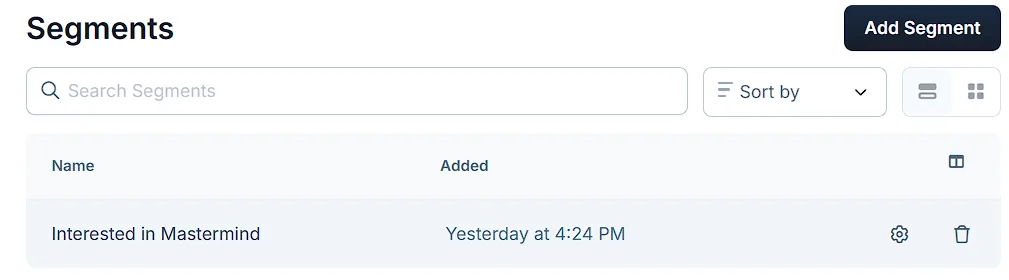
Requirements:
Section titled “Requirements:”- An active ClickFunnels account
Adding a New Contact Segment
Section titled “Adding a New Contact Segment”-
Go to Customers > Segments in the left-hand menu to open the segments page.
-
Click the Add Segment button at the top-right corner.
-
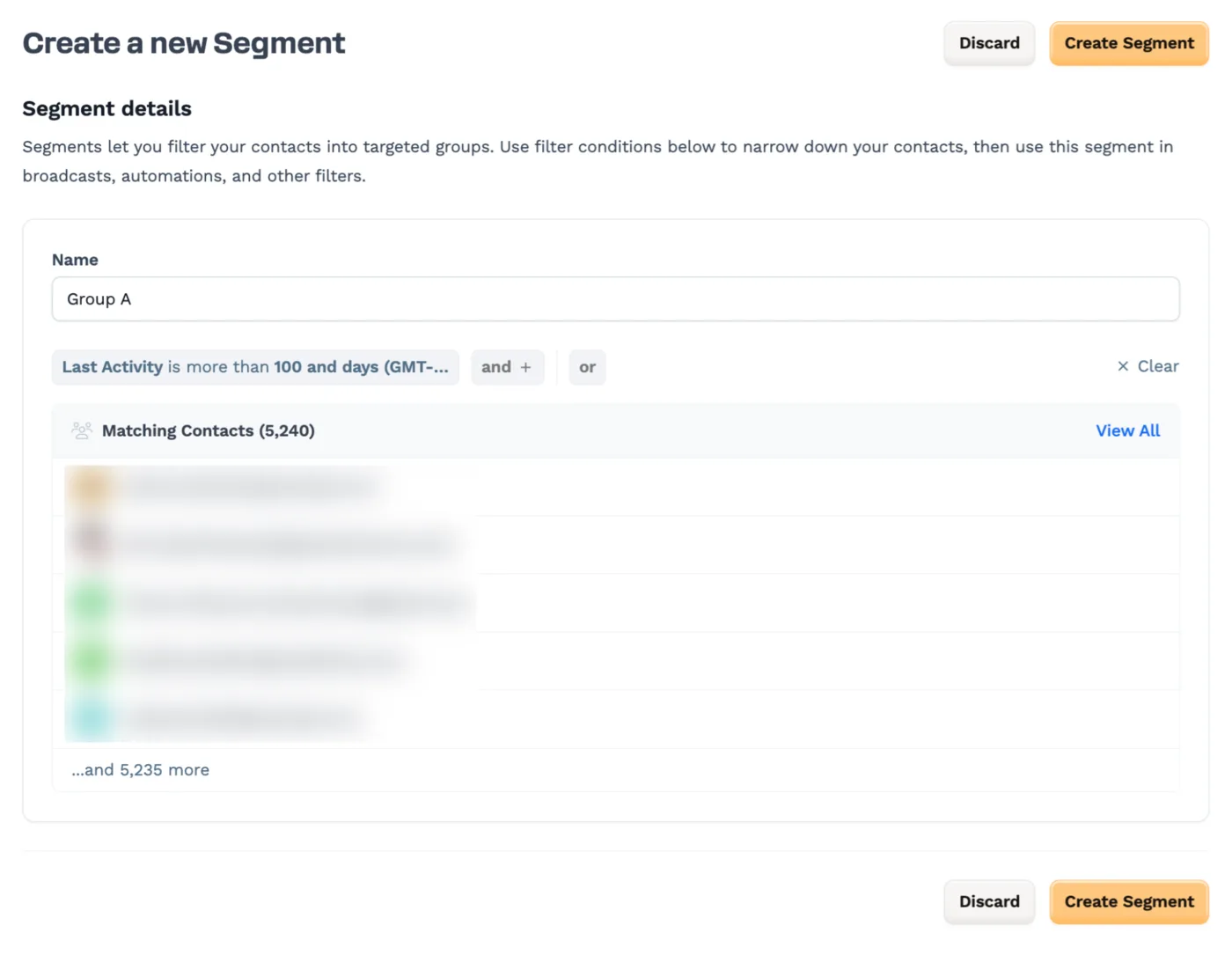
On the Create a new Segment page, under Segment details:
-
Enter a Name for the segment.
-
Click Filter to set your segment criteria.
-
Use options like Contact Attributes, Contact Activity, Products, Broadcasts, or Custom.
-
To build a segment from another segment, choose the Segment condition under Contact Attributes and select the segment.
-
Combine multiple conditions using and or or logic as needed.
-
-
Review the Matching Contacts preview, which shows how many contacts match your conditions and lists the first few. Click View All to see all matching contacts.
-
-
Once the filters are set, click Create Segment to save.
Managing Contact Segments
Section titled “Managing Contact Segments”Edit a Segment:
Section titled “Edit a Segment:”-
On the Segments page, locate the segment you want to update.
-
Click the gear (⚙) icon next to the segment name.
-
Modify the Name or adjust the filter settings.
-
Click Update Segment to save your changes.
Delete a Segment:
-
On the Segments page, find the segment you want to remove.
-
Click the trash icon next to the segment name.
-
Confirm the action by selecting Proceed in the pop-up.
You can also delete a segment while editing it: click Delete, type CONFIRM when prompted, and confirm the deletion.