
How to Export Contacts
Published: Updated:
Exporting contacts allows you to download contact details for use outside the platform. This article explains how to export a single contact or multiple contacts in bulk and access your export file.
Requirements
Section titled “Requirements”-
An active ClickFunnels account
Accessing the Export Option
Section titled “Accessing the Export Option”-
Click on Customers from the left-side navigation menu in your account.
-
Select Contacts from the dropdown menu.
Exporting Contacts
Section titled “Exporting Contacts”-
Select one or more contacts from the list by checking the boxes.
-
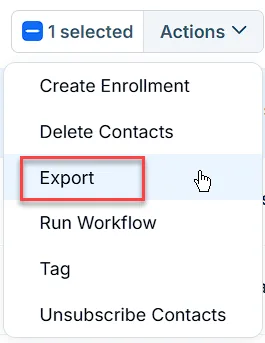
Click Actions (for single contacts) or Bulk actions (for multiple contacts).
-
From the dropdown, select Export.
-
In the Export Contacts window:
-
Review and select the Fields you want to include in the export, such as Email address, Phone number, LTV, Tags, Last updated, etc.
-
If needed, include Custom Fields by searching for them in the Custom Fields box and selecting them.
-
-
(Optional) To schedule the export for a future date, check the Schedule export option and specify the date and time.
-
Click Create export action to start the process. You’ll be taken to the export action’s details page.
-
When the export is complete, click Download Export to download the file to your device.
Removing an Export Action
Section titled “Removing an Export Action”If you want to cancel an export action or remove a completed one:
-
Go to Customers > Exports in the left-side navigation menu. This menu item appears once your workspace has at least one export action.
-
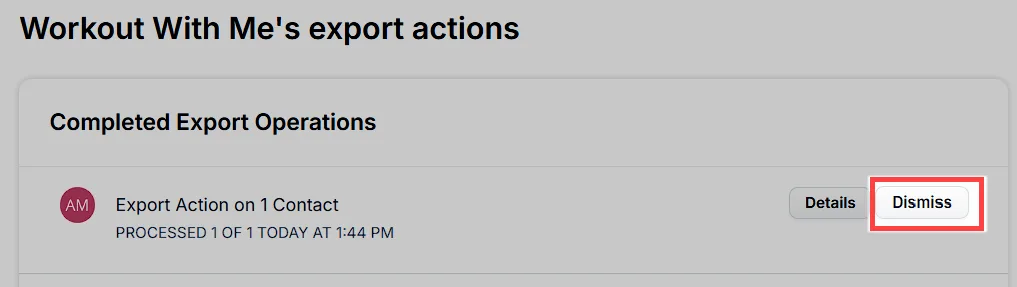
Click Cancel next to an export that hasn’t finished, or Dismiss next to a completed export.
-
Confirm the removal by clicking Proceed in the pop-up window.