
Affiliate Center - How to Setup and Manage Affiliate Payouts
Published: Updated:
Managing affiliate payouts is vital to building trust and keeping affiliates motivated in your ClickFunnels program. ClickFunnels offers flexible payout management options, including manual payments and PayPal integration, making it easier to reward your affiliates efficiently. In this article, you’ll learn how to prepare, approve, and process affiliate payouts within the Affiliate Center.
Requirements
Section titled “Requirements”-
An active ClickFunnels account
-
Available on the Optimize and Dominate plan
-
Commissions generated in the Affiliate Center app
-
A PayPal Business account email address to pay affiliates through PayPal
Step 1 - Prepare Payouts for Pending Commissions
Section titled “Step 1 - Prepare Payouts for Pending Commissions”-
Navigate to the Affiliate Center app by selecting it from the main menu.
-
Click on the Overview menu to see key metrics, including Pending Payouts. Pending Payouts refer to commissions that:
-
Are still within the 30-day cool-off period.
-
Have passed the 30-day cool-off period and are ready to be paid but require approval.
-
-
Click on the Prepare Payout button to move all commissions past the 30-day cool-off period into the Payouts tab. This action applies globally to all eligible commissions, allowing you to prepare payouts for all affiliates simultaneously.
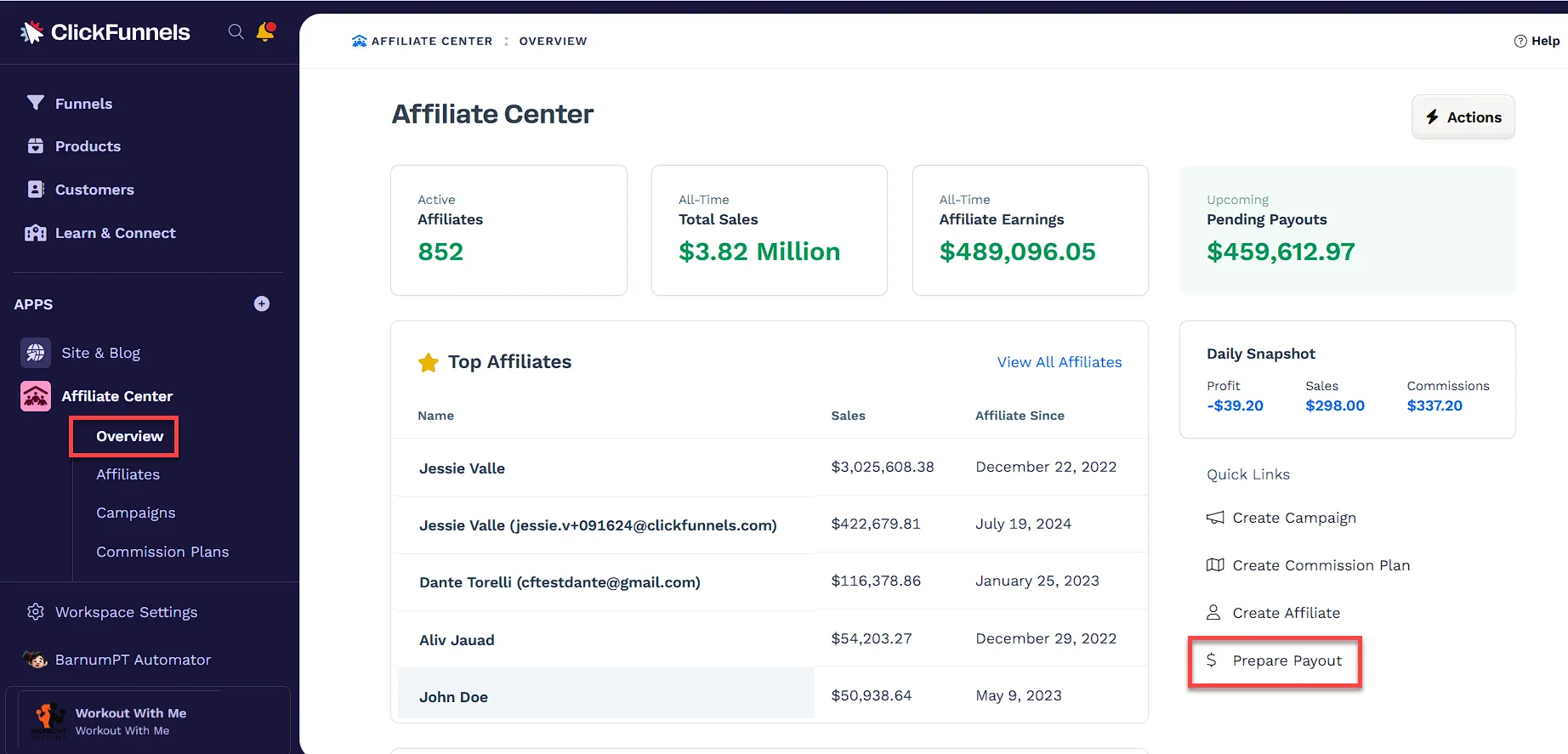
Once this step is complete, you’ll be ready to manage the payouts for approved commissions in the next step.
Step 2 - Approving and Paying Commissions
Section titled “Step 2 - Approving and Paying Commissions”Once commissions have been moved to the Payouts tab, you will see a list of all pending commissions, including the affiliate’s name, email, and the amount to be paid.
-
Select commissions individually or use the bulk select option to approve multiple commissions at once.
-
Click Approve Selected for each selected commission or apply Bulk Actions to approve several at once.
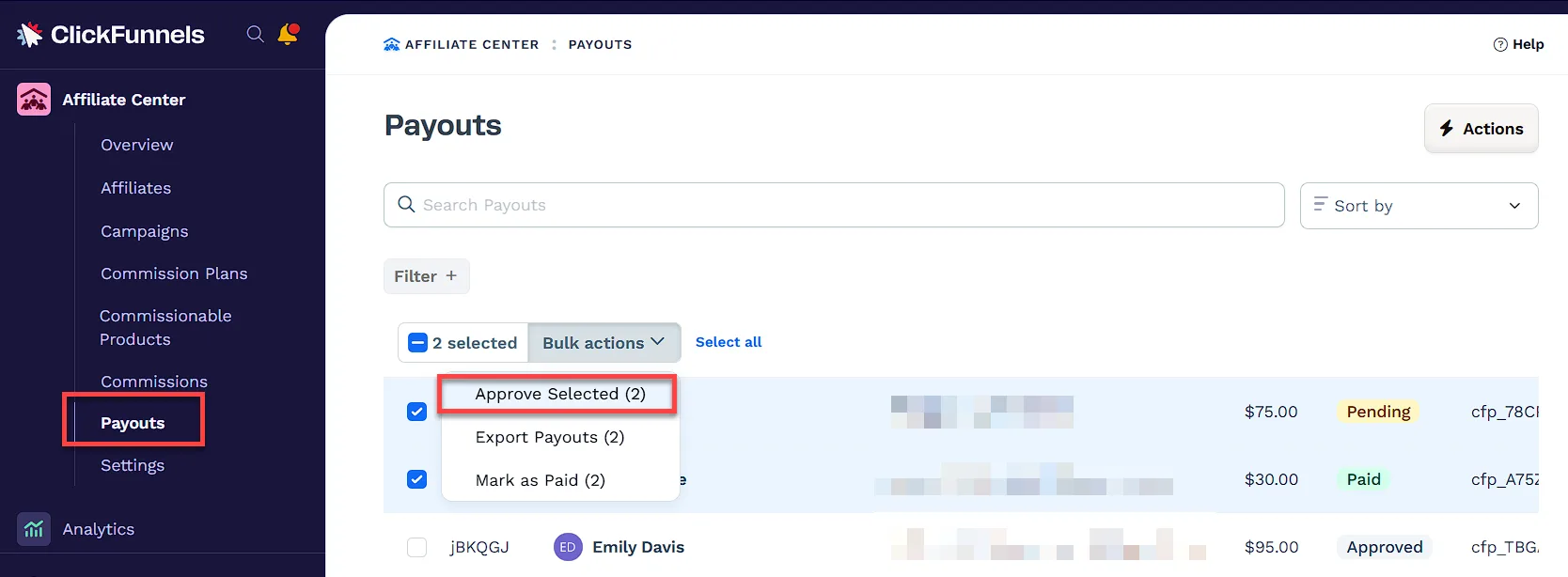
Once approved, the commissions will be ready for payout, which you can handle either manually or via PayPal.
Step 3 - Paying Commissions
Section titled “Step 3 - Paying Commissions”Pay Manually Outside of ClickFunnels
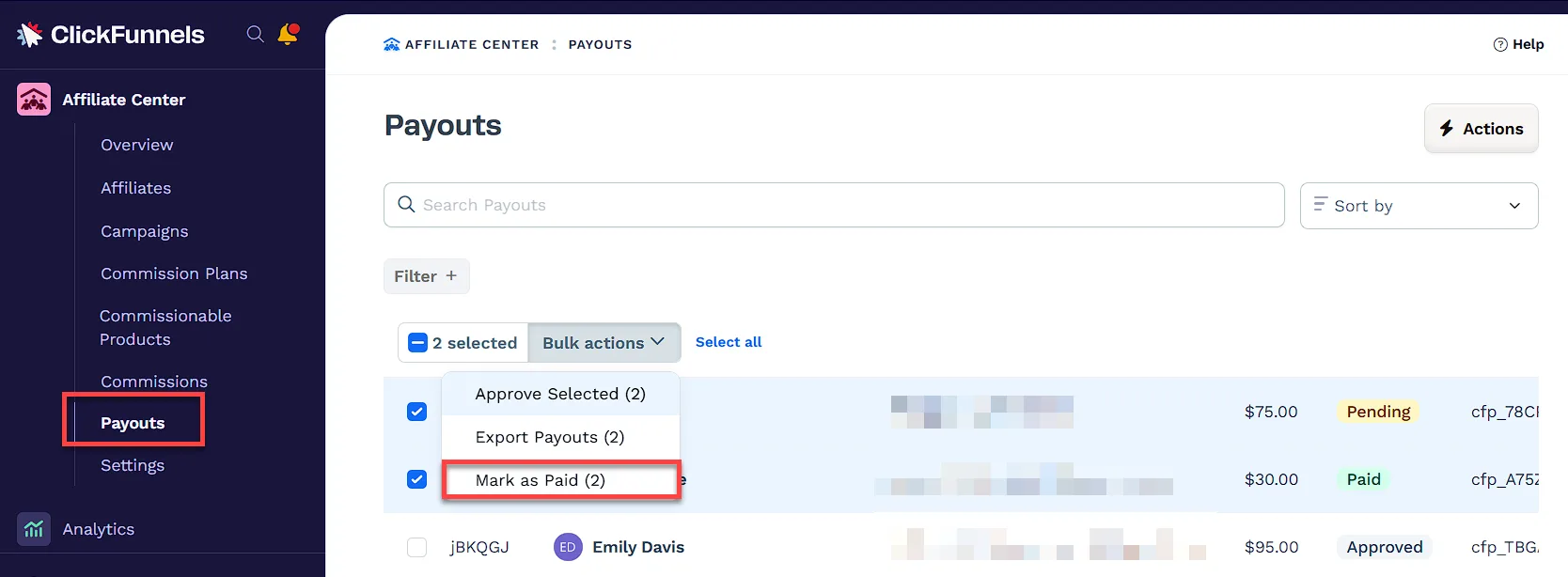
Section titled “Pay Manually Outside of ClickFunnels”If you prefer to handle payments outside ClickFunnels, you can use the Mark as Paid feature to indicate when commissions have been paid.
-
Once the commissions have been approved, select the commissions you’ve processed and click Mark as Paid. This can be done individually or by selecting multiple commissions and applying the action in bulk.
-
Marking as Paid indicates that the payments have been processed through the external payment method of your choice, such as PayPal, bank transfer, Wise, or Payoneer. ClickFunnels does not recommend or endorse specific payment methods, leaving it entirely up to your preference.
Pay Using PayPal
Section titled “Pay Using PayPal”As an affiliate program admin, you can now process payments directly through PayPal by adding both your business PayPal account and your affiliates’ PayPal addresses. Here’s how:
-
Admin Setup:
-
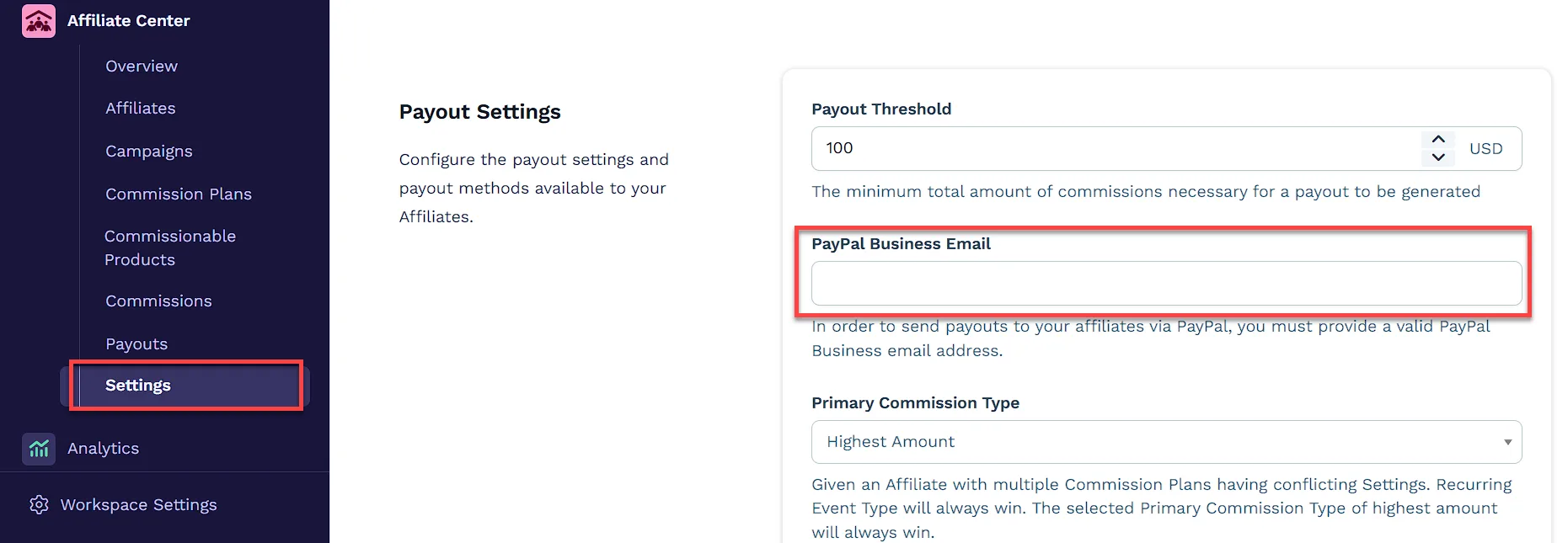
Go to the Settings tab in the Affiliate Center app and enter your PayPal Business email in the PayPal Business Email field. This is the account that will be used to send payments.
-
-
Affiliate Setup:
-
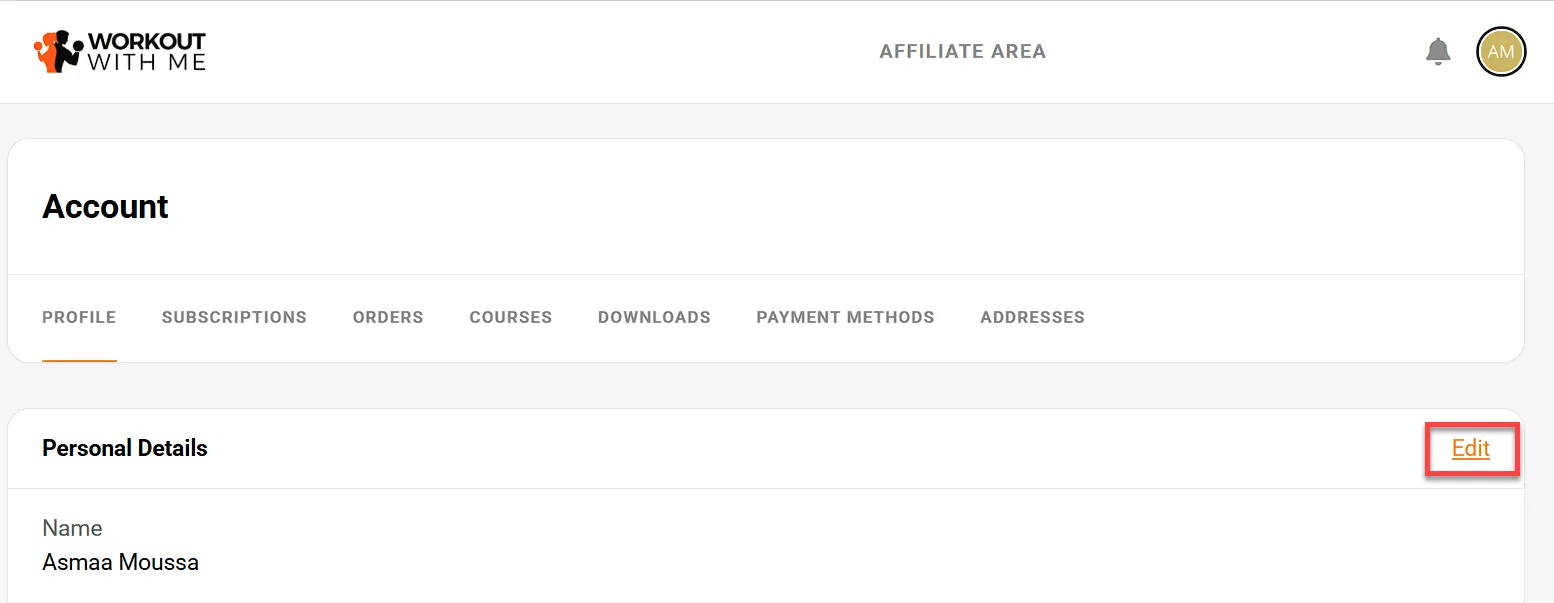
Affiliates can go to their Affiliate Area**,** click My Account from their profile, click Edit under Personal Details, scroll down to the PayPal Email section,and click Update to enter their PayPal email address. This ensures they receive their payouts via PayPal.
-
As an admin, you can update the affiliate’s PayPal email by going to their profile. Click the Edit Affiliate button in the affiliate’s profile and insert the PayPal email address in the PayPal Email field.
-
You can collect your affiliates’ PayPal email addresses during the registration process. To do this, simply add a custom input field to the affiliate registration form, setting the Custom Type to
payout_details. This will ensure that ClickFunnels automatically maps the input field to the affiliate’s PayPal email, streamlining the payout process.Learn more in the Affiliate Center - How Your Affiliates Register and Log in to Affiliate Area article.
-
-
Pay Through PayPal:
-
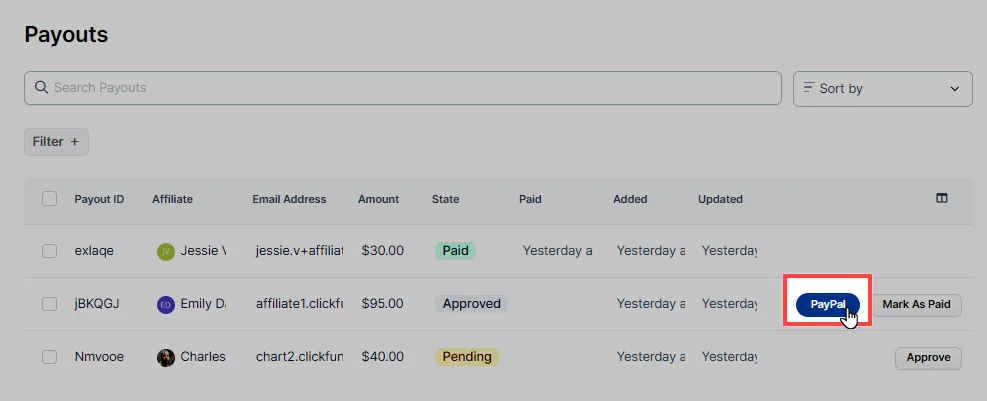
When both your business PayPal email and the affiliate’s PayPal email are set up, a PayPal icon will appear next to the affiliate’s profile under the Payouts tab.
-
To process the payment, click the PayPal button next to the affiliate’s name. Once you click the PayPal button, you’ll be redirected to PayPal’s payment gateway widget to complete the transaction. Be sure to review the payment details carefully before confirming.
-
Export Data
Section titled “Export Data”You can export commission data as a CSV file for record-keeping or external payment processing. This file includes all the necessary details to process payments outside of ClickFunnels. To export commission data, follow the steps below:
-
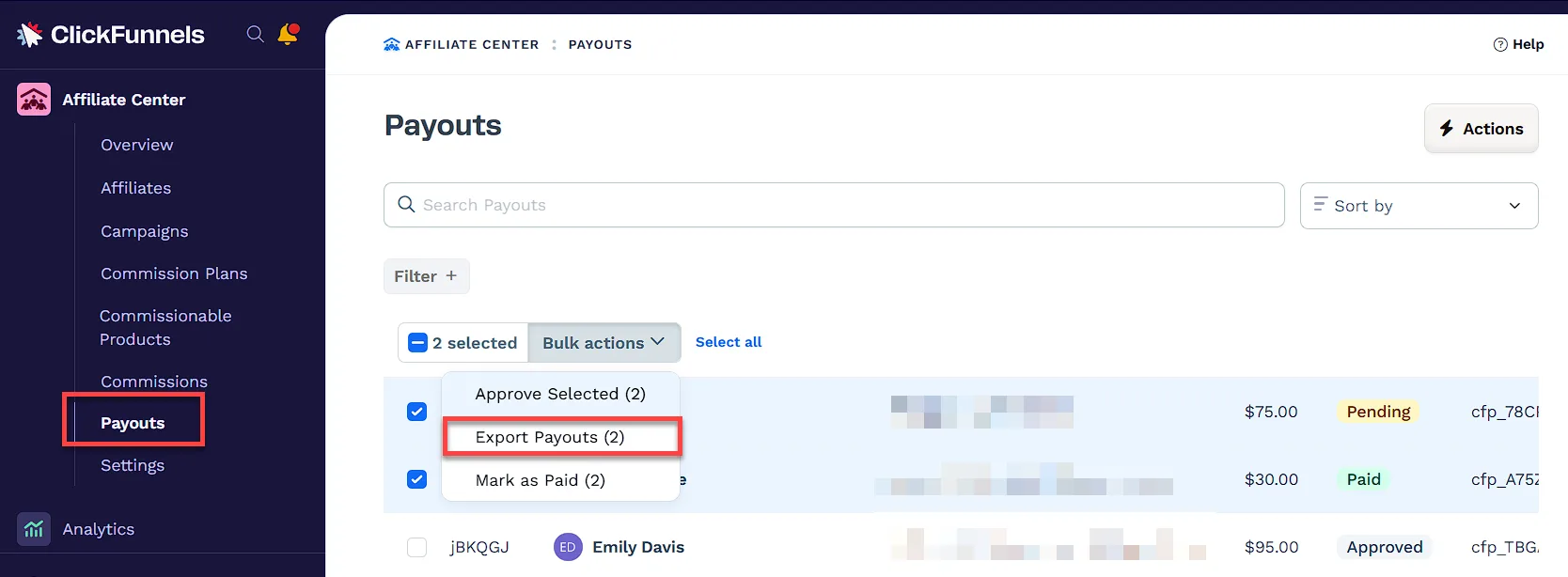
In the Affiliate Center app, go to the Payouts tab.
-
Select the commissions you want to pay out.
-
Click Export Payouts.
-
In the widget that appears, choose the fields to include in the CSV file and click Perform Export Action.
-
A notification will appear in the top-right corner of the page stating, “Export Action was Successfully Created.”
-
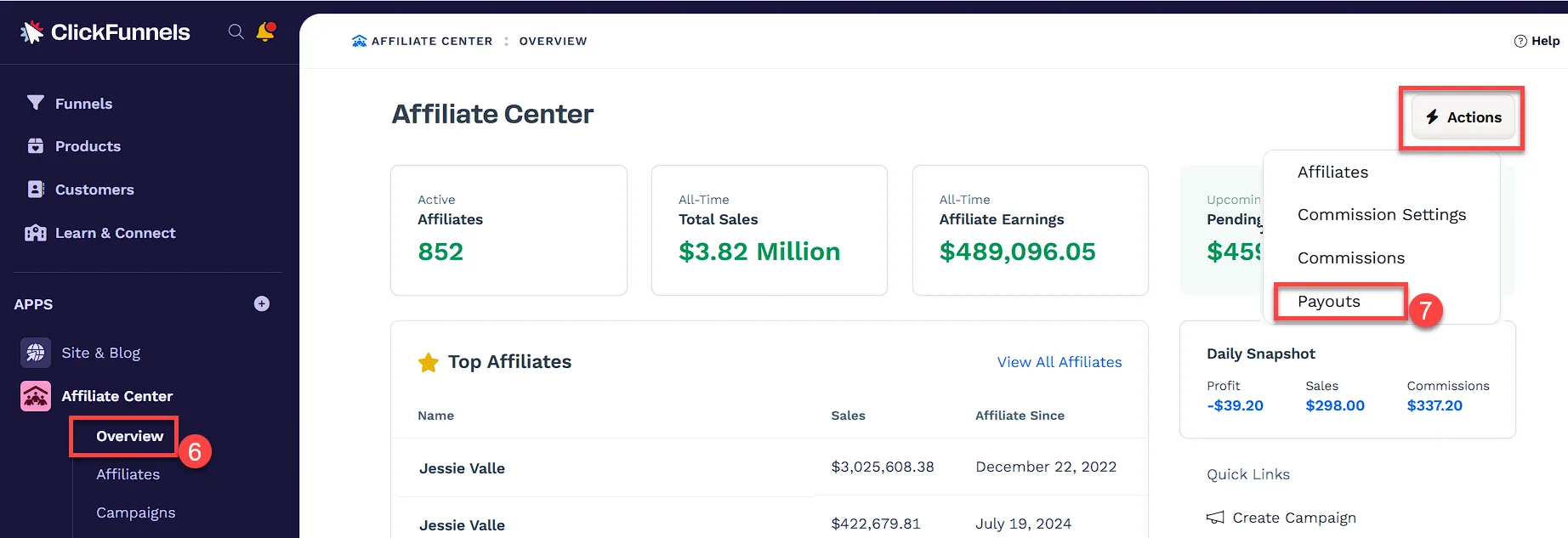
Go to the Overview tab to access the exported file.
-
Click the Actions tab and select Payouts.
-
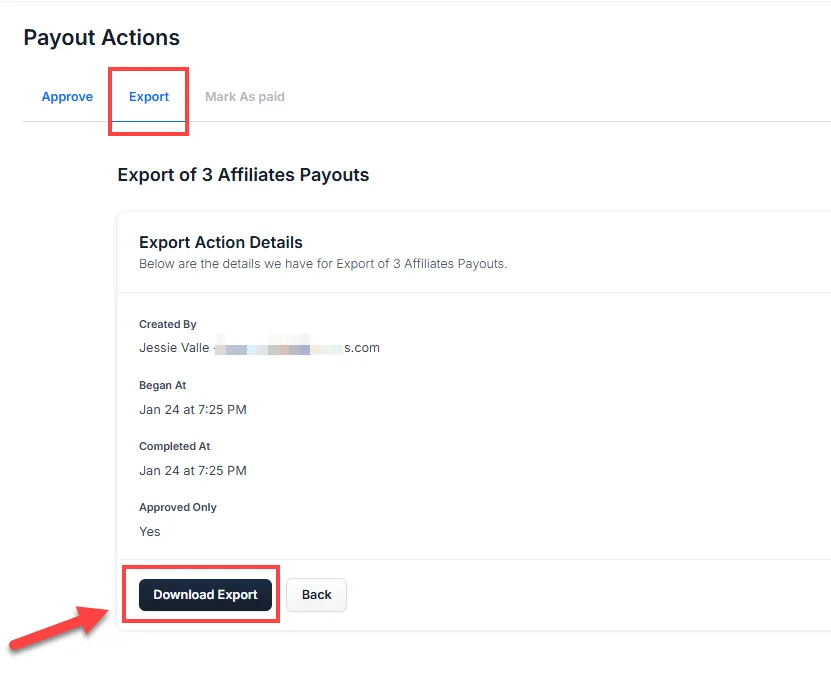
Open the Export tab.
-
From the list, locate the export you want to download and click Details.
-
Click Download Export to save the CSV file to your device.
Preparing Payouts for Individual Affiliates
Section titled “Preparing Payouts for Individual Affiliates”In addition to preparing payouts globally from the Overview tab, you can also handle payouts on an individual affiliate basis.
-
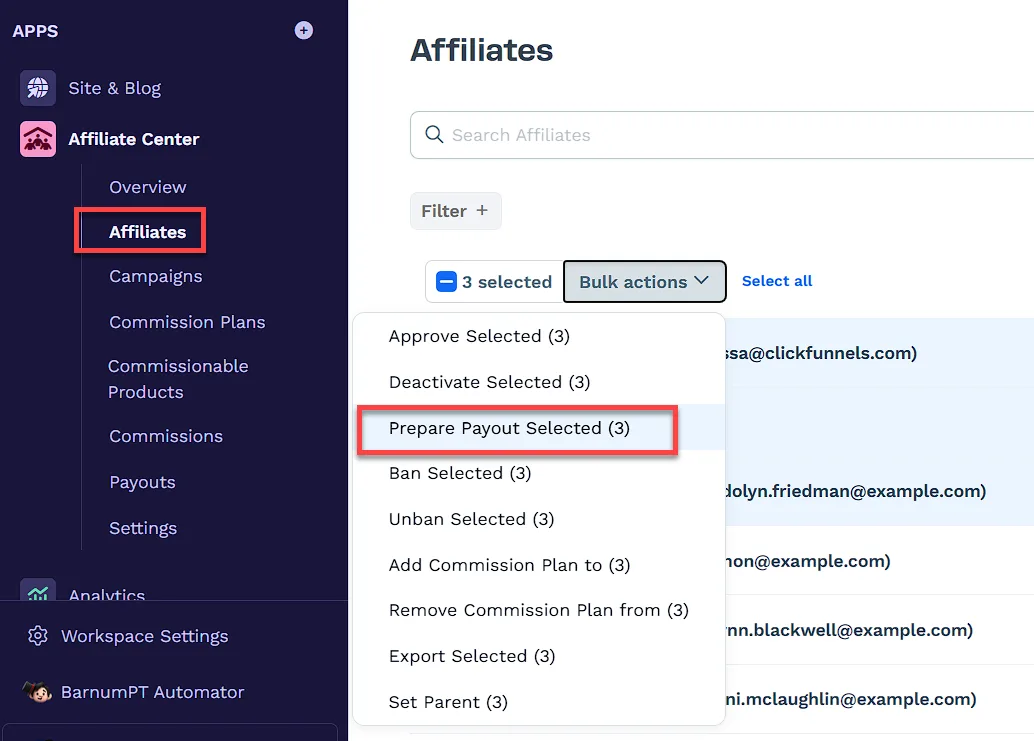
In the Affiliate Center app, go to the Affiliates tab.
-
Select the affiliate(s) whose payouts you wish to manage.
-
Click on Prepare Payout Selected in the Actions menu.
If the selected affiliates have earned commissions past the 30-day cool-off period, their commissions will now appear in the Payouts tab. You can then follow the above steps to approve and mark commissions as paid or pay via PayPal.