
Getting Started with ClickFunnels AI (Beta)
Published: Updated:
ClickFunnels AI is your built-in funnel-building assistant. Describe your business and what you want to achieve, and it researches your market, designs your pages, writes your copy, generates images, and builds a complete funnel for you, all from a simple conversation.
Why use ClickFunnels AI?
Section titled “Why use ClickFunnels AI?”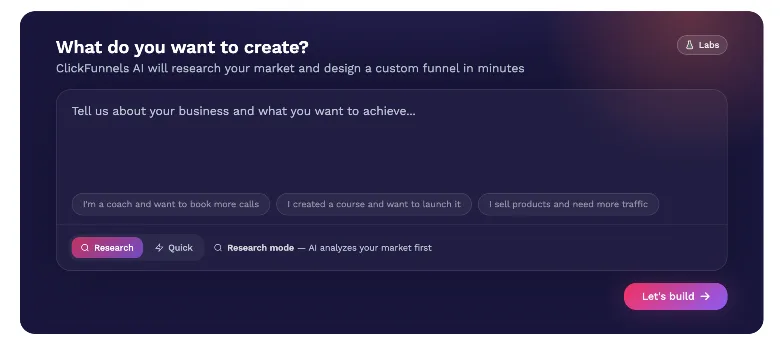
-
Get started faster. Skip the blank page. Instead of hunting through templates or figuring out how every page should look, you get a complete, designed funnel as a starting point in minutes.
-
Built-in market research. With Research mode, the AI studies your niche before it builds, surfacing market trends, what’s working in your space, and who your ideal customer really is (their goals, pain points, and objections).
-
Smart suggestions as you build. ClickFunnels AI recommends the right funnel type for your goal, offers design inspiration from comparable brands, and guides you step by step so you’re never guessing.
-
Works the way you do. Refine anything just by asking, mix in your own manual edits, and let the AI build on top of them as well. It works with new or existing funnels, anytime, so you can start from scratch or bring it into a funnel you’ve already built.
-
More than just copy. It designs pages, writes persuasive copy, and even generates images for you.
The result: you’re on your feet faster, with a professional funnel built around your business, not a generic template.
Who can use ClickFunnels AI?
Section titled “Who can use ClickFunnels AI?”Access works at two levels: your team turns ClickFunnels AI on, and a team admin chooses which members can use it.
| Role | Access |
|---|---|
| Team admins | Have access automatically once the team enables ClickFunnels AI. |
| Team members | Can be given access by a team admin (the AI User role). |
| Everyone else | Your team manages access. Check with your team admin. |
Step 1: Turn on ClickFunnels AI for your team (Admins)
Section titled “Step 1: Turn on ClickFunnels AI for your team (Admins)”ClickFunnels AI is off until a team admin opts in.
From your dashboard:
-
Open your workspace dashboard.
-
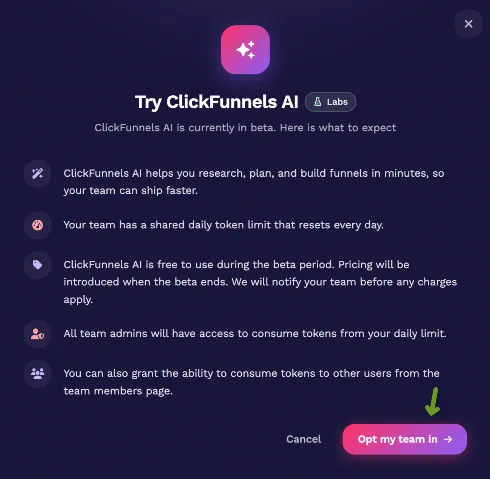
You’ll see a ClickFunnels AI beta invitation with a Labs badge. Click Learn More to see what it’s about.
-
Choose to opt in. ClickFunnels AI activates, and the AI assistant appears on your dashboard.
Or from Team Settings:
-
Go to Team Settings.
-
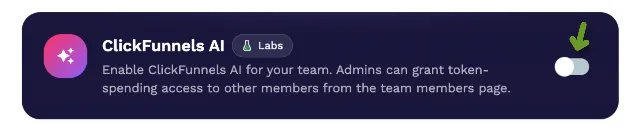
Find the ClickFunnels AI panel.
-
Toggle the switch on. The change saves immediately.
Step 2: Give team members access (Admins)
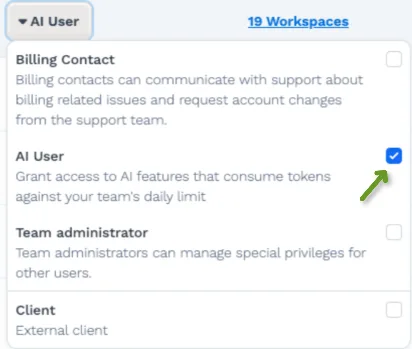
Section titled “Step 2: Give team members access (Admins)”Team admins already have access. To let other team members use ClickFunnels AI, grant them the AI User role:
-
Go to your Team members list.
-
Open the member you’d like to give access to.
-
Enable the AI User role.
-
Save.
That member will now see the ClickFunnels AI assistant on the dashboard and the AI icon inside the funnel builder.
Step 3: Build a funnel with ClickFunnels AI
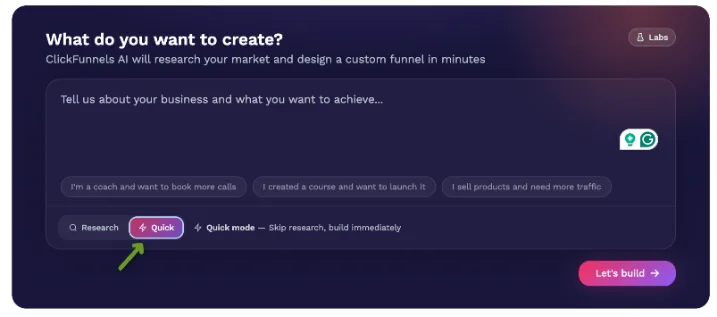
Section titled “Step 3: Build a funnel with ClickFunnels AI”From your dashboard, ClickFunnels AI is ready to go. It asks about your business and what you want to achieve, with examples to get you started, like “I’m a coach, and I want to book more calls.”
Quick mode
Section titled “Quick mode”The fastest way to build:
-
Describe your funnel in the box.
-
You’ll land in the funnel builder with the AI sidebar open.
-
The sidebar asks a couple of quick questions, then starts building your funnel: fully designed pages, with copy, ready to edit.
Research mode
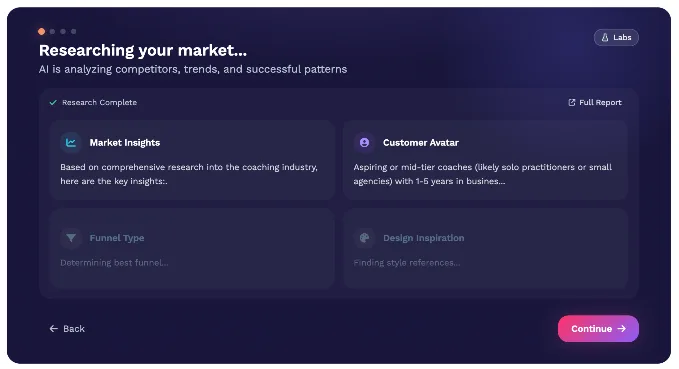
Section titled “Research mode”Prefer the AI to study your market before building? Switch the toggle to Research. ClickFunnels AI will:
-
Research your market live: trends, what’s working in your space, and your ideal customer (with their goals, pain points, and objections).
-
Recommend the best funnel type for your goal, and explain why. You can accept it or choose a different one.
-
Suggest design inspiration from comparable brands. Pick the style you like.
-
Build your complete funnel by clicking Generate. You’ll land right in the builder with the AI sidebar open and your pages already generating.
Refine anything by just asking
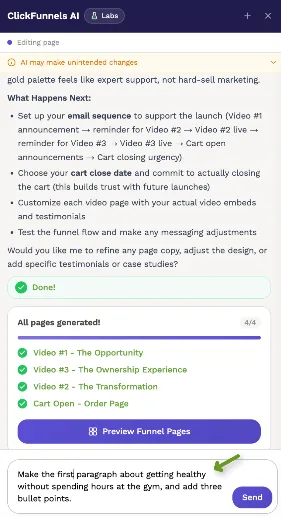
Section titled “Refine anything by just asking”Once your funnel is built, keep shaping it from the AI sidebar. For example:
-
“Make this paragraph about getting healthy without spending hours at the gym, and add three bullet points.”
-
“Add an image of someone working out.” (Yes, it generates images for you.)
-
“Add an About Me section using these credentials.”
-
“Add a footer.”
Share your funnel preview
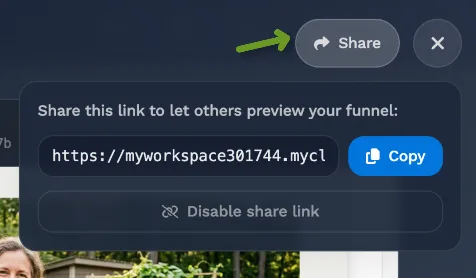
Section titled “Share your funnel preview”Click Preview to see your pages exactly as visitors will. You can also create a share link and send a preview to anyone for a quick look, no account needed on their end.
Usage during beta
Section titled “Usage during beta”Because ClickFunnels AI is in beta, each team has a usage allowance for AI activity. You don’t need to track anything yourself. The AI sidebar shows your usage as you go:
-
Approaching your limit: a usage meter and a heads-up notice appear in the sidebar. You can keep working.
-
Limit reached: the assistant pauses new requests and lets you know. Anything already generating finishes normally.
Your allowance refreshes on a regular cycle, so you can pick right back up.
Frequently asked questions
Section titled “Frequently asked questions”Do I need to know how to design or write copy?
Section titled “Do I need to know how to design or write copy?”No. ClickFunnels AI designs the pages, writes the copy, and can even generate images. You guide it by telling it what you want.
Can I edit what the AI builds?
Section titled “Can I edit what the AI builds?”Yes. Everything it creates is a normal ClickFunnels funnel. Edit it by hand, with the AI, or both. Your changes persist, and the AI builds on top of them. You can restore previous versions of the funnel.
Can I use it on a funnel I already built?
Section titled “Can I use it on a funnel I already built?”Yes. ClickFunnels AI works with new or existing funnels at any time. Just tell it about your business and ask it to make changes.
Why don’t I see ClickFunnels AI?
Section titled “Why don’t I see ClickFunnels AI?”It may not be enabled for your team yet, or you may not have been given access. Check with your team admin. They can turn it on and grant access in a couple of clicks (Steps 1 and 2). If you were just granted access, refresh the page.
Can I share a preview of the funnel the AI built?
Section titled “Can I share a preview of the funnel the AI built?”Yes! Use Preview and grab a share link to send the preview to anyone. Want them to import it into their own account? Create a share link from the funnel settings, same as any other funnel.
What happens if I reach my usage limit?
Section titled “What happens if I reach my usage limit?”New requests pause, and you’ll see a notice in the sidebar. Your allowance refreshes on a regular cycle (trial accounts can activate a subscription to continue). Please reach out to ClickFunnels Support for any questions.
ClickFunnels AI is a Labs (Beta) feature and is being actively improved.