
How to Manage Product Access (Purchase Actions)
Published: Updated:
A product’s Access tab (previously called Purchase Actions) sets what buyers unlock automatically when they purchase the product. By granting access in the product, ClickFunnels removes the need to deliver digital files or course and community access by hand.
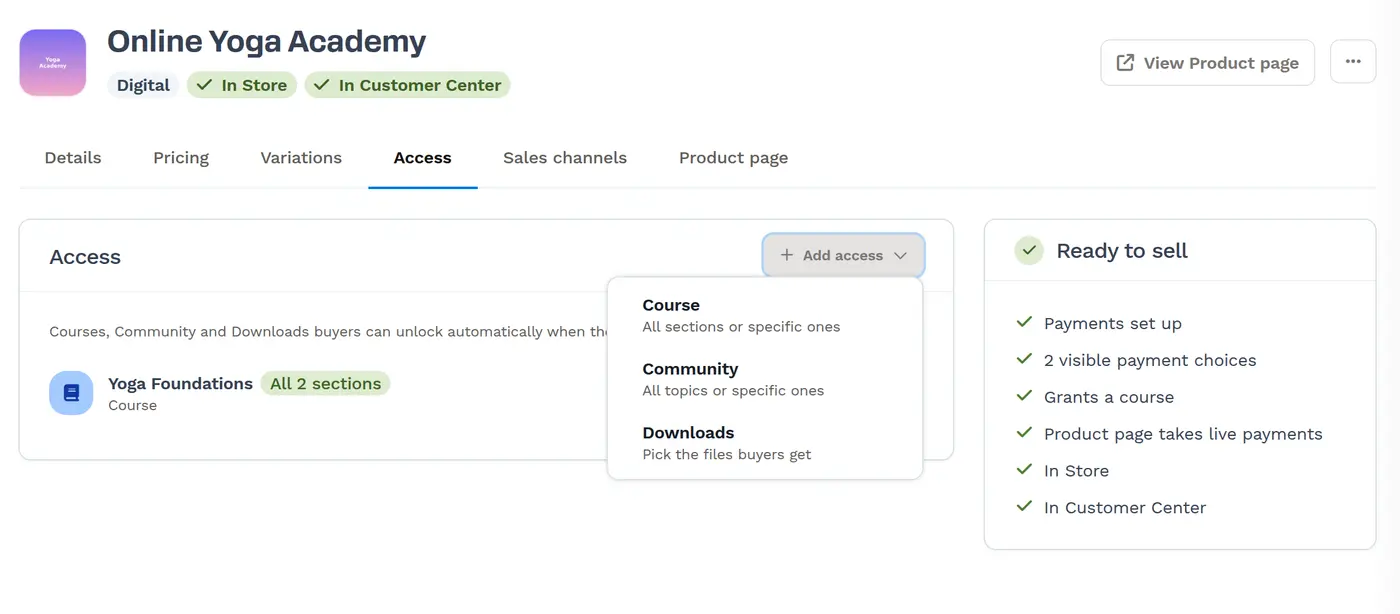
You can grant buyers access to courses (all sections or specific ones), community groups (all topics or specific ones) and downloads (digital asset files). This article explains how to set up access for a product and for individual variants.
Requirements
Section titled “Requirements”-
An active ClickFunnels account
-
An existing course, digital asset, or community in the workspace, with the Courses or Community app installed if you grant those
Opening the Access Tab
Section titled “Opening the Access Tab”-
Navigate to Products in the side navigation menu.
-
Select All Products.

-
Click the product you want to edit. The product editor opens on the Details tab.
-
Click the Access tab.
Adding Access
Section titled “Adding Access”Access added on the Access tab applies to the whole product, including every variant.
-
On the Access tab, click Add access and choose what to grant:
-
Course: All sections or specific ones. To learn more about courses, refer to the Getting Started with Courses article.
-
Community: All topics or specific ones. To learn more about setting up your community, check our Getting Started with Community article.
-
Downloads: Pick the files buyers get. To learn more about digital assets, refer to the How to Upload and Manage Digital Assets article.
-
-
In the dialog that opens (Course access, Community access or Downloads), check the courses and sections, community groups and topics, or files that buyers will get.
-
Click Save Access.
The access you added is listed on the Access tab, and the product’s Ready to sell panel shows what the product grants (for example, “Grants a course”).
Adding Extra Access to a Single Variant
Section titled “Adding Extra Access to a Single Variant”If a product has variants, you can make one variant grant more than the rest. Variant access is always added to the product’s access; it never removes it.
-
Open the product’s Variations tab.
-
Click the variant’s name to open its settings.
-
In the Additional access section, click Add access and choose Course, Community or Downloads.
-
Check what this variant’s buyers get and click Save Access. Access the variant inherits From default product settings stays checked and is labeled Inherited; what you add is listed under Added for this variant.
Changes in Additional access save right away. On the Access tab, ClickFunnels lists the variants that add more access, with a link to each. Learn more in How to Manage Product Variants.
Changing Existing Access
Section titled “Changing Existing Access”-
On the Access tab, find the course or community you want to change.
-
Click Choose sections (for a course) or Choose topics (for a community).
-
Check or uncheck sections or topics as needed, then click Save Access.
To change which files a product delivers, click Add access > Downloads and update the checked files.
Removing Access
Section titled “Removing Access”-
On the Access tab, find the course, community or download you want to remove.
-
Click the remove icon next to it.
-
Confirm the removal. Future purchases won’t include it. Customers who already bought it keep their access.