
Managing Your ClickFunnels Subscription Plan
Published: Updated:
Managing your ClickFunnels subscription is quick and easy. You can do it through the Customer Center. Whether upgrading, downgrading, or canceling your plan, everything is accessible through your workspace settings. In this article, you’ll learn how to access your billing details and manage your ClickFunnels subscriptions effectively.
Requirements
Section titled “Requirements”- An active ClickFunnels subscription
Accessing Your ClickFunnels Subscriptions
Section titled “Accessing Your ClickFunnels Subscriptions”-
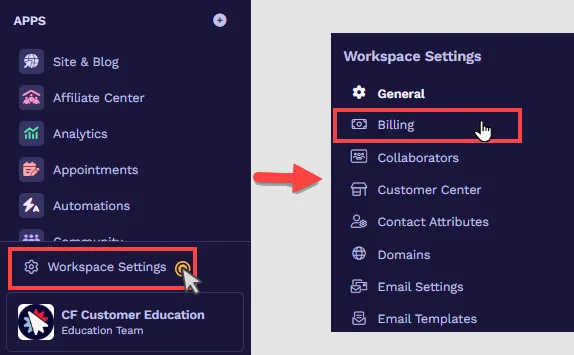
From your ClickFunnels dashboard, navigate to the Workspace Settings.
-
Click on the Billing menu.
-
A new tab will open, directing you to the Customer Center.
-
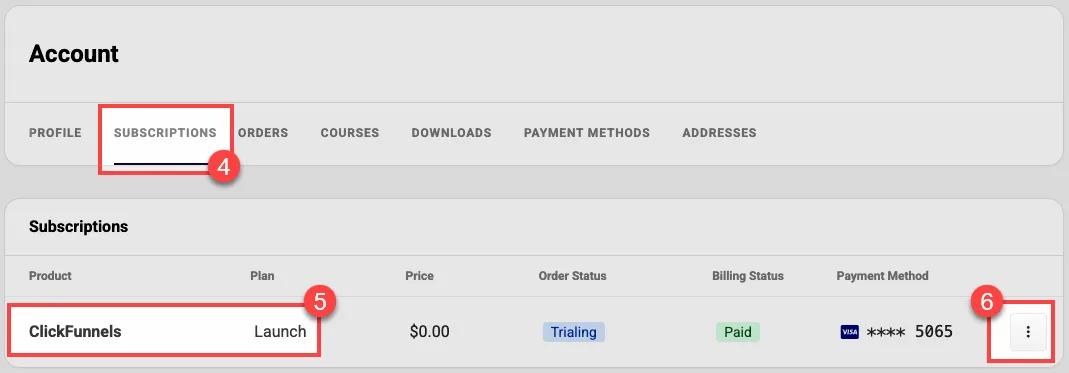
Navigate to the Subscriptions tab.
-
Locate the product name “ClickFunnels” for the subscription you want to manage.
-
Click the Three-Dot (Ellipsis) icon next to the product to access and manage the subscription.
Viewing Your Existing Subscription
Section titled “Viewing Your Existing Subscription”-
Navigate to the Subscriptions menu in your customer center.
-
Locate the product name “ClickFunnels” for the subscription you wish to access.
-
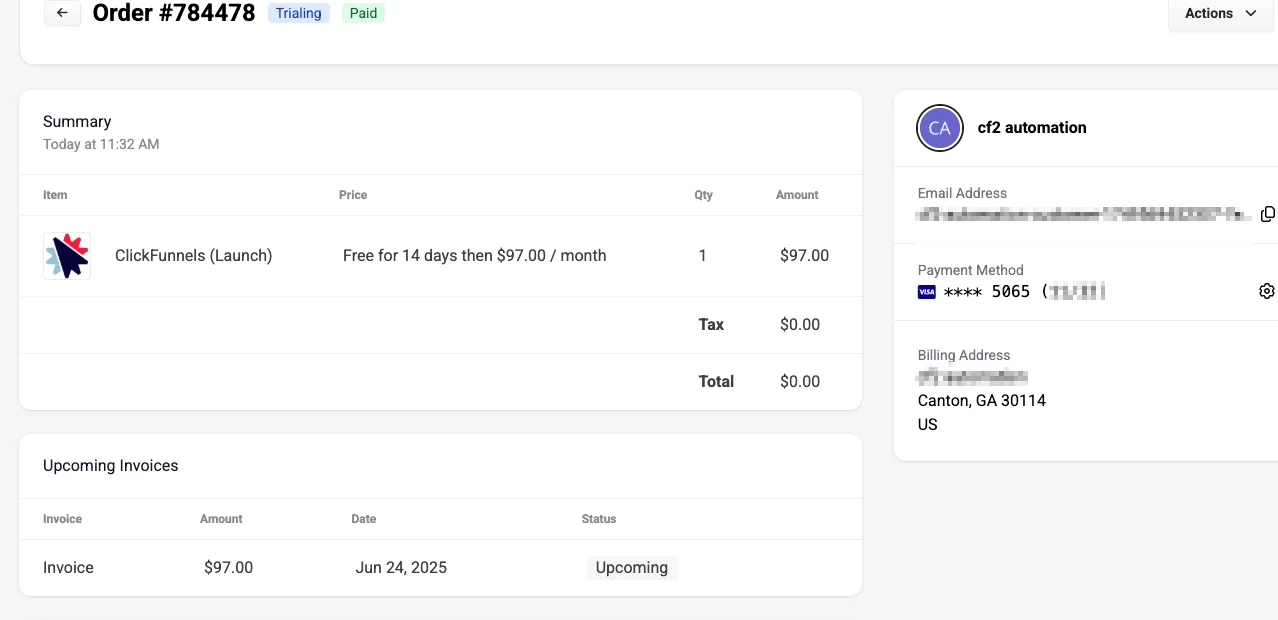
Click the Three-Dot (Ellipsis) icon next to the product and select View Subscription from the dropdown to view the order details.
-
Review the subscription details, including:
-
Summary: Displays itemized details of your subscription, such as pricing and quantity.
-
Upcoming Invoices: View and prepare for future charges.
-
Due Invoices: Review any invoices that are due for payment.
-
Paid Invoices: Access and download past payment records.
-
Transactions: Review the charges made for your subscription.
-
Email Address: Verify the email address on your account.
-
Autopay Method: Update the card or payment details associated with your subscription.
-
Actions:
-
Manage Subscription: Opens the management interface to upgrade, downgrade, or cancel your subscription (refer to the “Managing Your Existing Subscription” section for detailed instructions).
-
Activate Subscription: If you are on a trial period, this option allows you to end the trial and begin your paid subscription immediately. Review the upcoming invoice and click Activate and Pay to confirm.
-
-
Managing Your Existing Subscription
Section titled “Managing Your Existing Subscription”-
Navigate to the Subscriptions menu in your customer center.
-
Locate the product name “ClickFunnels” for the subscription you wish to manage.
-
To manage your ClickFunnels subscription, click the Three-Dot (Ellipsis) icon next to the product and select Manage Subscription from the dropdown.
-
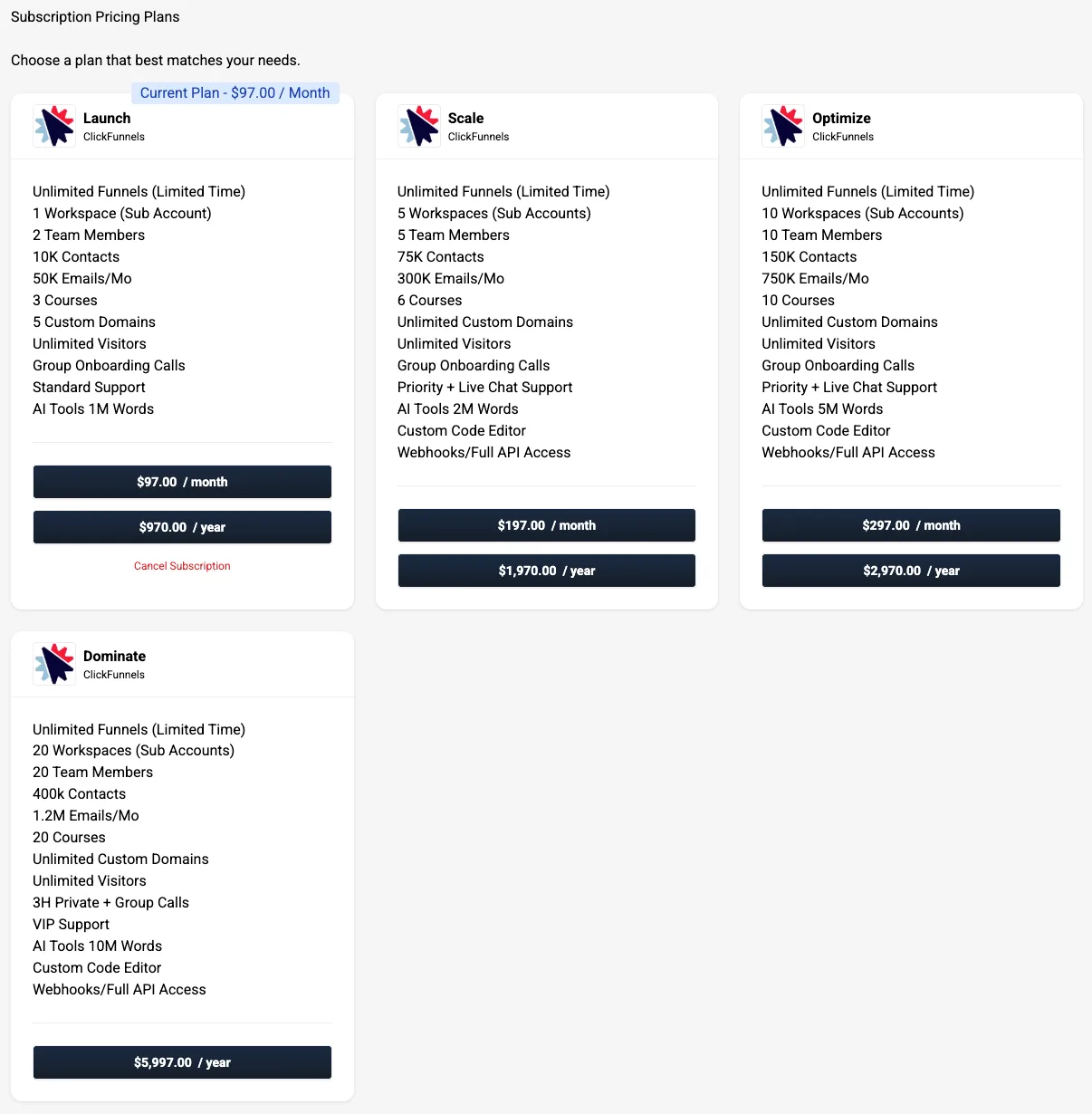
Once on the Manage Subscription page, explore the following options:
-
Upgrade: Switch to a higher-tier plan to access additional features.
-
Downgrade: Change to a lower-tier plan to reduce costs.
-
Cancel: End your subscription based on your account plan’s cancellation policies. For detailed instructions, refer to the Billing : Cancel a ClickFunnels Account article.
-