
Creating and Managing Community Posts
Published: Updated:
Creating and managing posts is a key part of keeping your ClickFunnels community active, engaged, and thriving. Community posts allow you to communicate directly with your members, share valuable content, and encourage discussions that foster deeper connections within your community. For businesses, this not only helps build a loyal following but also turns your community into a dynamic space where members interact with your brand, ask questions, and share their experiences—strengthening customer relationships and driving long-term success. This article will show you how to create posts, add multimedia, and interact with content.

Requirements
Section titled “Requirements”-
An active ClickFunnels account
Creating a Community Post
Section titled “Creating a Community Post”-
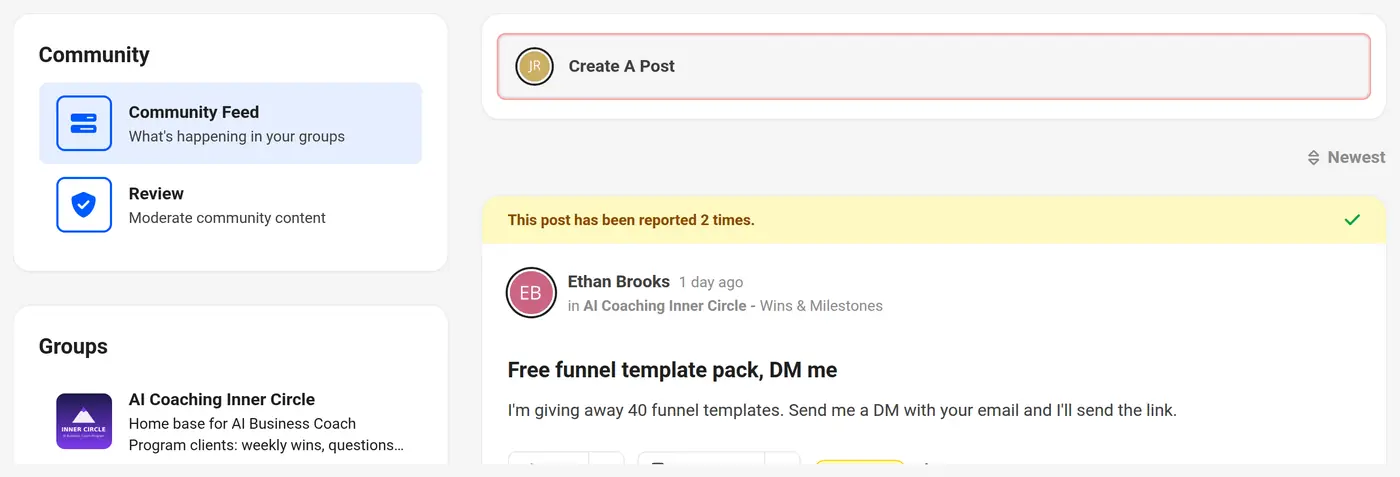
Go to the main Community Feed, or to the Group or Topic where you want to create a post.
-
Click Create A Post.
-
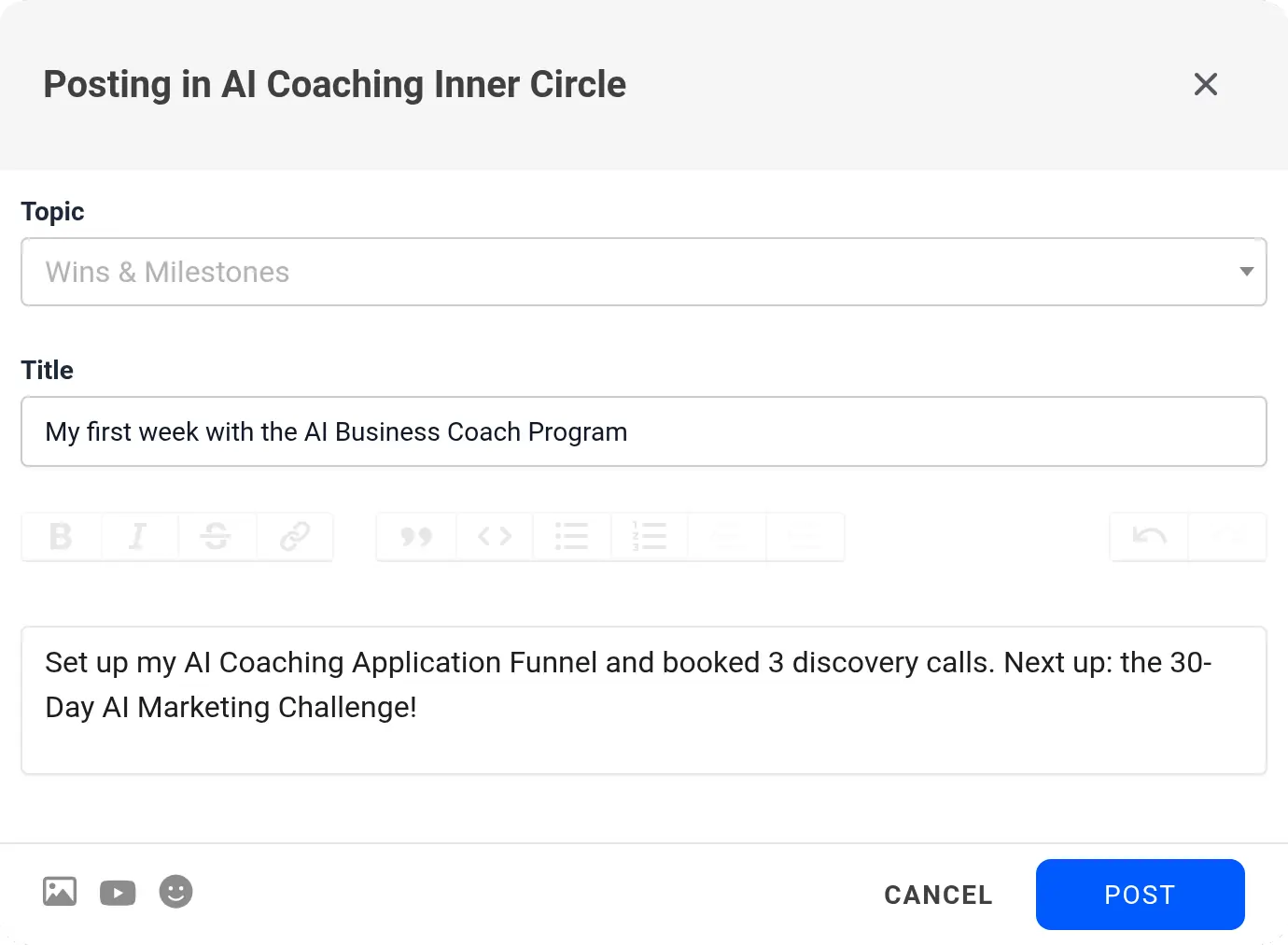
If you started from the main feed, select the Group you want to post in.
-
If you aren’t already in a Topic, choose a specific Topic within the group.
-
Enter a Title for your post.
-
Write your post in the content box, using options to format text like bold, italics, or bullet points.
-
Add multimedia such as images, videos, or emoji by clicking the icons below the text box. See Adding Multimedia for details.
-
When you’re ready, click Post to publish.
Managing Your Post
Section titled “Managing Your Post”-
Navigate to the post you want to edit or delete.
-
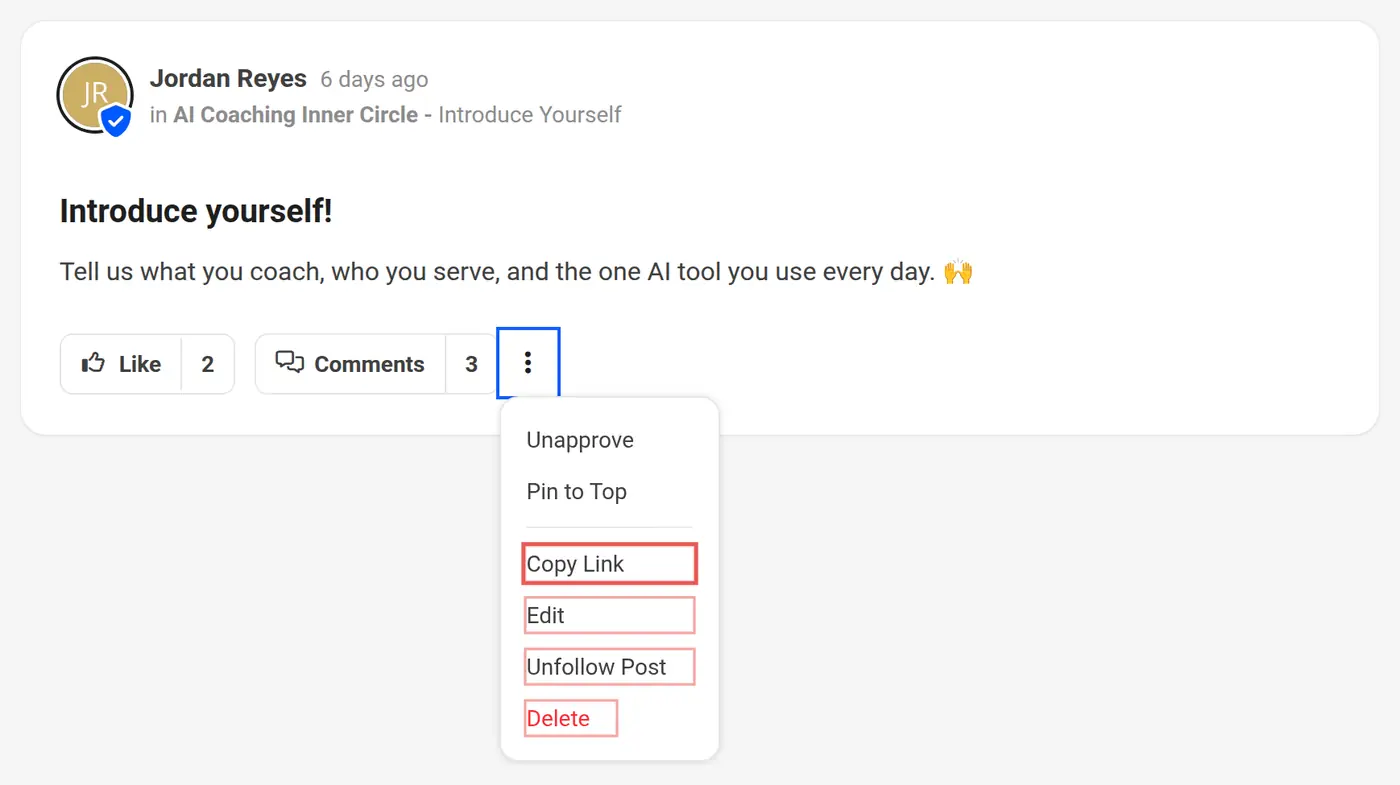
Click the three-dot ⋮ icon below your post.
-
Choose one of the following actions:
-
Copy Link: Copy the post’s URL.
-
Edit: Make changes to your post and click Update.
-
Follow Post / Unfollow Post: Start or stop receiving notifications for the post.
-
Delete: Permanently remove your post.
-
Adding Multimedia
Section titled “Adding Multimedia”You can add images or videos when you create a post, or later by editing it:
-
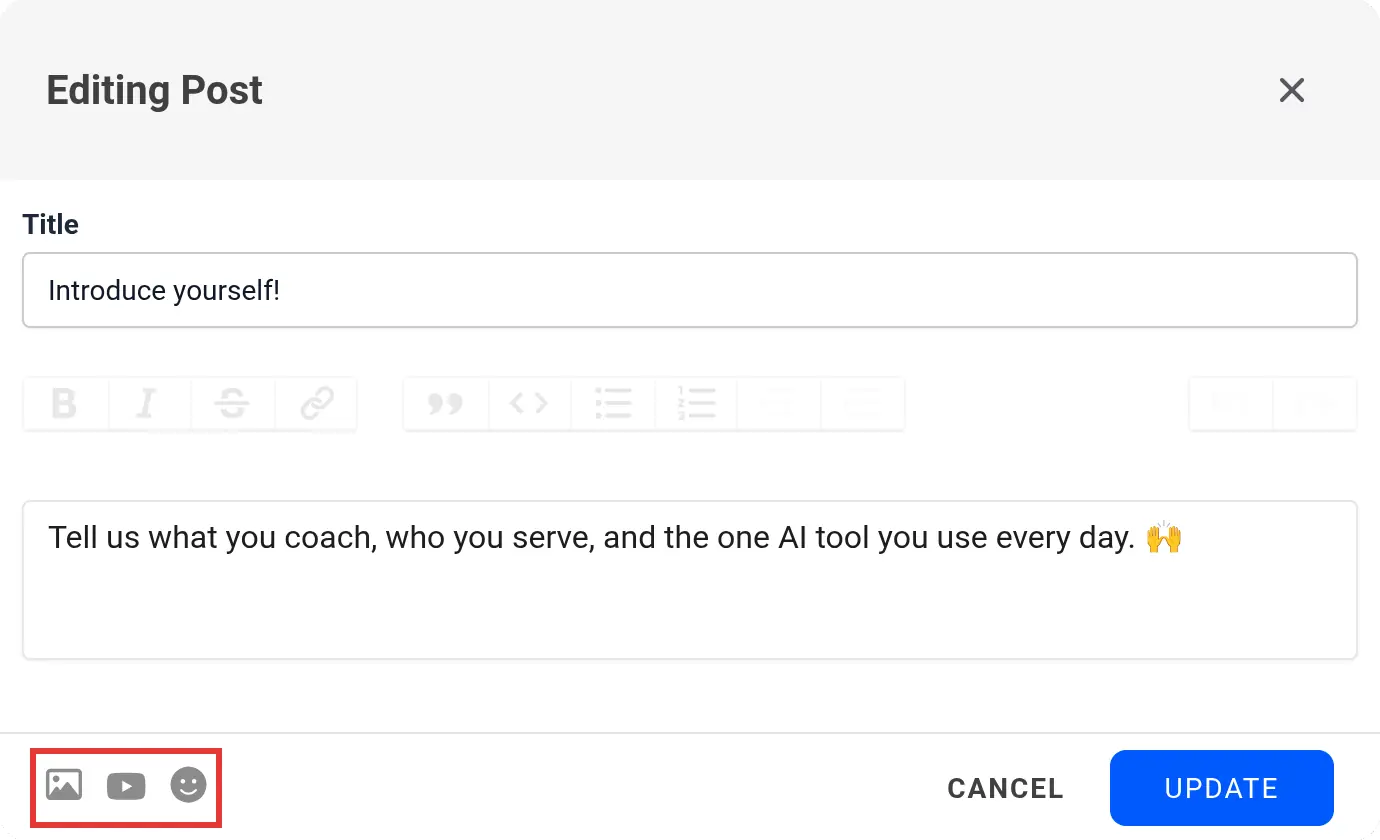
To add media to an existing post, click Edit in the three-dot ⋮ icon of your post.
-
Below the text box, click the Add Images icon to upload photos from your computer.
-
For multiple images, upload all images at once to display them in a grid layout. A post can have up to 10 images. Each image must be a JPEG, PNG, GIF, or WEBP file under 10 MB.
-
To add a video, click the Add Videos icon, paste the YouTube, Voomly, Loom or Vimeo URL in the Video URL field, and click Add Video.
-
Once you’re done, click Post (for a new post) or Update (for an existing post) to save your post.
Interacting with Posts
Section titled “Interacting with Posts”As a community member, you can interact with posts created by others.
-
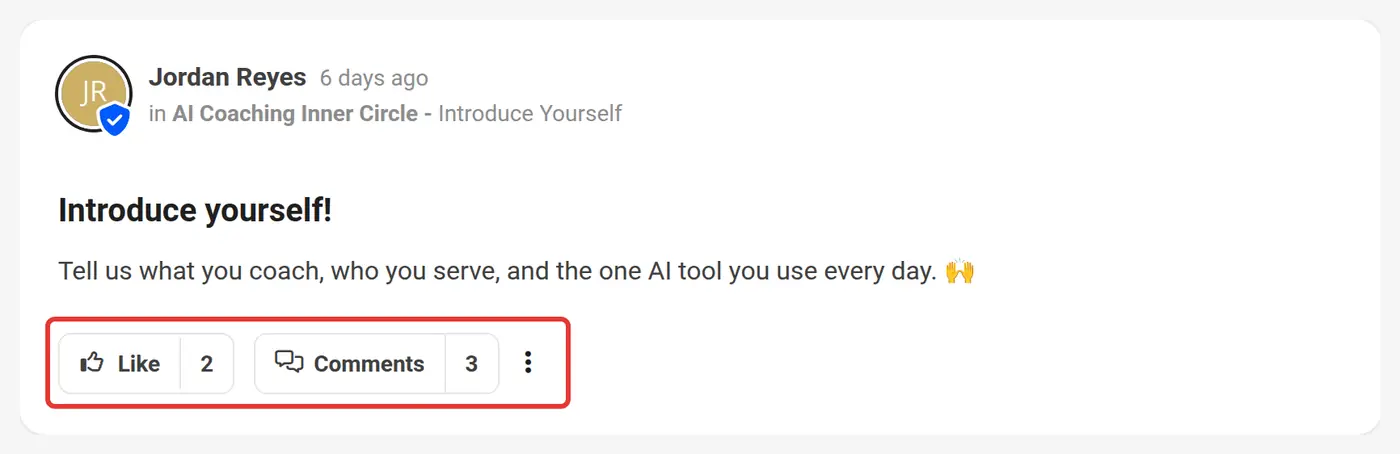
To Like a post, click the Like button below the content.
-
To Comment, click the Comments button and write your response. You can also add images (up to 5 per comment, using the Insert Images icon) and emoji to your comment.
-
To reply to a comment, click Reply below the comment.
-
To view all Likes on a post, hover over the Like count to see who liked it.
-
If you find any inappropriate content in another member’s post, you can Report the Post by clicking the three-dot ⋮ icon and selecting Report.
-
To hide a pinned post from your feed, hover over the pin icon at the top of the post and click Hide. You can click Undo to show it again.
Following Posts
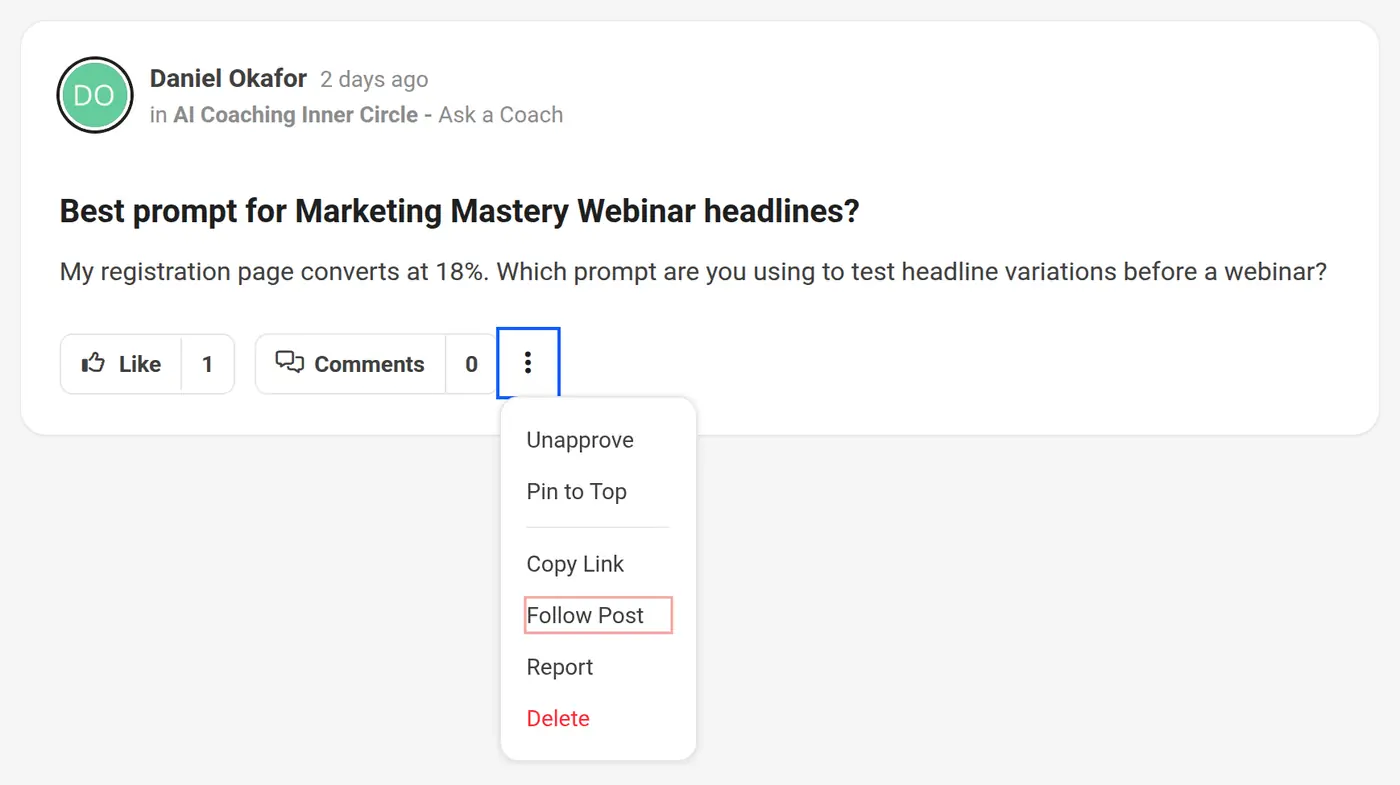
Section titled “Following Posts”Following a post allows users to stay informed about activity that matters to them. When a post is followed, the user will receive email notifications when new comments (not replies) are posted on it. Post authors are automatically marked as followers of their own posts, and members who comment on a post automatically follow it.
This feature is useful for:
-
Tracking responses to questions or feedback
-
Monitoring high-interest or team-relevant discussions
-
Staying engaged in ongoing threads without checking manually
When a post is followed, the system sends email notifications for new comments (not replies). These emails include the post title, a content preview, and a direct link to view the activity.
Real-time in-app updates are also enabled while viewing the post. New like and comment counts appear without refreshing the page.
To follow a post:
-
Locate the post in the feed or group.
-
Click the three-dot ⋮ icon.
-
Select Follow Post. This option is available on approved posts.
To unfollow a post:
-
Click the three-dot ⋮ icon on the same post.
-
Select Unfollow Post.
Sorting Community Posts
Section titled “Sorting Community Posts”You can organize posts within a community feed or inside a specific group using the Sort dropdown menu. This feature allows you to easily find the most recent content, revisit older discussions, or surface posts with high engagement.
To use the sort feature:
-
Go to the main Community Feed or a specific Group.
-
Click the Newest dropdown menu at the top right of the post list.
-
Select one of the following options:
-
Newest: Displays posts in reverse chronological order, showing the most recent posts first.
-
Oldest: Displays posts in chronological order, with the earliest posts first.
-
Most Commented: Sorts posts by the total number of comments, from most to least.
-
Most Liked: Sorts posts by the number of likes, from most to least.

-
Tagging Other Members
Section titled “Tagging Other Members”You can tag other community members in your posts or comments to notify them of a specific discussion or information.
-
Type the @ symbol followed by the member’s name.
-
Select their name from the dropdown list to tag them.
-
They will be notified that they’ve been tagged.
Notifications for Post Activity
Section titled “Notifications for Post Activity”When someone interacts with your post, you’ll be notified in real time and through the in-app notification center.
-
You will receive a notification in the bell icon at the top right of the community page.
-
Click the notification to be directed to the relevant post or comment.
-
You can mark all notifications as read, or click individual notifications to mark them as read.

Like and comment counts update in real time while viewing a post. Refreshing the page is not required.
Likes on your post don’t send an email; they appear in your notifications. Email notifications are sent for comments on posts you follow, replies to your comments, and mentions in posts or comments. Each email includes the post title, a preview, and a direct link to view activity.
Managing Notification Preferences
Section titled “Managing Notification Preferences”Users can manage how they receive email notifications for community activity by updating their settings in the My Account section.
To update your notification preferences:
Section titled “To update your notification preferences:”-
Click your profile icon in the top-right corner of the screen.
-
Select My Account from the dropdown menu.
-
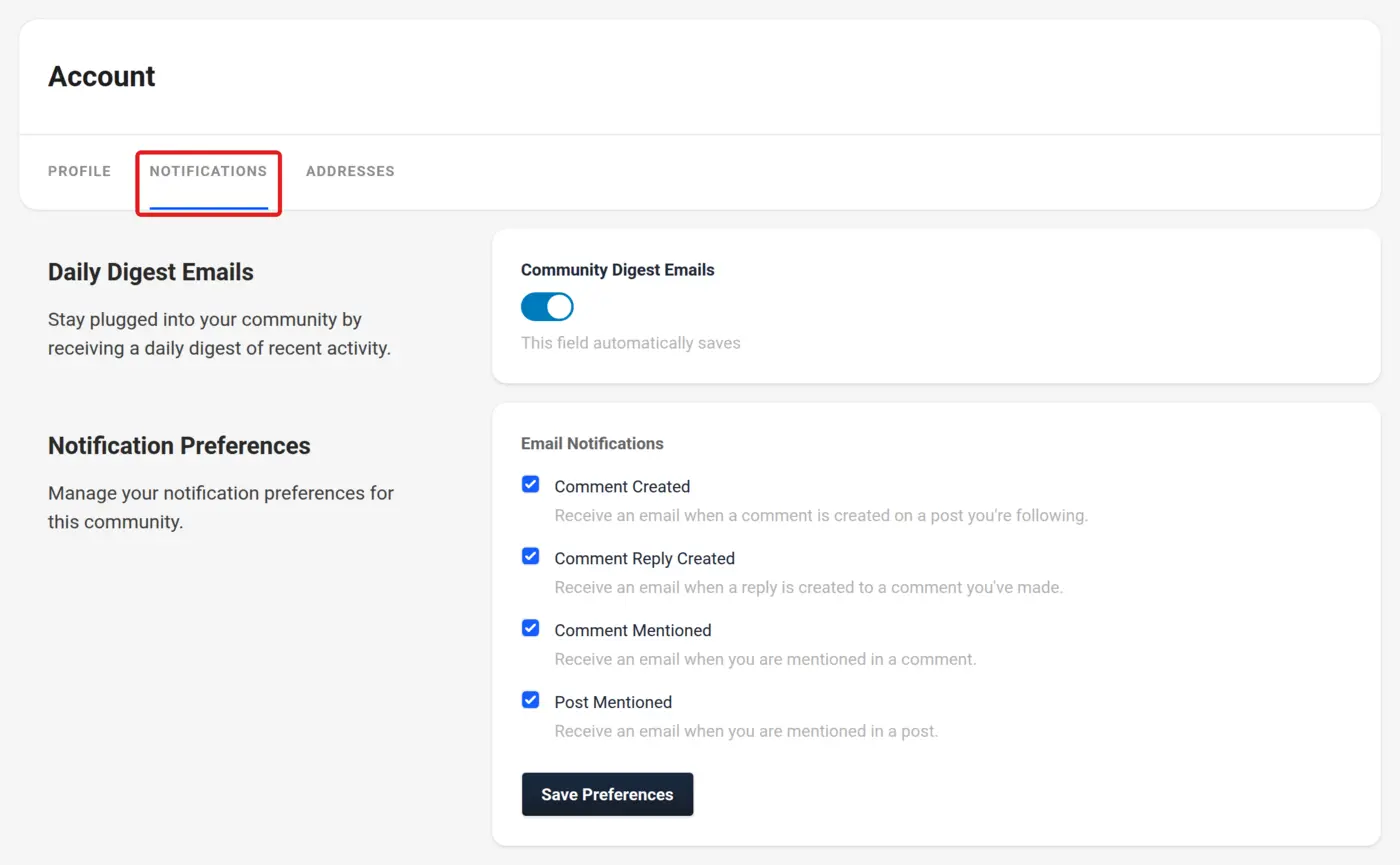
In the Account page, click the Notifications tab in the top menu.
-
Under Daily Digest Emails, you can turn Community Digest Emails on or off. This switch saves automatically. This section appears only if the community sends digest emails.
-
Under the Notification Preferences section, review the available options:
-
Comment Created: Receive an email when a comment is created on a post you’re following.
-
Comment Reply Created: Receive an email when a reply is created to a comment you’ve made.
-
Comment Mentioned: Receive an email when you are mentioned in a comment.
-
Post Mentioned: Receive an email when you are mentioned in a post.
-
-
Toggle each checkbox on or off to enable or disable specific email alerts.
-
Click Save Preferences to save your email notification choices.