MessageHub: API Chat Inbox Configuration
Published: Updated:
This article will review the API Chat Inbox Configuration. This option helps you to connect MessageHub and an unsupported App to create a Chat Inbox.
** **You must first connect Zapier to your ClickFunnels 2.0 account to accomplish this. Then, you will be able to create a Chat inbox for any app that Zapier supports.
Requirements:
Section titled “Requirements:”-
An active ClickFunnels 2.0 account
-
A Zapier account
-
Configure your Marketing Settings
-
Buy or Configure a Custom Domain
-
Add an Email Address on a Custom Domain and Set up DKIM
Connect Zapier and ClickFunnels 2.0:
Section titled “Connect Zapier and ClickFunnels 2.0:”Click here to learn how to connect Zapier and ClickFunnels 2.0
Create your API Chat Inbox:
Section titled “Create your API Chat Inbox:”-
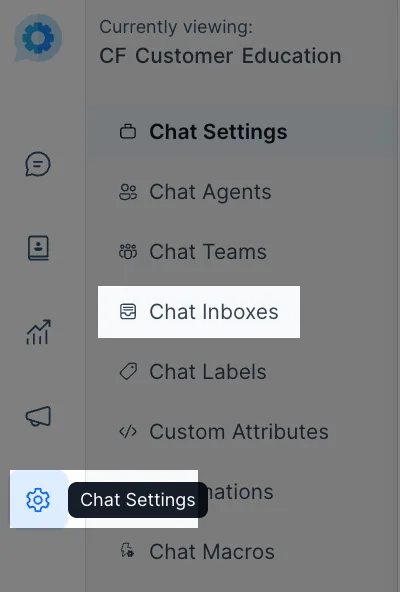
From the left side menu, click on Chat Settings, then Chat Inboxes.
-
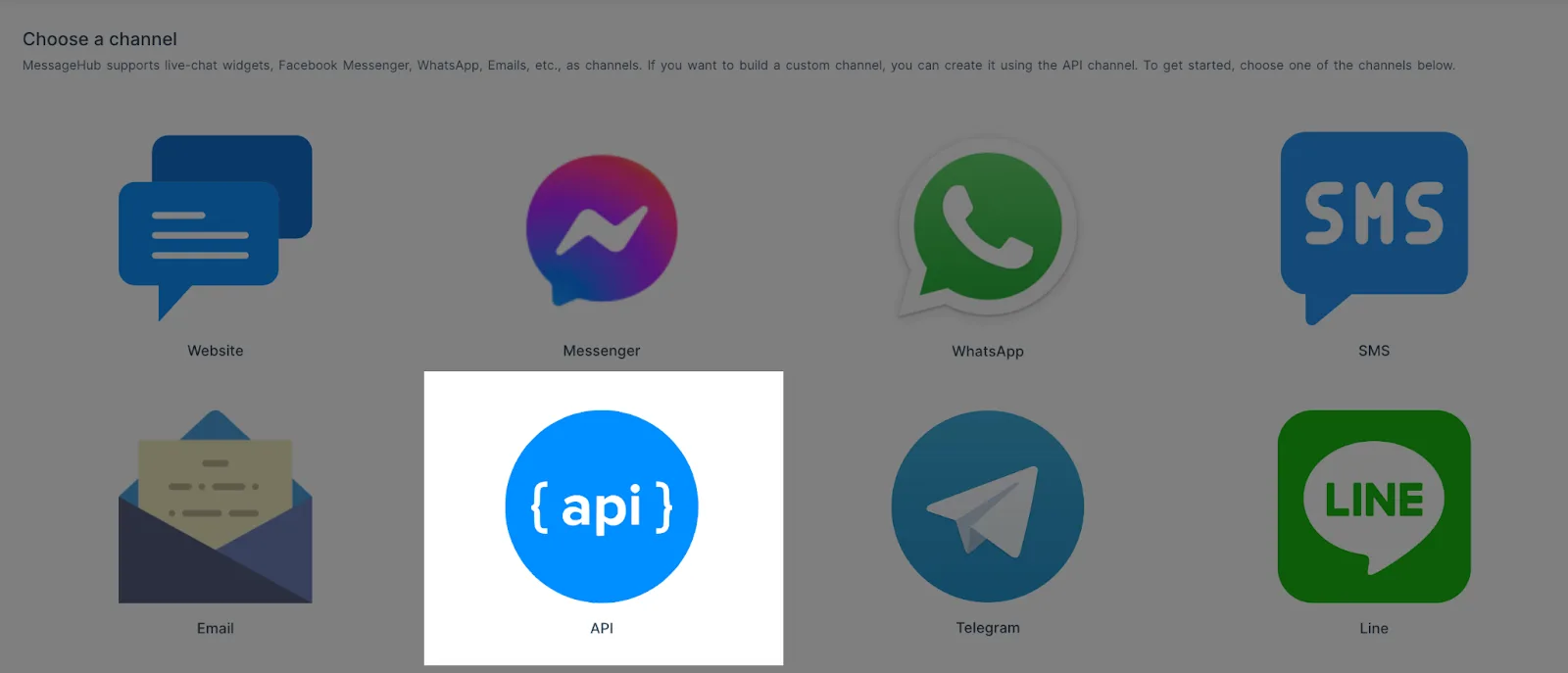
Select the API option.
-
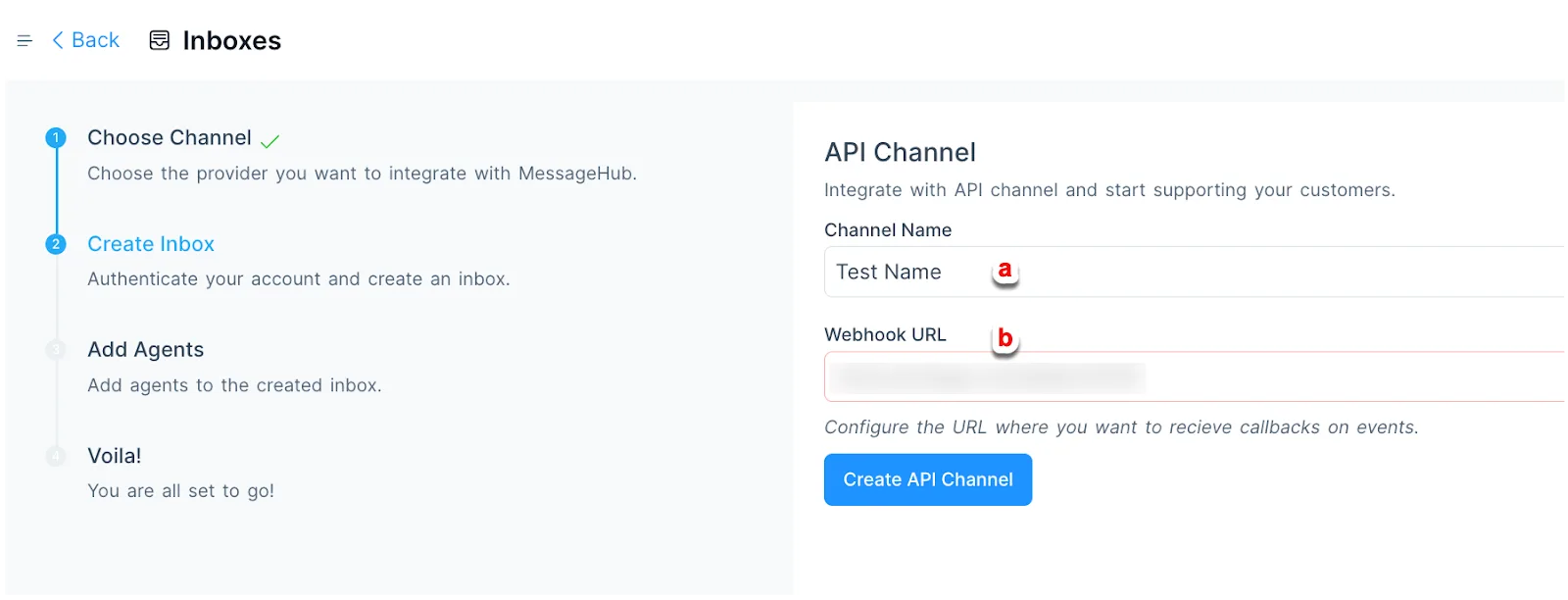
Complete this information:
-
Add a Name for your Channel.
-
Add your Webhook URL from Zapier.
-
Click here to find more information about Webhooks in Zapier.
-
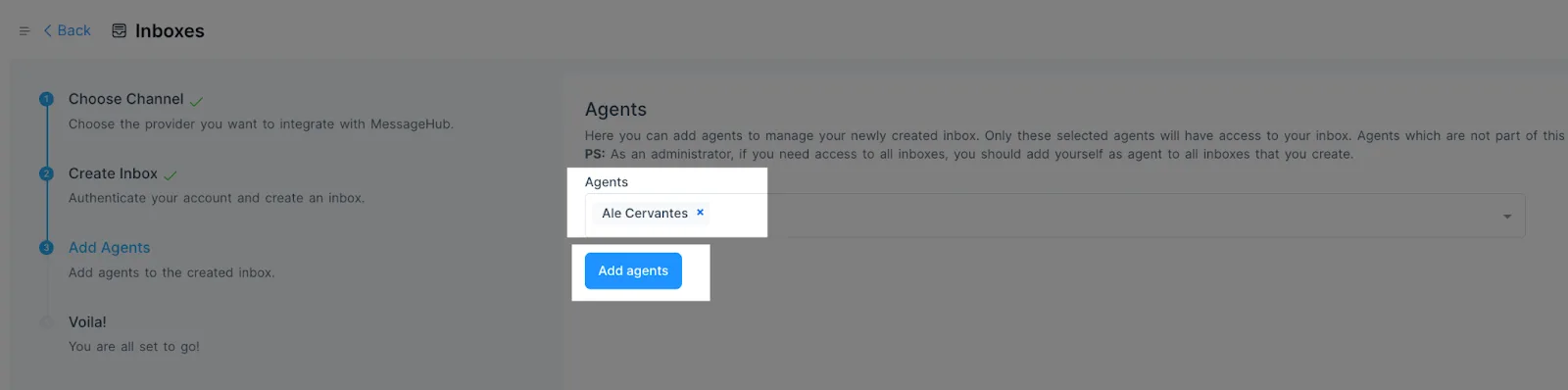
Select the Agents with access to this inbox and click on Add Agents.
-
You have successfully created your API Chat Inbox.