
Automatic Sitemap Generation for Connected Domains
Published: Updated:
ClickFunnels automatically generates sitemaps for any domains connected to your account. This functionality helps improve SEO by making it easier for search engines to discover your pages. In this article, we will explain how the automatic sitemap generation works, the types of pages included, and how to access your sitemap.
Requirements
Section titled “Requirements”-
An active ClickFunnels account
-
A domain or subdomain connected to the workspace
How Automatic Sitemap Generation Works
Section titled “How Automatic Sitemap Generation Works”ClickFunnels automatically creates a sitemap.xml file for each domain connected to your account. This file lists the URLs of all indexable pages associated with your domain, ensuring that search engines can efficiently crawl and index them.
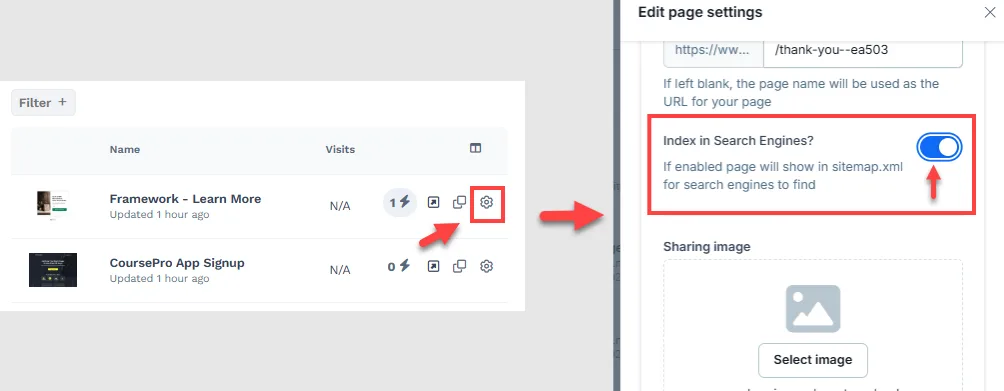
The search-engine indexing option must be toggled on in the page settings to ensure a page is included in the sitemap. This option signals search engines to include the page in their crawl and allows ClickFunnels to add it to the sitemap.
On site pages, standalone landing pages, funnel pages, and your site’s home page, this option is labeled Allow search engines and appears inside the Crawler access section of the page’s SEO & Sharing settings. On other pages — theme template pages, blog pages, and course pages — it is labeled Index in Search Engines?. Both labels control the same setting: when it is on, the page is indexable and, except for the page types below, appears in the sitemap.
There are two exceptions:
-
Theme pages are not listed in the sitemap, even when this option is on. Your domain’s home page URL is always listed.
-
Your blog, blog category, and published blog post URLs are always listed in the sitemap, regardless of this option.
Benefits of Automatic Sitemap Generation
Section titled “Benefits of Automatic Sitemap Generation”-
No Manual Effort Required: ClickFunnels eliminates the need for manual sitemap generation and hosting. The platform automatically creates and hosts the
sitemap.xmlfile for your connected domain. -
Regular Updates: The sitemap is dynamically updated whenever changes are made to your pages, such as adding new content, updating existing pages, or changing URL paths.
-
Improved SEO Efficiency: Automatic sitemap generation ensures that search engines can always access the latest structure of your site, improving crawl efficiency and indexing.
Page URLs Included In the Sitemap
Section titled “Page URLs Included In the Sitemap”The following types of page URLs are included in the automatically generated sitemap:
-
Your domain’s home page
-
Site pages
-
Blog and blog category pages
-
Store pages (active, published stores that allow search engine indexing)
-
Funnel pages
-
Published blog posts
-
Landing pages
-
Community pages (communities that are not private and allow search engine indexing)
-
Product and collection URLs (visible in the store and not archived)
How to Ensure a Page is Indexed
Section titled “How to Ensure a Page is Indexed”To ensure that pages related to the categories above are indexed in your sitemap, you can enable or disable indexing directly from the page settings. Follow these steps:
-
Locate the page you wish to edit. For example, if you have created a landing page and want it included in your sitemap, find the landing page in your list.
-
Access to the page settings.
-
In the settings panel, open SEO & Sharing and locate the search-engine indexing option — Allow search engines (inside the Crawler access section) on site pages, standalone landing pages, funnel pages, and the site home page, or Index in Search Engines? on theme, blog, and course pages.
-
Toggle this setting on to include the page in your sitemap and allow search engines to index it.
-
Toggle it off if you do not want this page indexed.
-
-
Save your changes by clicking the Update page button.
How to Access Your Sitemap
Section titled “How to Access Your Sitemap”You can view your sitemap by appending /sitemap.xml to your domain. For example:
- If your domain is
https://www.example.com, your sitemap URL will behttps://www.example.com/sitemap.xml.
To confirm the sitemap’s content, open this URL in your browser. The sitemap will display all indexed pages for your domain in XML format, which search engines use to understand your site’s structure.
ClickFunnels also generates a robots.txt file for each connected domain. This file is a key component for search engine crawlers, as it instructs them on interacting with your ClickFunnels pages. It also includes a directive pointing to the sitemap URL, making it easy for search engines to locate it automatically.
To view the robots.txt file for your domain, append /robots.txt to your domain URL. For example:
- If your domain is
https://www.example.com, yourrobots.txtfile URL will behttps://www.example.com/robots.txt.
When you access the robots.txt file in your browser, you will see a reference to your sitemap URL (e.g., Sitemap: https://www.example.com/sitemap.xml). Use this information to confirm that your sitemap is properly linked.
Controlling AI Crawlers with Crawler Access
Section titled “Controlling AI Crawlers with Crawler Access”Besides pointing crawlers to your sitemap, the robots.txt file of your connected domain also carries the Crawler access choices you make on individual pages. Crawler access is available in the SEO & Sharing settings of site pages, standalone landing pages, funnel pages, and your site’s home page, and contains four toggles:
-
Allow search engines — traditional search crawlers such as Google, Bing, and DuckDuckGo. This is the same setting that controls sitemap inclusion.
-
Allow AI training — AI companies using the page’s content to train their models (for example GPTBot, ClaudeBot, and Google-Extended).
-
Allow AI search results — AI answer engines indexing the page and citing it in answers (for example OAI-SearchBot and PerplexityBot).
-
Allow AI assistants — assistants opening the page when a person asks them to, such as pasting your link into ChatGPT (for example ChatGPT-User and Claude-User).
Every toggle is worded as an allowance, so on means the crawler is permitted. Turning one of the three AI toggles off adds Disallow rules for that page’s URLs to your domain’s robots.txt, under the user agents belonging to that category. Each category is independent: blocking AI training does not block AI search results or AI assistants.
Here is an example of a robots.txt file for a domain where one page (/pricing) has AI training turned off:
Sitemap: https://www.example.com/sitemap.xmlUser-agent: *Disallow:
User-agent: AmazonbotUser-agent: BytespiderUser-agent: CCBotUser-agent: ClaudeBotUser-agent: GPTBotUser-agent: Google-ExtendedDisallow: /pricing$Disallow: /pricing?
Each blocked path is written twice — once ending in $ and once ending in ? — so the rule matches only that exact page and the same page with a query string appended. This is deliberate: a plain Disallow: /pricing would also block /pricing-2026 and /pricing/enterprise. For the same reason, blocking your home page emits Disallow: /$ and Disallow: /? rather than Disallow: /, which would hide the entire domain.
Because robots.txt is cached at the edge, allow a few minutes for a Crawler access change to appear in the file served from your domain.
Example Sitemap
Section titled “Example Sitemap”Here is an example of how a sitemap may look:
<urlset xmlns="http://www.sitemaps.org/schemas/sitemap/0.9"> <url> <loc>https://www.example.com/</loc> <lastmod>2024-01-01</lastmod> </url> <url> <loc>https://www.example.com/blog</loc> <lastmod>2023-12-20</lastmod> </url> <url> <loc>https://www.example.com/funnel-step</loc> <lastmod>2023-11-15</lastmod> </url></urlset>Tips for SEO Optimization
Section titled “Tips for SEO Optimization”-
Enable Indexing For Relevant Pages: Only turn on the search-engine indexing option (Allow search engines, or Index in Search Engines? on theme, blog, and course pages) for pages you want search engines to discover.
-
Review Crawler Access For AI Bots: Decide separately whether AI training, AI search results, and AI assistants may read each page. Leaving them allowed helps your content surface in AI answers; turning them off keeps the page out of AI tools without affecting your search rankings.
-
Keep Content Updated: Regularly update your page’s content to reflect the latest information. Each sitemap entry’s
lastmodtag shows the date that URL was last updated. -
Use Descriptive URLs: Ensure your page URLs are descriptive and include relevant keywords for better SEO performance.