
External Purchases - How To Connect CopeCart Integration
Published: Updated:
CopeCart Integration Help Documentation
Section titled “CopeCart Integration Help Documentation”Connect your CopeCart account to ClickFunnels to automatically create orders, contacts, and trigger automations from CopeCart purchases.
Overview
Section titled “Overview”The CopeCart integration allows you to connect your CopeCart account to ClickFunnels through Instant Payment Notifications (IPN). When a customer makes a purchase, refund, or other transaction on CopeCart, ClickFunnels automatically:
-
Creates a contact for the customer (or matches an existing one)
-
Creates an order in your ClickFunnels workspace
-
Updates order status for renewals, refunds, chargebacks, and cancellations
-
Triggers automations, webhooks and workflows based on order events
This integration is part of the External Purchases feature.
Before You Begin
Section titled “Before You Begin”To set up the CopeCart integration, you need:
-
An active CopeCart account with at least one product configured
-
The External Purchases app enabled for your ClickFunnels workspace
-
At least one product created in ClickFunnels that you want to map to your CopeCart product
Setting Up the Integration
Section titled “Setting Up the Integration”Step 1: Create an Endpoint Listener in ClickFunnels
Section titled “Step 1: Create an Endpoint Listener in ClickFunnels”-
In your ClickFunnels workspace, navigate to the External Purchases App
-
Click the yellow New Endpoint Listener button
-
Enter a Name for the listener (e.g., “CopeCart Integration”)
-
Select CopeCart as the Provider
-
Click Create
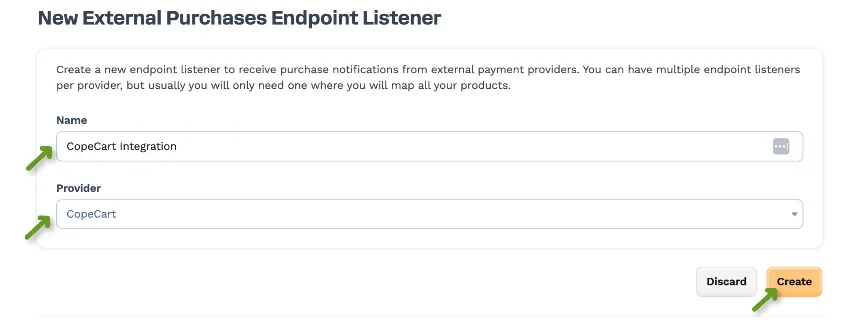
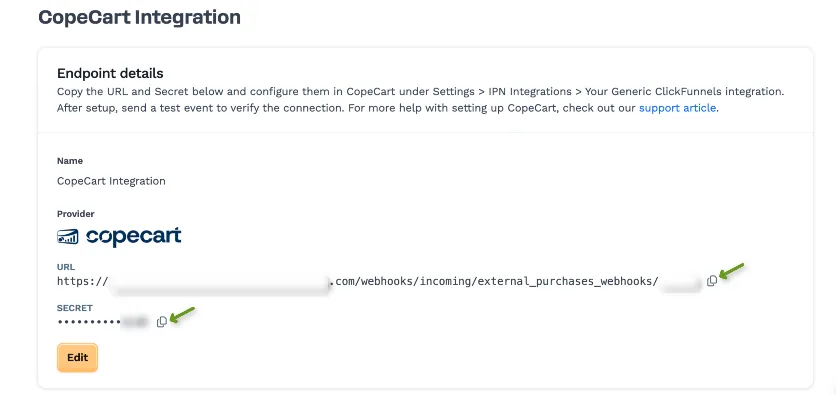
After creation, you will see two important values:
-
Endpoint URL – The webhook URL in ClickFunnels that CopeCart will send notifications to
-
Secret – The authentication secret used to verify webhook payloads
Copy both of these values. You will need them in the next step.
Step 2: Configure CopeCart IPN Settings
Section titled “Step 2: Configure CopeCart IPN Settings”-
Log in to your CopeCart account
-
Go to Settings > IPN Integrations
-
Click Create New and select Generic as the integration type
-
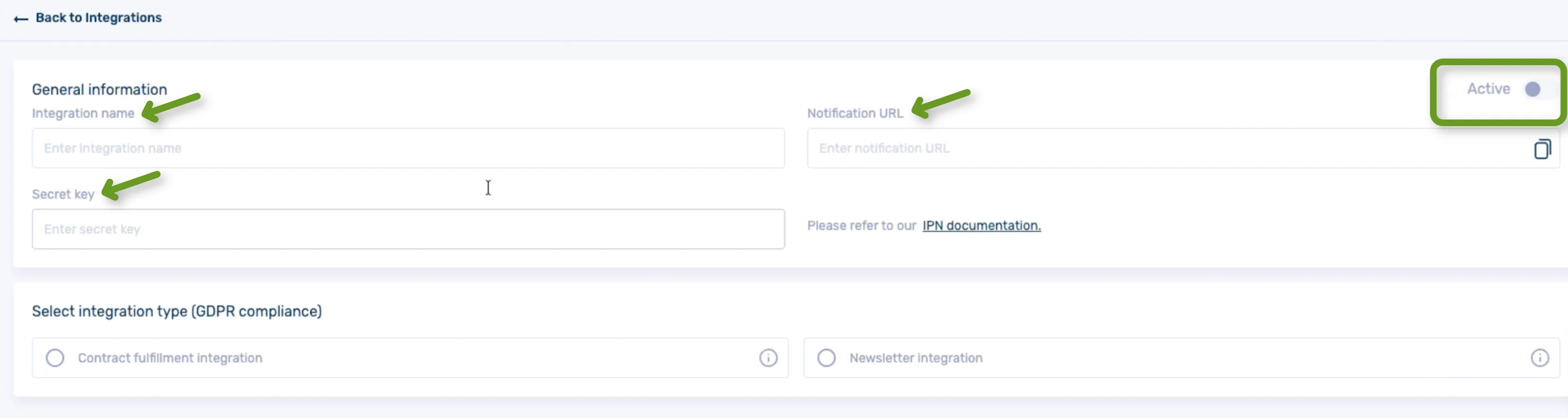
Give the integration a name (e.g., “ClickFunnels”)
-
Paste the Endpoint URL from ClickFunnels into the Notification URL field
-
Paste the Secret from ClickFunnels into the Secret Key field
-
Click Activate and save your changes
Important: CopeCart integrations are per-product – you must enable the integration on each individual CopeCart product that you want to send notifications to ClickFunnels.
Step 3: Send a Test Event
Section titled “Step 3: Send a Test Event”After configuring the IPN settings in CopeCart:
-
Send a test event from CopeCart to verify the connection
-
Return to your endpoint listener in ClickFunnels
-
Check the Events section at the bottom of the page
-
You should see a new webhook event with a success status
If the test event appears with a green “success” badge, your integration is connected and working.
Mapping Products
Section titled “Mapping Products”Before CopeCart purchases can create orders in ClickFunnels, you need to map your CopeCart products to ClickFunnels products.
How to Find Your CopeCart Product ID
Section titled “How to Find Your CopeCart Product ID”-
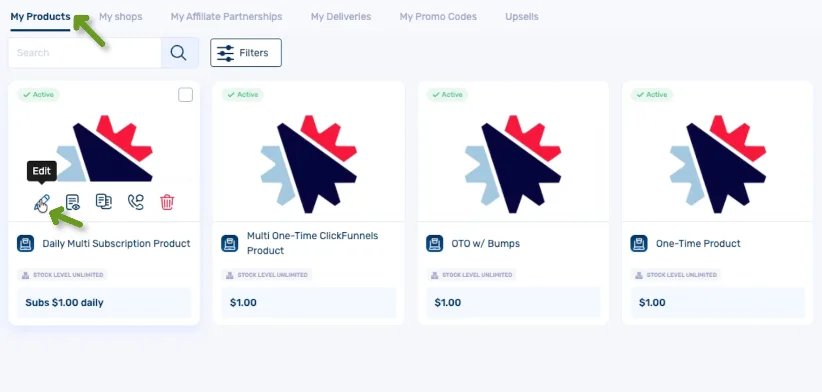
In your CopeCart account, go to Products
-
Click Edit on the product you want to map
-
Look at the URL in your browser – the Product ID is the number that comes after products/
-
Copy that number

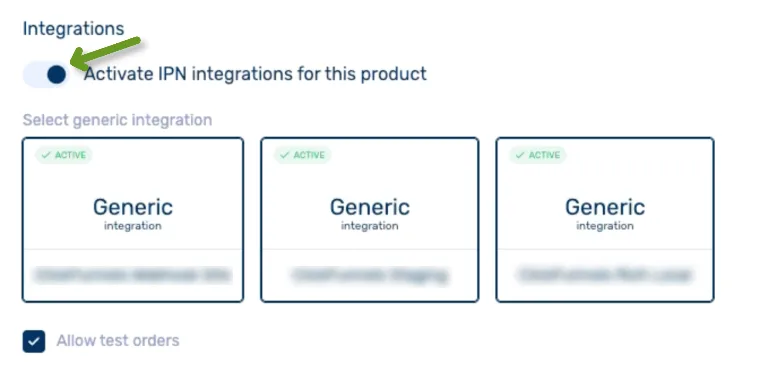
Enabling IPN for a Product
Section titled “Enabling IPN for a Product”Each CopeCart product must have IPN enabled to send notifications to ClickFunnels:
-
While editing the product in CopeCart, scroll down to the Integrations section
-
Click on the Generic Integration that is mapped to your ClickFunnels endpoint listener
-
Make sure it shows an Active badge
-
This ensures that IPN notifications will be sent to ClickFunnels for this product
Creating a Product Mapping
Section titled “Creating a Product Mapping”-
In ClickFunnels, go to your endpoint listener’s detail page
-
Click Map Products
-
Enter the CopeCart Product ID you copied earlier
-
Select the ClickFunnels Variant you want to map it to
-
Select the Product Price for that variant
-
Click Add Mapping
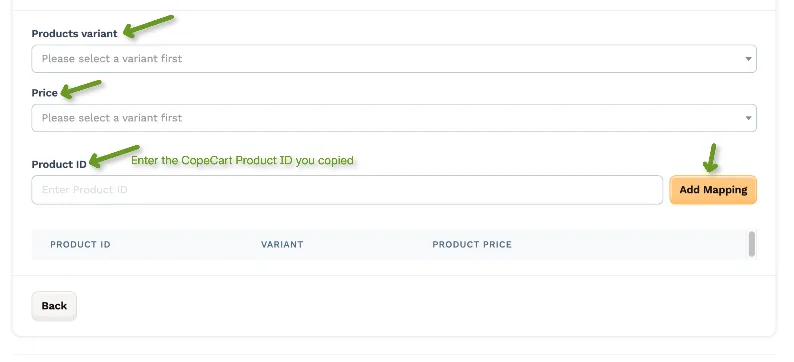
You can map multiple CopeCart products to different ClickFunnels products within the same endpoint listener. You can also point multiple CopeCart products to the same ClickFunnels product. However, you can’t map the same CopeCart twice.
Product Type Matching
Section titled “Product Type Matching”When mapping CopeCart products to ClickFunnels products, it is important that the product types match as closely as possible:
| CopeCart Product Type | Map To ClickFunnels |
|---|---|
| One-time purchase | One-time product |
| Subscription | Subscription product |
| Payment plan (breakdown payment) | Payment plan product |
| Trial | Product with trial enabled |
Supported Events
Section titled “Supported Events”The CopeCart integration processes the following transaction types:
| Event | Description | What Happens in ClickFunnels |
|---|---|---|
| Payment Made (Initial) | First payment for a one-time purchase or subscription | Creates a new order and contact |
| Payment Made (Renewal) | Recurring subscription payment | Updates the existing order with a new invoice |
| Cancellation | Subscription cancelled | Updates the order status to cancelled |
| Refund (Full) | Full refund issued | Marks the order as fully refunded |
| Refund (Partial) | Partial refund issued | Records the partial refund on the order |
| Chargeback | Customer initiated a chargeback | Marks the order with chargeback status |
Note: Renewal, refund, chargeback, and cancellation events require an existing order in ClickFunnels. If no matching order is found, the webhook will be saved with a “processing_skipped” status for your records.
How Refunds Work
Section titled “How Refunds Work”When a refund is issued in CopeCart, ClickFunnels records it on the corresponding order. However, there is an important detail for orders with multiple invoices (e.g., subscription orders with several renewal payments):
-
CopeCart’s refund notification does not specify which invoice was refunded
-
Because of this, ClickFunnels will not mark the order as fully refunded until all invoices on the order have been refunded
-
Individual refund events are still recorded on the order for your records
How Cancellations Work
Section titled “How Cancellations Work”When a subscription is cancelled in CopeCart:
-
If the cancellation date is in the past, the order is churned (ended) immediately in ClickFunnels
-
If the cancellation date is in the future, the order is marked as cancelled first and will be churned when that date arrives
-
A refund in CopeCart may also trigger a cancellation notification alongside the refund notification – both are processed
Monitoring Webhooks
Section titled “Monitoring Webhooks”Webhook Statuses
Section titled “Webhook Statuses”You can monitor all incoming webhooks from your endpoint listener’s detail page. Each webhook displays a color-coded status badge:
| Status | Color | Description |
|---|---|---|
| Pending | Yellow | Webhook received, awaiting processing |
| Success | Green | Successfully processed |
| Processing Skipped | Gray | Skipped (e.g., no matching order for a refund event) |
| Retrying | Orange | Processing failed, retrying automatically |
| Decryption Failed | Red | Could not verify webhook authenticity |
| Processing Failed | Red | General processing error |
| Order Creation Failed | Red | Could not create the ClickFunnels order |
| Refund Processing Failed | Red | Could not process the refund |
| Chargeback Processing Failed | Red | Could not process the chargeback |
Viewing Webhook Details
Section titled “Viewing Webhook Details”For each webhook event, you can see:
-
Event ID – Unique identifier
-
Notification Type – The type of CopeCart event (e.g., payment_made, payment_refunded)
-
Customer Email – The customer’s email (linked to their ClickFunnels contact)
-
CF Order No. – Link to the corresponding ClickFunnels order
-
CopeCart Order ID – Link back to the order in CopeCart
-
Product ID – Link to the product in CopeCart
-
Delivered At – When the webhook was received
-
Full JSON Payload – The complete raw webhook data (available in the detail view)
Viewing External Purchase Webhooks on an Order
Section titled “Viewing External Purchase Webhooks on an Order”When viewing an order in ClickFunnels that was created by a CopeCart purchase, you will see an External Purchase Webhooks card on the order detail page. This shows all webhook events associated with that order, making it easy to trace the full history of a CopeCart transaction.
How Orders Are Created
Section titled “How Orders Are Created”When a CopeCart payment notification arrives:
-
Batch Collection – CopeCart sends a separate notification for each product in an order. ClickFunnels waits for a short period after the first notification arrives to collect all product notifications from the same order before processing.
-
Contact Lookup – ClickFunnels searches for an existing contact matching the customer’s email. If none is found, a new contact is created.
-
Product Matching – The CopeCart Product ID is matched against your product mappings to determine which ClickFunnels product was purchased.
-
Order Creation – A new order is created in your ClickFunnels workspace with the transaction details from CopeCart.
-
Automations Triggered – Any workflows or automations linked to order creation will fire.
For subscription renewals, the system finds the existing order and adds a new invoice rather than creating a duplicate order.
Note: Invoice numbers are not generated for CopeCart orders. CopeCart manages its own invoice numbering independently.
Frequently Asked Questions
Section titled “Frequently Asked Questions”Q: Can I have multiple CopeCart endpoint listeners?
A: Yes, you can create multiple endpoint listeners for CopeCart. However, in most cases you only need one, where you map all your CopeCart products.
Q: Can I map multiple CopeCart products to the same ClickFunnels product?
A: Yes. Each mapping connects a specific CopeCart Product ID to a specific ClickFunnels variant and price, but multiple CopeCart products can point to the same ClickFunnels product.
Q: What happens if I receive a refund webhook but no order exists?
A: The webhook will be saved with a “processing_skipped” status and an error message explaining that no matching order was found. This applies to refunds, chargebacks, cancellations, and renewal events.
Q: Does the integration handle multi-product CopeCart orders?
A: Yes. CopeCart orders with multiple products are processed, and each product is matched against your product mappings.
Q: Are CopeCart orders assigned invoice numbers?
A: No. CopeCart manages its own invoice numbering, so ClickFunnels does not generate sequential invoice numbers for CopeCart orders.
Q: I set up the integration and now I’m seeing “processing_skipped” events. Why?
A: This happens when CopeCart sends an event (like a cancellation or refund) for an order that was placed before you set up the integration. Since ClickFunnels never received the original purchase event, there’s no matching order to update. These skipped events are saved for your
records but no action is taken. Going forward, all new purchases will be tracked from the initial payment.
Q: Why does my webhook show “Pending” for a while before processing?
A: CopeCart sends a separate notification for each product in a multi-product order.
ClickFunnels waits a short period to collect all notifications from the same order before processing them together. This ensures multi-product orders are created correctly.
Troubleshooting
Section titled “Troubleshooting”“Webhook shows decryption_failed status”
Section titled ““Webhook shows decryption_failed status””Possible causes:
- The Secret in CopeCart does not match the Secret in your ClickFunnels endpoint listener
Solution:
-
Go to your endpoint listener in ClickFunnels and copy the Secret
-
Update the Secret in your CopeCart IPN integration settings to match exactly
-
Send another test event to verify
“Webhook shows processing_skipped status”
Section titled ““Webhook shows processing_skipped status””Possible causes:
- A refund, chargeback, cancellation, or renewal event was received but no matching order exists in ClickFunnels
Solution:
-
This is expected behavior if the original purchase was not processed through ClickFunnels
-
Check the error message on the webhook detail page for specifics
-
Ensure the initial payment event was received and processed successfully before subsequent events
“Webhook shows order_creation_failed status”
Section titled ““Webhook shows order_creation_failed status””Possible causes:
-
The CopeCart Product ID is not mapped to a ClickFunnels product
-
The mapped ClickFunnels product or variant no longer exists
Solution:
-
Go to your endpoint listener and click Map Products
-
Verify the CopeCart Product ID is correctly mapped
-
Ensure the mapped ClickFunnels product and price still exist
“No webhooks appearing in ClickFunnels”
Section titled ““No webhooks appearing in ClickFunnels””Possible causes:
-
IPN is not enabled for the product in CopeCart
-
The endpoint URL is incorrect in CopeCart settings
-
The Generic Integration is not set to Active in CopeCart
Solution:
-
Verify the endpoint URL is correctly copied to CopeCart
-
Edit the product in CopeCart and check the Integrations section
-
Ensure the Generic Integration shows an Active badge
-
Send a test event from CopeCart to confirm connectivity
“Customer contact not created”
Section titled ““Customer contact not created””Possible causes:
- The webhook payload does not contain a valid email address
Solution:
-
Check the webhook detail page and inspect the JSON payload for customer email
-
Verify the customer’s email is present in the CopeCart order