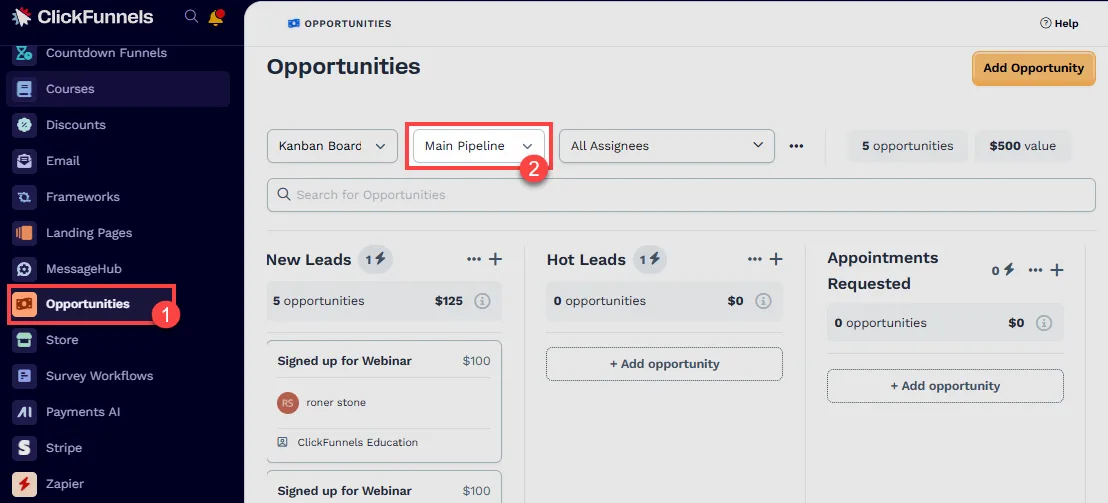
'Create/Move Opportunity' Step - Manage Opportunities in Pipelines
Published: Updated:
The “Create/Move Opportunity” step in ClickFunnels workflows allows you to automate the management of opportunities within your sales pipelines. This step can be used to either create a new opportunity or move an existing opportunity to a different stage within a specified pipeline. In this article, you will learn how to configure the “Create/Move Opportunity” step and use it to streamline your opportunity management process in ClickFunnels.
Requirements
Section titled “Requirements”-
An active ClickFunnels account
-
A workflow created in your workspace
-
The Opportunities app added to your workspace
-
At least one pipeline and stage configured in the Opportunities app
Adding the “Create/Move Opportunity” Step to Your Workflow
Section titled “Adding the “Create/Move Opportunity” Step to Your Workflow”-
Navigate to the Automations app and select Workflows.
-
Open an existing workflow or create a new one.
-
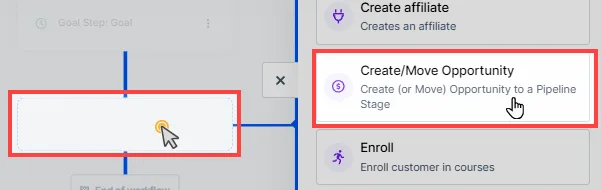
Click on the Plus Icon (+) in your workflow editor.
-
Select the Create/Move Opportunity step under the Internal category.
Configuring the “Create/Move Opportunity” Step
Section titled “Configuring the “Create/Move Opportunity” Step”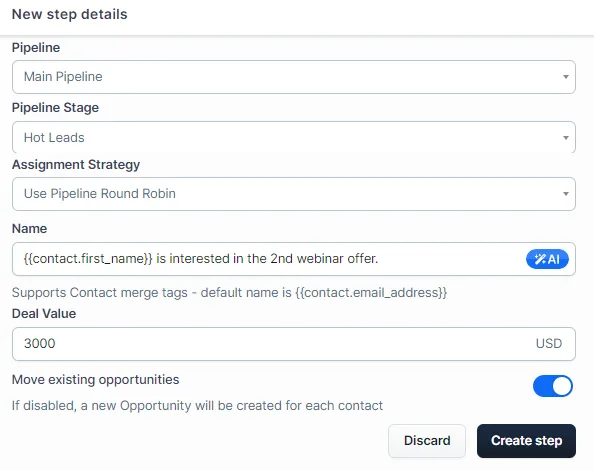
-
Select the Pipeline:
- Choose the pipeline where you want to create or move the opportunity from the Pipeline drop-down menu.
-
Select the Pipeline Stage:
- Choose the stage within the selected pipeline where you want the opportunity to be created or moved.
-
Define the Assignment Strategy:
- Choose the Assignment Strategy for the opportunity. You can select “Assignee to team member” or leave it as “Do not assign” or assign “Round Robin”.
-
Set the Opportunity Details:
-
Fill in the Name field to define the opportunity’s name. You can use merge tags like {{contact.first_name}}, {{contact.last_name}} to dynamically generate names based on the contact’s information.
-
Enter a Deal Value to specify the value of the opportunity. This can be left blank if not applicable.
-
-
Configure Move Existing Opportunities Option:
- Toggle the Move existing opportunities option if you want to move an existing opportunity for a contact. If disabled, a new opportunity will be created for each contact.
-
Save the Step:
- After configuring all settings, click Create Step to add the step to your workflow.
Viewing and Managing Opportunities
Section titled “Viewing and Managing Opportunities”Once the “Create/Move Opportunity” step is executed in a workflow, opportunities can be managed from the Opportunities app. Here’s how to view and manage opportunities:
-
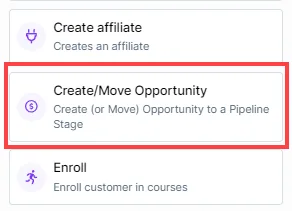
From your ClickFunnels dashboard, go to the Opportunities app.
-
Select the Pipeline from the drop-down menu to view the opportunities created or moved by the workflow.
-
You can view, edit, move, or delete opportunities as needed within the pipeline stages.