
MessageHub: Instagram Inbox Configuration
Published: Updated:
Instagram has become a vital channel for businesses to interact with customers and build relationships. Bringing Instagram into MessageHub means you’ll never miss a message or conversation. Instead of switching between apps, you’ll handle everything in one place, keeping things simple and efficient. In this article, we’ll walk you through how to connect Instagram to your MessageHub account step by step.
Requirements
Section titled “Requirements”-
An active ClickFunnels account
-
The MessageHub App added to your workspace
-
Business Instagram account connected to a Facebook Page
Adding Instagram Inbox
Section titled “Adding Instagram Inbox”-
Open the MessageHub app from the left-side menu in your ClickFunnels Workspace.
-
Navigate to Settings ⚙ > Chat Inboxes and click the Add Inbox button in the top-right corner.
-
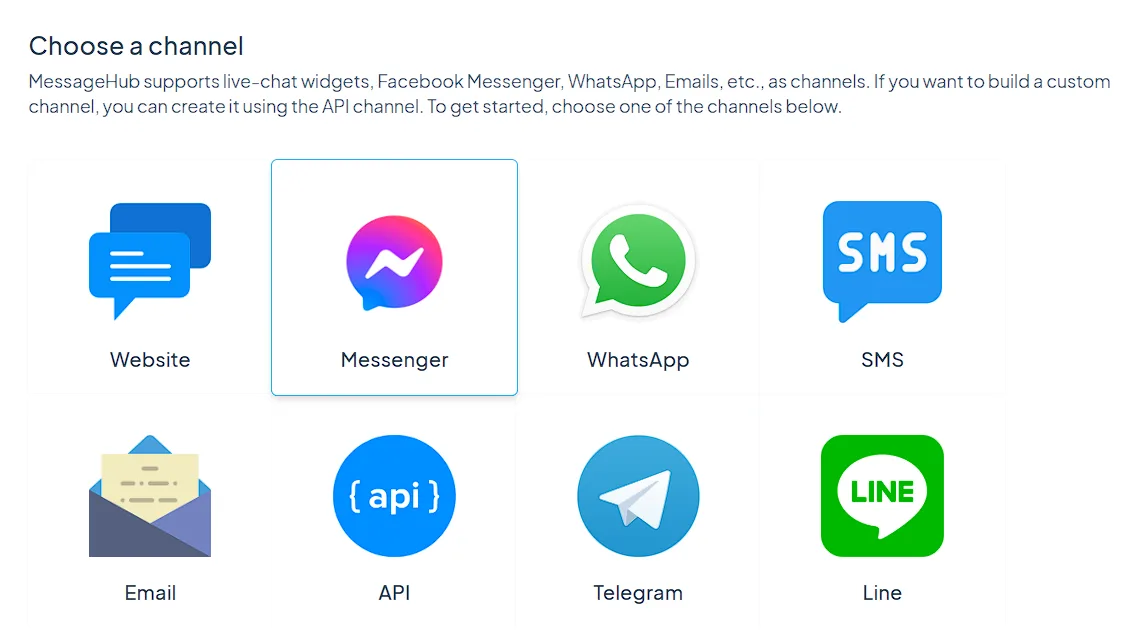
From the list of available inbox types, select Messanger.
-
Log in to your Facebook account, select the Instagram Page you want to connect, and click Next.
-
Review and confirm the permissions granted to MessageHub, ensuring options like managing Pages and messaging are enabled. Click Done.
-
Assign agents to the Instagram inbox by selecting them from the dropdown menu and clicking Add Agents.
Your Instagram inbox is now active and ready to handle messages.