
How to Manage Course Lessons
Published: Updated:
This article explains how to manage course lessons, which are designed to empower you with essential skills for optimizing the learning experience of your course. With detailed references on accessing, adding, duplicating, and deleting lessons, you can easily navigate your course content and customize the learning journey of your course.
Requirements
Section titled “Requirements”-
An active ClickFunnels 2.0 account
-
An existing Course
-
An existing Module
-
The Courses App (Adding Apps to Your ClickFunnels Workspace)
Accessing Course Lessons
Section titled “Accessing Course Lessons”-
Click Courses from the APPS navigation menu.
-
Click the Title of the course.
Adding a New Lesson
Section titled “Adding a New Lesson”-
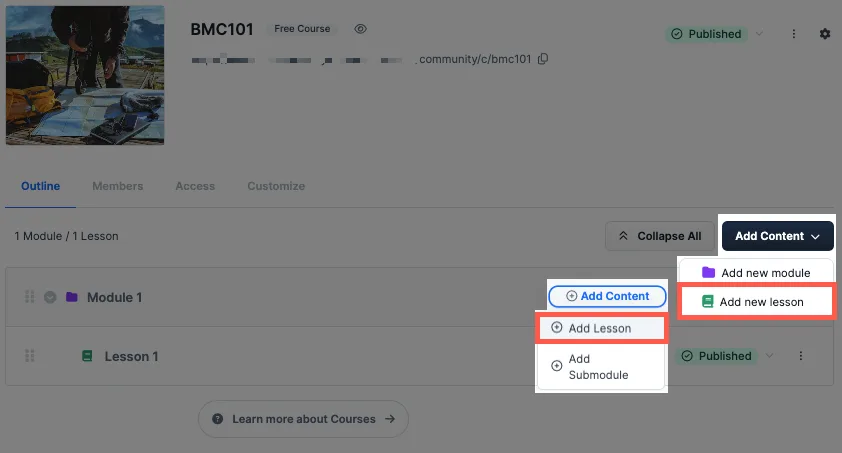
Click the Add Content button at the right-hand side of the page, then select Add new lesson from the drop-down menu, or click the Add Content link to the right of each module, then select Add Lesson from the drop-down menu to add a new lesson.
-
Optionally, click the Parent Module drop-down to verify the correct Module where the lesson will be added is correct, then fill out the Title field.
-
Click Create lesson to save your changes.
Editing the Lesson Settings and Content
Section titled “Editing the Lesson Settings and Content”-
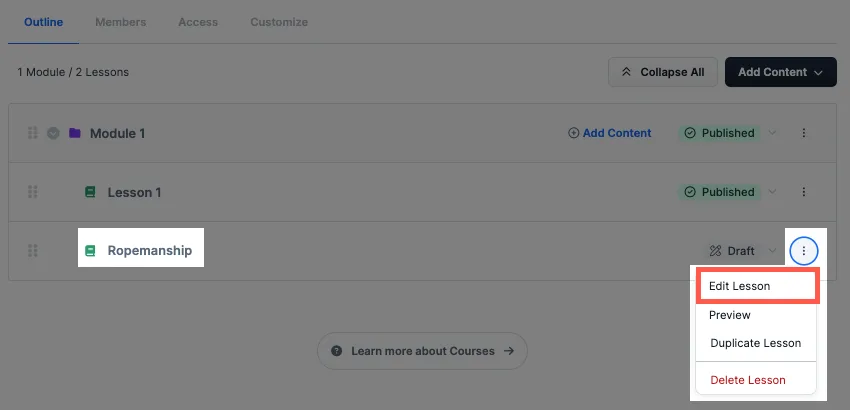
Click the lesson’s Title to open the editor or the three-dot menu, then select Edit Lesson from the drop-down menu.
-
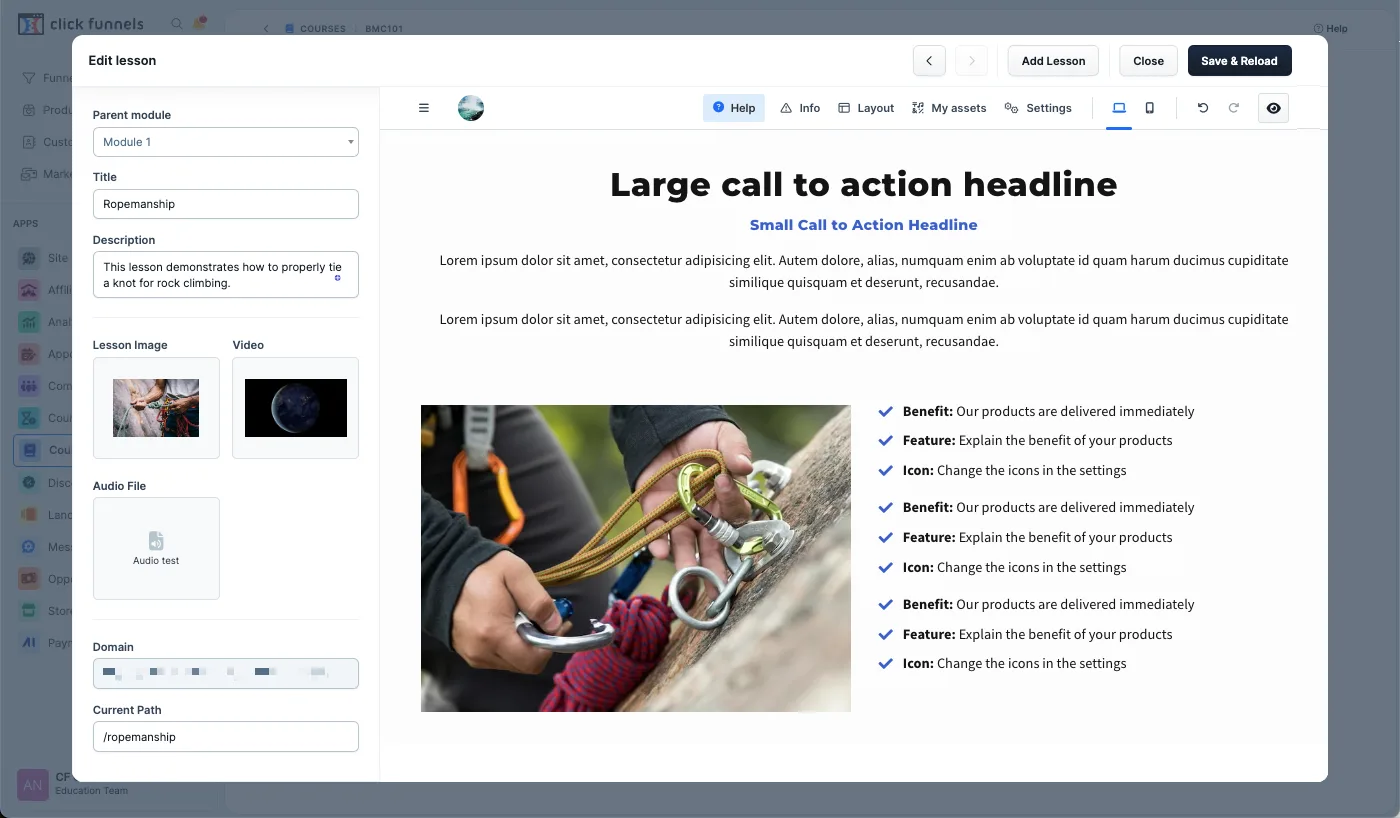
You will now find yourself in the Lesson Editor where you can edit the Lesson Settings and Lesson Content. Please visit our article Lesson Settings for more information about the options in the lesson settings.
Duplicating a Lesson
Section titled “Duplicating a Lesson”-
Click the three-dot icon on the right of the lesson you want to duplicate, then select Duplicate Lesson from the drop-down menu.
-
Click the Proceed button to duplicate the lesson or the Cancel button to cancel any changes.
-
A banner will appear at the top-right corner of the page explaining that the duplicated lesson will appear once the duplicate is completed.
Deleting a Course Lesson
Section titled “Deleting a Course Lesson”-
Click the three-dot menu icon on the right of the lesson you want to delete, then select Delete Lesson from the drop-down menu.
-
Click the Proceed button to delete the lesson. Otherwise, click the Cancel button to cancel any changes.
-
The app displays a confirmation banner stating that the lesson has been deleted.