
Account Details - How to Update and Reset Account Password
Published: Updated:
In this article, we’ll walk you through the simple steps to update your existing password within your ClickFunnels account, ensuring your account remains secure. Additionally, we’ll provide you with swift instructions on how to reset your password in case it’s forgotten, allowing you to regain access to your account seamlessly.
Requirements
Section titled “Requirements”- An active ClickFunnels account
Updating Existing Account Password
Section titled “Updating Existing Account Password”-
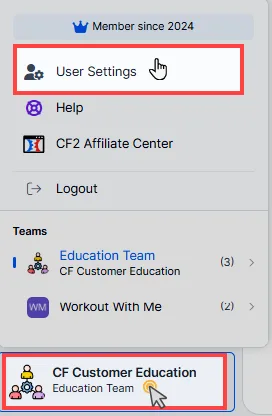
From your ClickFunnels dashboard, click on your Workspace Name in the bottom left corner of the screen.
-
Select User Settings from the dropdown menu.
-
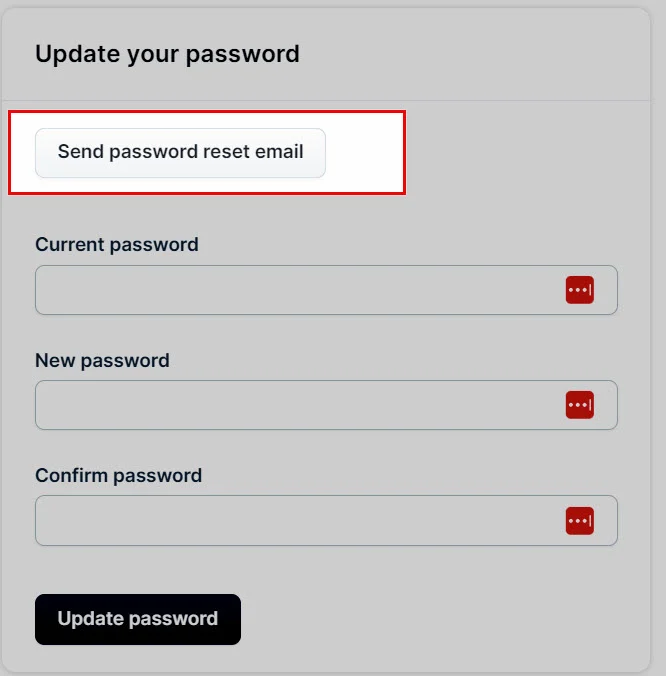
Locate the Update your password section.
-
Enter your information in the current password, new password and confirm password fields.
-
If you’ve forgotten your current password, click Send password reset email to receive a reset link in your email.
-
Finally, click Update password to confirm your changes.
Reset Forgotten Password
Section titled “Reset Forgotten Password”-
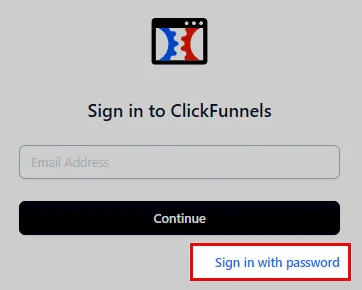
Go to www.myclickfunnels.com.
-
Click Sign in with password.
-
Click on the Set a new password.
-
Enter your account email address and click Send Email.
-
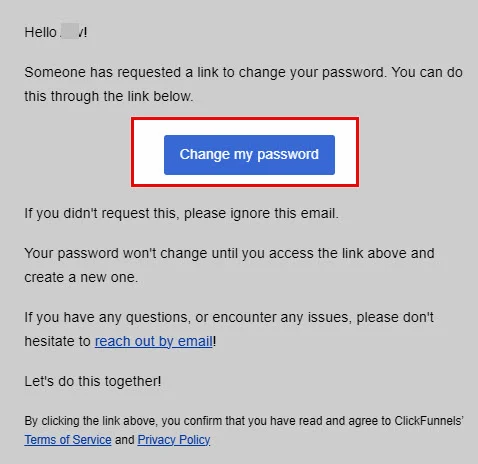
Check your email inbox for an email titled Reset password instructions with instructions on resetting your account password. Also, be sure to look in your “Spam” and “Promotion” folders if you don’t see the email in your inbox.

-
Click the Change my password button in the email.
-
On the Change your password page, enter and confirm your new password and click Change my password to confirm the change.
-
Congratulations! Your account password has been reset, and you can now log in to your ClickFunnels account using the new password.