
Testing Orders in Payments AI Sandbox Mode
Published: Updated:
ClickFunnels’ Sandbox Mode allows you to submit test orders in the checkout pages without connecting or verifying any payment processor inside your Payments AI account, such as Payments AI Internal Gateway, Stripe, or PayPal. In this article, you’ll learn how to utilize the ClickFunnels Sandbox mode to test checkout pages without needing to connect a payment gateway in Payments AI.
Requirements
Section titled “Requirements”-
An active ClickFunnels account
-
Payments AI can only be set up by workspace owners.
What is Sandbox Mode in ClickFunnels
Section titled “What is Sandbox Mode in ClickFunnels”Sandbox Mode in ClickFunnels allows you to test your checkout pages and submit test orders after connecting a Payments AI account to your workspace. This feature helps you ensure that your funnels and checkout pages function correctly without needing to process real payments.
To use Sandbox Mode, you need to add the Payments AI app to your ClickFunnels workspace and provide the required business information. Payments AI is a payment gateway platform that supports various processors like Stripe, PayPal, NMI, and more. Once your Payments AI account is set up with the necessary business information, Sandbox Mode is automatically enabled. You can then test your checkout process without connecting any payment processors (like the Payments AI Internal Gateway, Stripe, or PayPal) within Payments AI.
How Sandbox Mode Helps
Section titled “How Sandbox Mode Helps”-
No Business Document Verification Required: When using Sandbox Mode, there is no need for business document verification in your Payments AI account. This allows you to quickly test and explore ClickFunnels features without completing the full verification process.
-
Save Time During Setup: Sandbox Mode lets you test your funnel setup without integrating or verifying a payment processor. This simplifies the initial setup process and reduces time spent on configuring payment gateways.
-
Test Checkout Functionality: Ensure that all steps of your funnel (order forms, upsells, downsells), store checkout work seamlessly before going live.
-
Error Testing: Identify and fix errors in your checkout process, such as incorrect form validation or missing fields, without the risk of processing real payments.
-
Use for Demos and Training: Perfect for demonstrating the ClickFunnels platform to clients or training team members without the need to handle real transactions.
How to Enable Sandbox Mode
Section titled “How to Enable Sandbox Mode”To enable Sandbox Mode in ClickFunnels, follow these steps:
-
Integrate Your Payments AI Account:
-
From the main menu on the left, click on + Add Apps to navigate to the Apps page.

-
Scroll down until you find the Payments AI app, then click on it.
-
Confirm your selection by clicking the Add App button.
-
You may create a new Payments AI account or if you have an existing account user your existing credentials for login.
-
-
Submit Business Information:
-
During the integration process, enter your business information to complete the setup of Payments AI.

-
-
No Need for Additional Payment Processors:
-
Once your Payments AI account is connected and your business information is submitted, Sandbox Mode will be automatically activated in your ClickFunnels workspace. You do not need to connect any payment processors (such as the Payments AI Internal Gateway, Stripe, or PayPal) inside your Payments AI account. A Warning Triangle (⚠️) sign will appear adjacent to the Payment AI tab showing that test order will be possible.

-
-
Confirm Sandbox Mode Activation:
-
Go to your ClickFunnels workspace and click Workspace Settings.

-
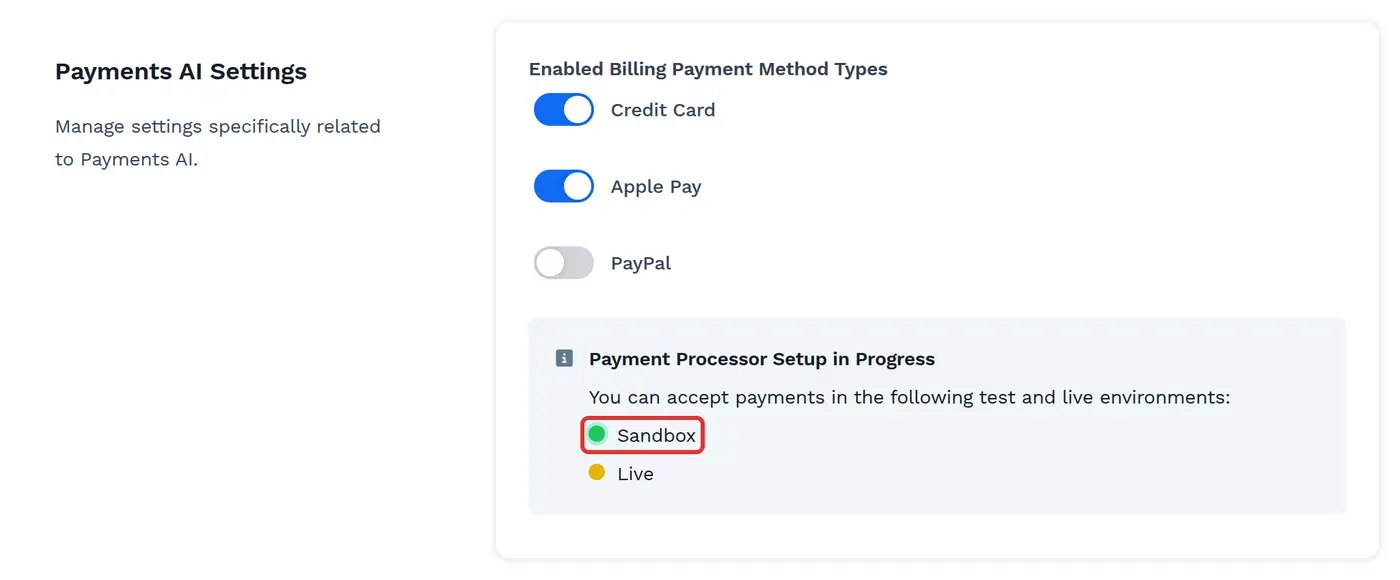
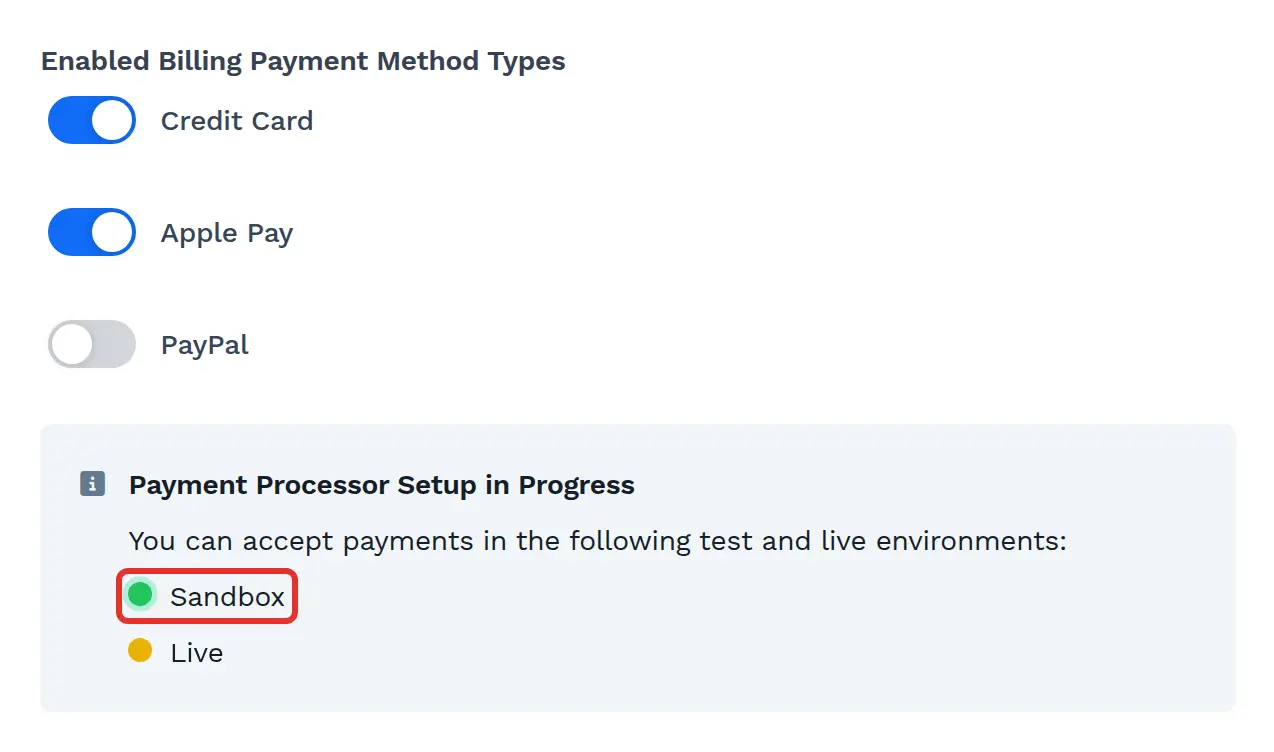
In the General page, scroll to the “Payments AI Settings” section.
-
The “Sandbox” indicator will show as green, confirming that Sandbox Mode is active. It appears next to the “Live” indicator.
-
How to Test a Funnel Checkout Page
Section titled “How to Test a Funnel Checkout Page”-
Create a Funnel and Checkout Page: Set up your funnel and add a checkout page where customers can complete their purchases.
-
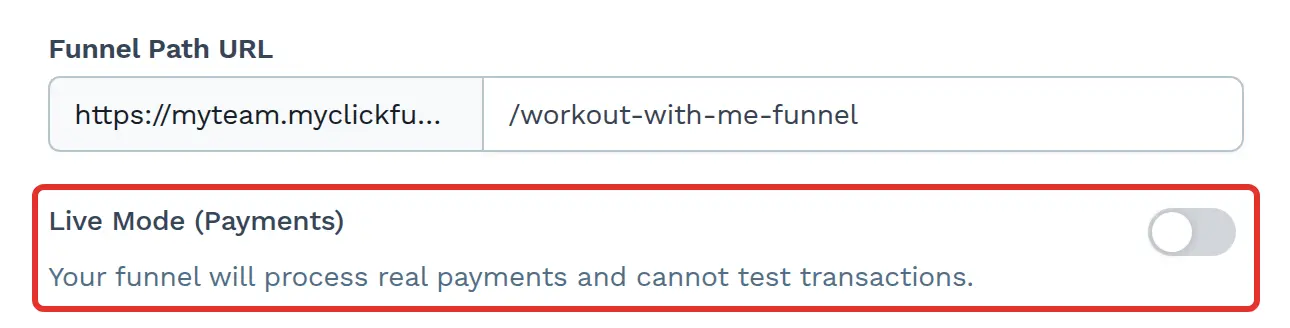
Turn Off Live Mode: In the funnel settings, turn off the Live Mode (Payments) toggle so the funnel runs in test mode.
-
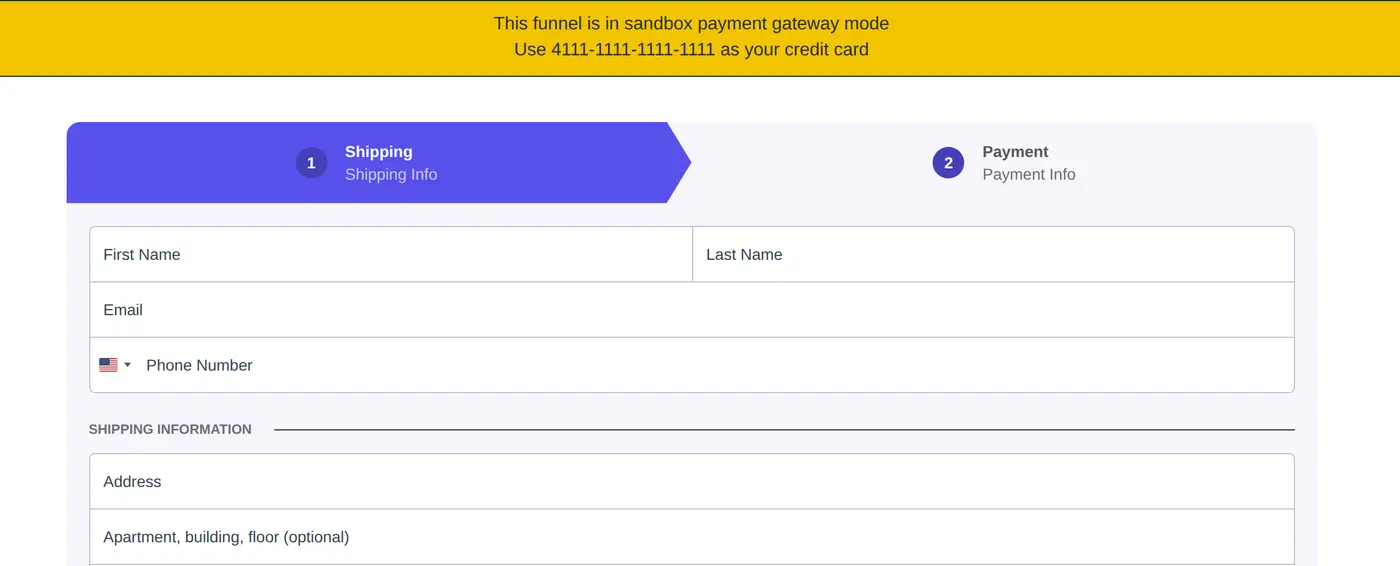
Preview the Checkout Page: Once Live Mode (Payments) is turned off, preview the checkout page. You will see a banner at the top indicating that the funnel is in sandbox payment gateway mode. The banner will provide test card information (“Use 4111-1111-1111-1111 as your credit card”) to use for submitting test orders.
-
Submit a Test Order: Complete the checkout form using the provided test card information and submit the order. This allows you to experience the checkout process without processing real transactions.
What Happens When a Payment Processor Is Added to Payments AI
Section titled “What Happens When a Payment Processor Is Added to Payments AI”Sandbox Mode is designed for customers to test ClickFunnels and submit orders without verifying any payment gateways. When you add and verify a payment processor (such as the Payments AI Internal Gateway, Stripe, or PayPal) inside your Payments AI account, your ClickFunnels workspace is considered ready to collect both live and test payments. At this point, you can process real payments in a live environment while still having the option to run test transactions. The Sandbox and Live indicators both remain in the Payments AI Settings section of your workspace settings.