Setting Workspace Currency in ClickFunnels
Published: Updated:
Setting the correct workspace currency is essential to ensuring successful payment collection through ClickFunnels. The workspace currency determines the default currency for all transactions made within your workspace, including funnels and store purchases. This article will guide you through setting up and managing the workspace currency in ClickFunnels.
Requirements
Section titled “Requirements”-
An active ClickFunnels account
-
Payments AI connected to the workspace (to use Stripe, connect it through Payments AI), or an existing direct Stripe connection
-
At least one payment gateway (e.g., Payments AI, Stripe) verified in your Payments AI account (Payments AI only).
Set the Gateway Currencies in Payments AI (Payments AI Only)
Section titled “Set the Gateway Currencies in Payments AI (Payments AI Only)”-
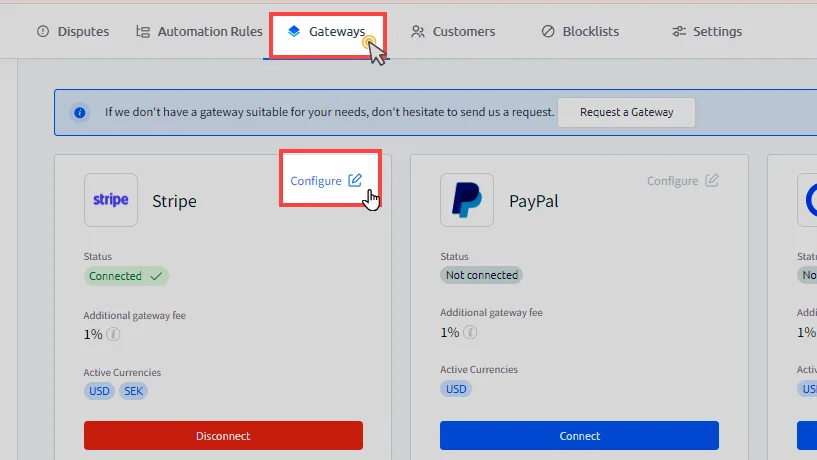
Log in to your Payments AI account and navigate to the Gateways menu.
-
Select the verified gateway with a Connected status, then click the Configure option. In the example below, we have selected Stripe.
-
In the Currencies section, select the currencies you wish to use within your ClickFunnels workspaces. You can choose multiple currencies for the gateway.
Setting Your ClickFunnels Workspace Currency
Section titled “Setting Your ClickFunnels Workspace Currency”-
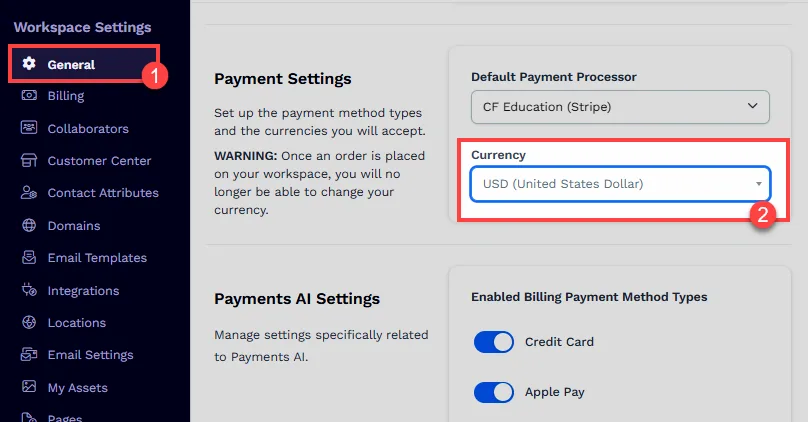
From the ClickFunnels dashboard, click on Workspace Settings in the left-hand navigation panel and select General.
-
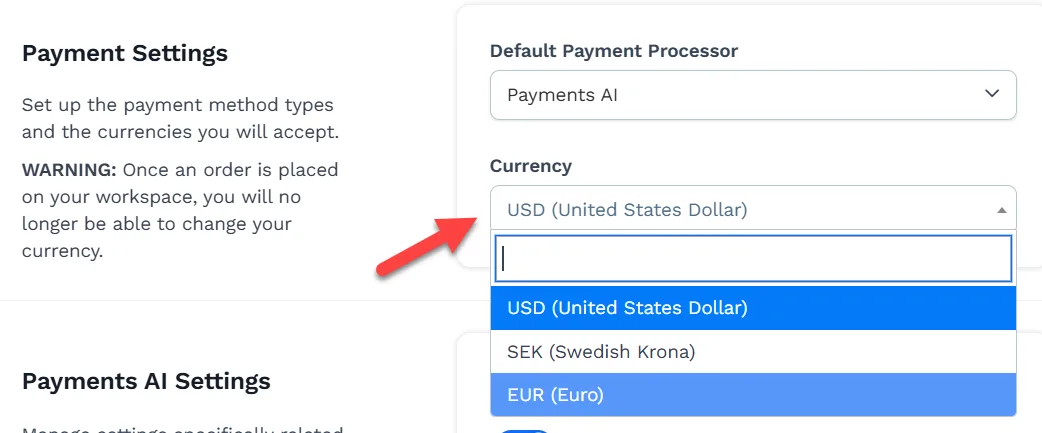
Expand the Currency dropdown under the Payment Settings section to select your preferred workspace currency. All products created within your workspace will adhere to the currency configured here.