MessageHub Integrations: Dyte
Published: Updated:
This article will review the Dyte Chat Application. Dyte is an audio and video tool that will help you improve your support by offering video or voice calls to your customers.

Requirements
Section titled “Requirements”-
An active ClickFunnels account
-
The MessageHub App
Get your Dyte Information:
Section titled “Get your Dyte Information:”-
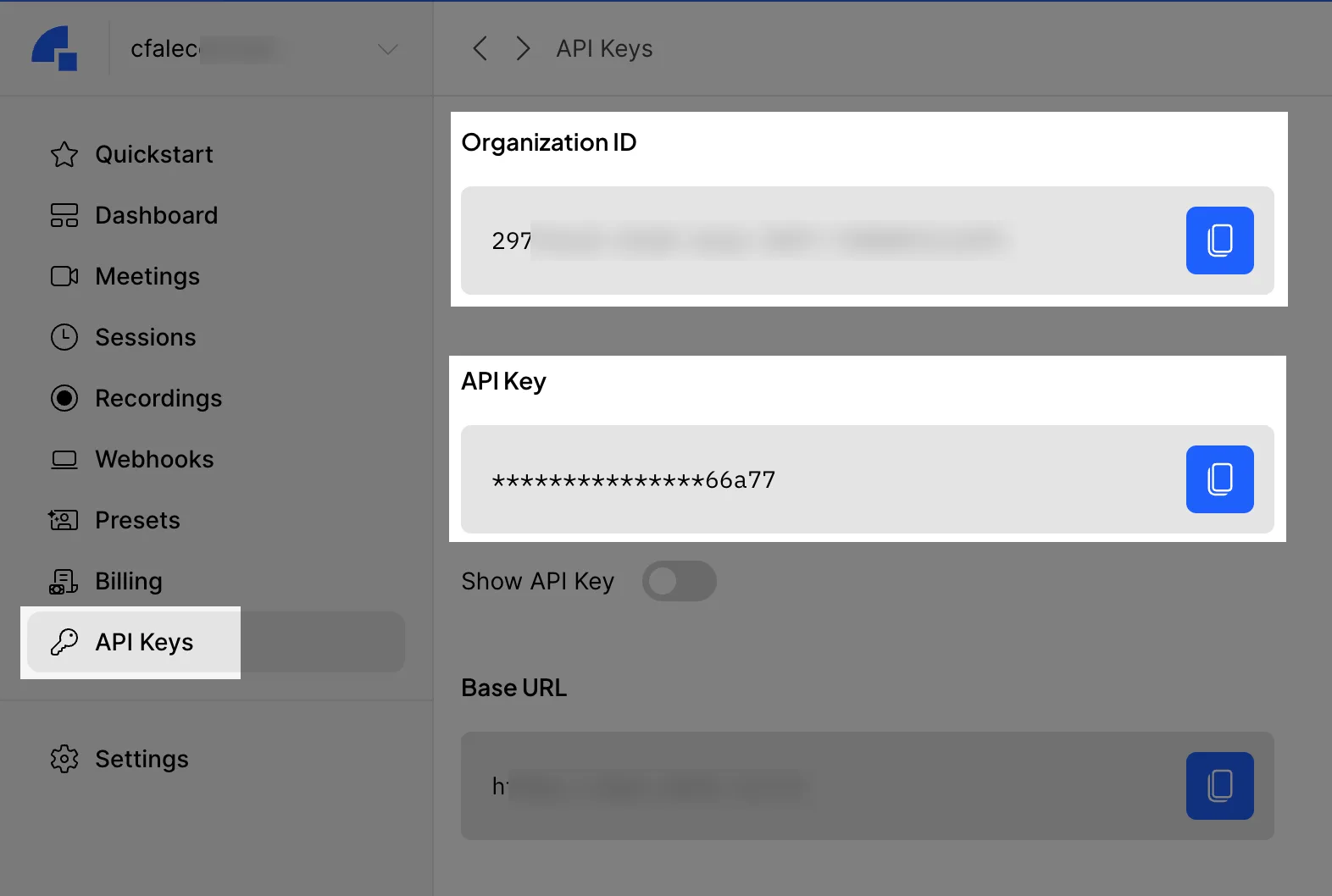
Inside your Dyte Account. Click on API Keys.
-
Locate your Organization ID and API Key since they will be used in the following steps.
Integrate Dyte and MessageHub:
Section titled “Integrate Dyte and MessageHub:”-
From MessageHub, click on Chat Settings, then Chat Integrations.
-
Click on Configure.
-
Click on Add New Hook.

-
Click on Connect.

-
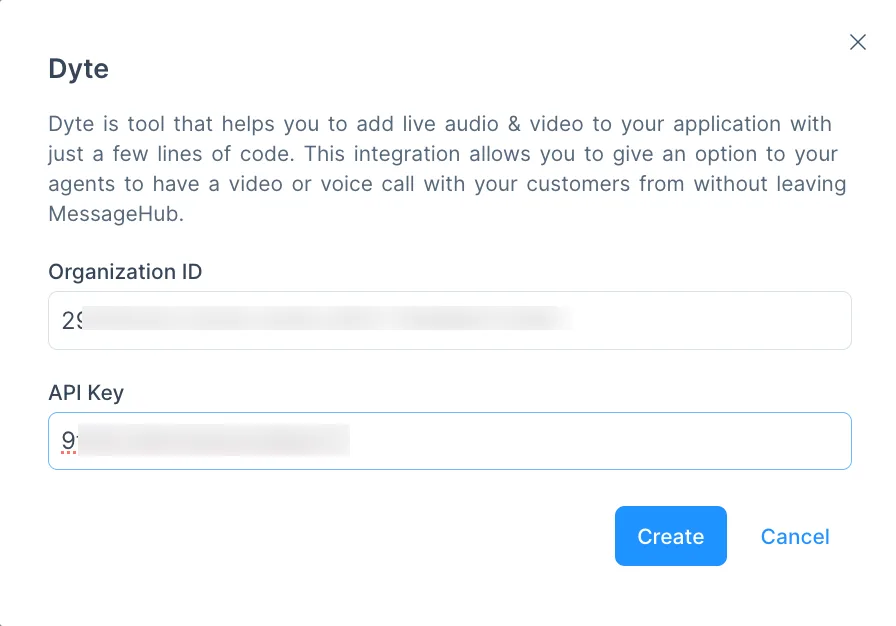
Complete the following using the information generated in Dyte.
-
After clicking on Create, your Dyte integration will be completed.
How to Use Video and Audio in your Conversations:
Section titled “How to Use Video and Audio in your Conversations:”-
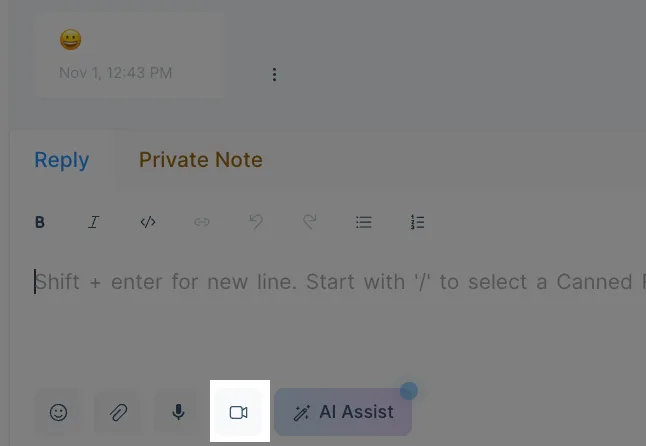
Now, a camera icon will be shown in your conversations. Click on it to send an invite to your customer.
-
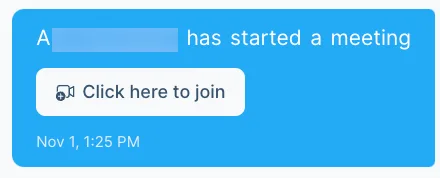
Once your customer clicks the button to join the conversation, the video call will start.
-
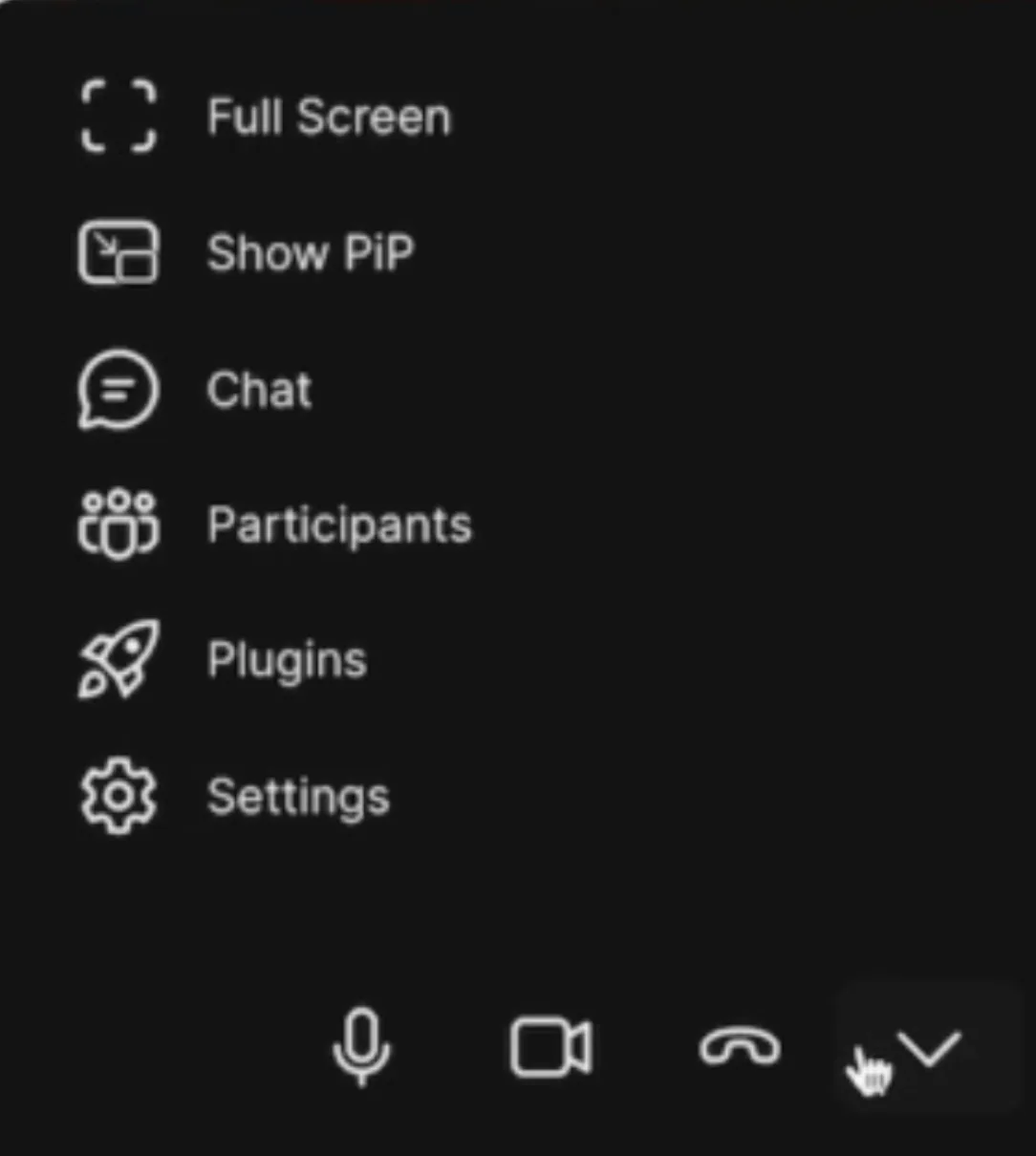
Inside the video call room, you will find several options to improve your conversation experience.