
Community Admin and Moderation Tools
Published: Updated:
Managing your ClickFunnels community effectively requires a robust set of admin tools to ensure content stays appropriate and engaging. With the admin moderation tools, you can handle posts, comments, and reports while fostering a safe, active environment. This article will walk you through how to manage posts, multimedia, and handle moderation tasks efficiently.
Requirements
Section titled “Requirements”-
An active ClickFunnels account
-
Administrator privileges in the community, or a member marked as Community Moderator (see How to Grant and Manage Community Access)
Accessing the Moderation Queue
Section titled “Accessing the Moderation Queue”Posts and comments that need review are handled in the Moderation Queue, which opens in your community’s customer center. Community admins and members marked as Community Moderator can use it. Community Moderators open it from the Review (Moderate community content) link in the community sidebar. Community admins can also open it from the Community app:
-
Go to the Community app from the left navigation menu.
-
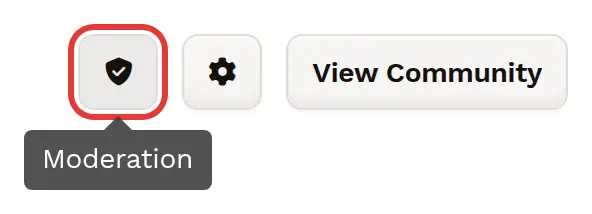
Click the Moderation (shield) icon at the top right of the page. The Moderation Queue opens in a new browser tab.
-
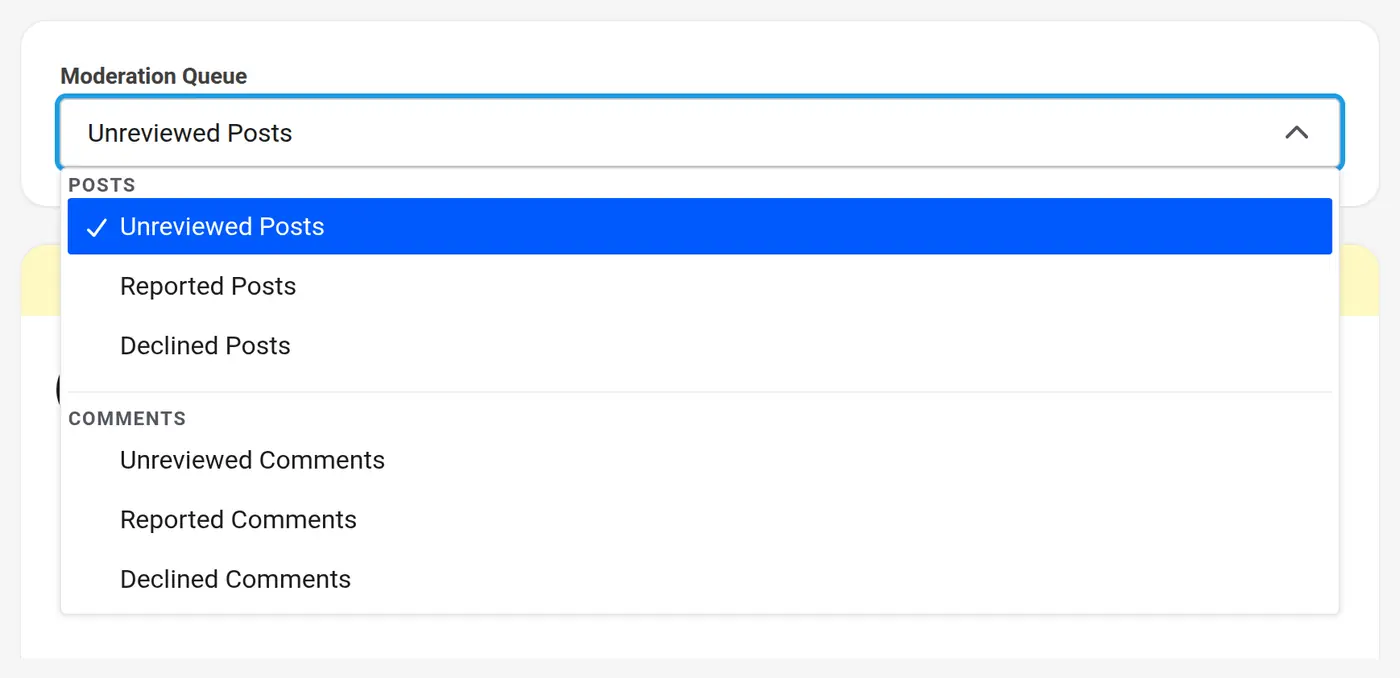
Use the Moderation Queue dropdown to choose what to review:
-
Posts
-
Unreviewed Posts: Posts that are waiting for approval.
-
Reported Posts: Posts flagged by members as inappropriate.
-
Declined Posts: Posts that were declined or unapproved.
-
-
Comments
-
Unreviewed Comments: Comments that are waiting for approval.
-
Reported Comments: Comments flagged by members for review.
-
Declined Comments: Comments that were declined or unapproved.
-
Comment lists include comments on course lessons. When the selected list is empty, you’ll see All caught up! The moderation queue is empty.
-
Content Moderation Actions
Section titled “Content Moderation Actions”Each item in the Moderation Queue shows the actions available for it.
Unreviewed Content
Section titled “Unreviewed Content”To manage content that requires approval:
-
Select Unreviewed Posts or Unreviewed Comments.
-
Review the content awaiting approval.
-
For each item, click Approve to publish it to the community, Decline to reject it, or Remove to delete it permanently.
Reported Content
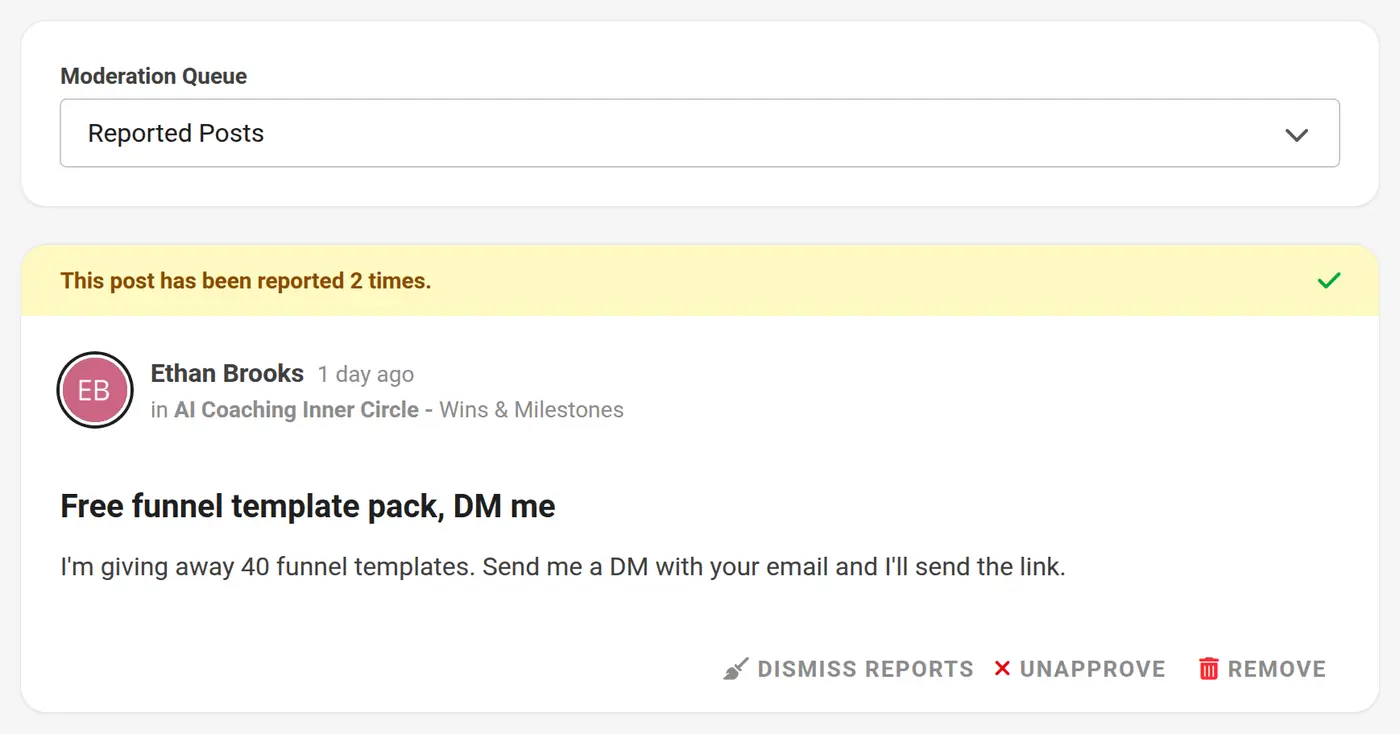
Section titled “Reported Content”To handle content flagged by community members:
-
Select Reported Posts or Reported Comments.
-
Review the reported content.
-
For each item, you can:
-
Click Dismiss Reports to clear the reports and keep the content.
-
Click Unapprove to remove the content from the community. It moves to the declined list.
-
Click Remove to delete the content permanently.
-
Declined Content
Section titled “Declined Content”Declined posts and comments have been rejected or unapproved, but can be revisited later.
-
Select Declined Posts or Declined Comments.
-
Review the list of declined content.
-
For each item, click Approve to reinstate it in the community, or Remove to delete it permanently.
Moderating Posts From the Community Feed
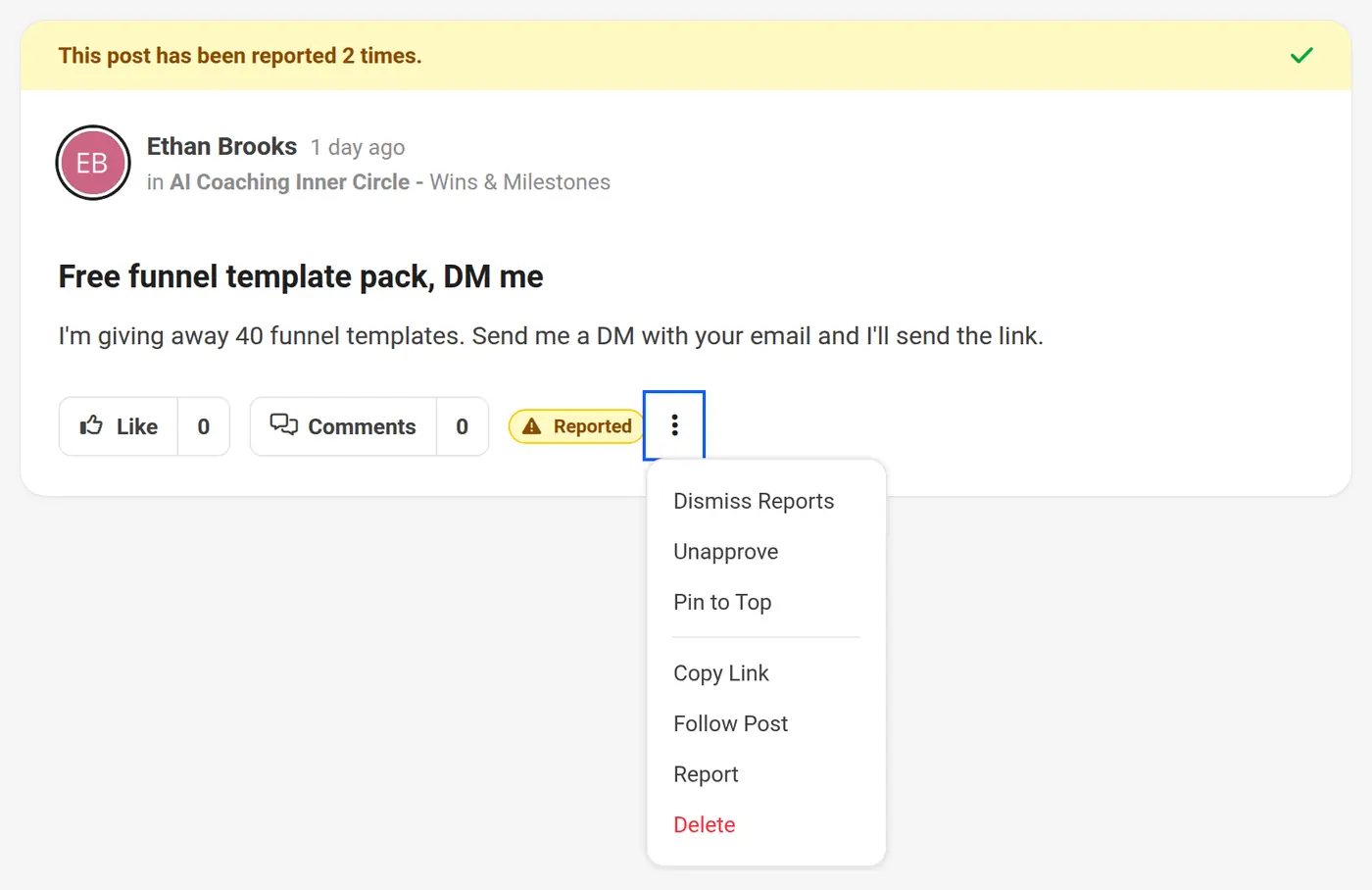
Section titled “Moderating Posts From the Community Feed”Admins and Community Moderators can also moderate approved posts directly from the community feed. Click the three-dot ⋮ icon on a post to see these options:
-
Pin to Top / Unpin: Pin the post to the top of the Topic feed, or remove the pin. Only community admins see this option.
-
Dismiss Reports: Clear the reports on a reported post.
-
Unapprove: Remove the post from the community. It moves to Declined Posts in the Moderation Queue.
-
Delete: Permanently remove the post.
Managing Community Posts
Section titled “Managing Community Posts”Admins can control the visibility, placement, and SEO optimization of community posts. Here’s how to manage posts effectively:
-
Navigate to the Community app in the sidebar.
-
Select the Group where the post is located.
-
Choose the Topic where the post was added.
-
Find the post and click the gear ⚙️ icon next to it.
-
On the post settings page, you can:
-
Edit the post: Modify the post Title, Current Path, body, or Post Cover Image (appears at the top of the post).
-
Pinned?: Under Visibility, turn on this toggle to keep the post at the top of the Topic feed.
-
Contact: Change who the post is attributed to by selecting a contact from the dropdown.
-
Topic: Move the post to another topic within the community by selecting a new topic from the dropdown.
-
Search Engine Optimization (SEO): Add a Meta Title, Meta Description, and Meta Keywords to improve search engine visibility if the community or group is public. This is particularly useful for posts that need to be found outside of the community.
-
-
Click Update Post to save your changes, or click Delete to remove the post.