
How to Manage Product Variants
Published: Updated:
Product Variants are just different versions of the same product, like offering a t-shirt in various colors or sizes.
Imagine you’re running an online store using ClickFunnels, eager to offer your best-selling item in various styles to attract a wider audience. For instance, you are selling T-shirts with options for both size and color. You might have small, medium, and large sizes available in blue and green. Each combination of size and color represents a specific variant, like a small blue T-shirt.
In this article, you’ll learn step-by-step instructions for adding, updating, and deleting product variants in ClickFunnels. Variants are managed on the product’s Variations tab.
Requirements
Section titled “Requirements”-
An active ClickFunnels account
Opening the Variations Tab
Section titled “Opening the Variations Tab”-
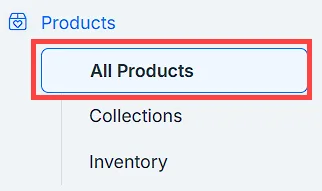
Navigate to Products section in the side navigation menu.
-
Select All Products.
-
Click the product you want to edit. The product editor opens on the Details tab.
-
Click the Variations tab.
Adding Options and Values
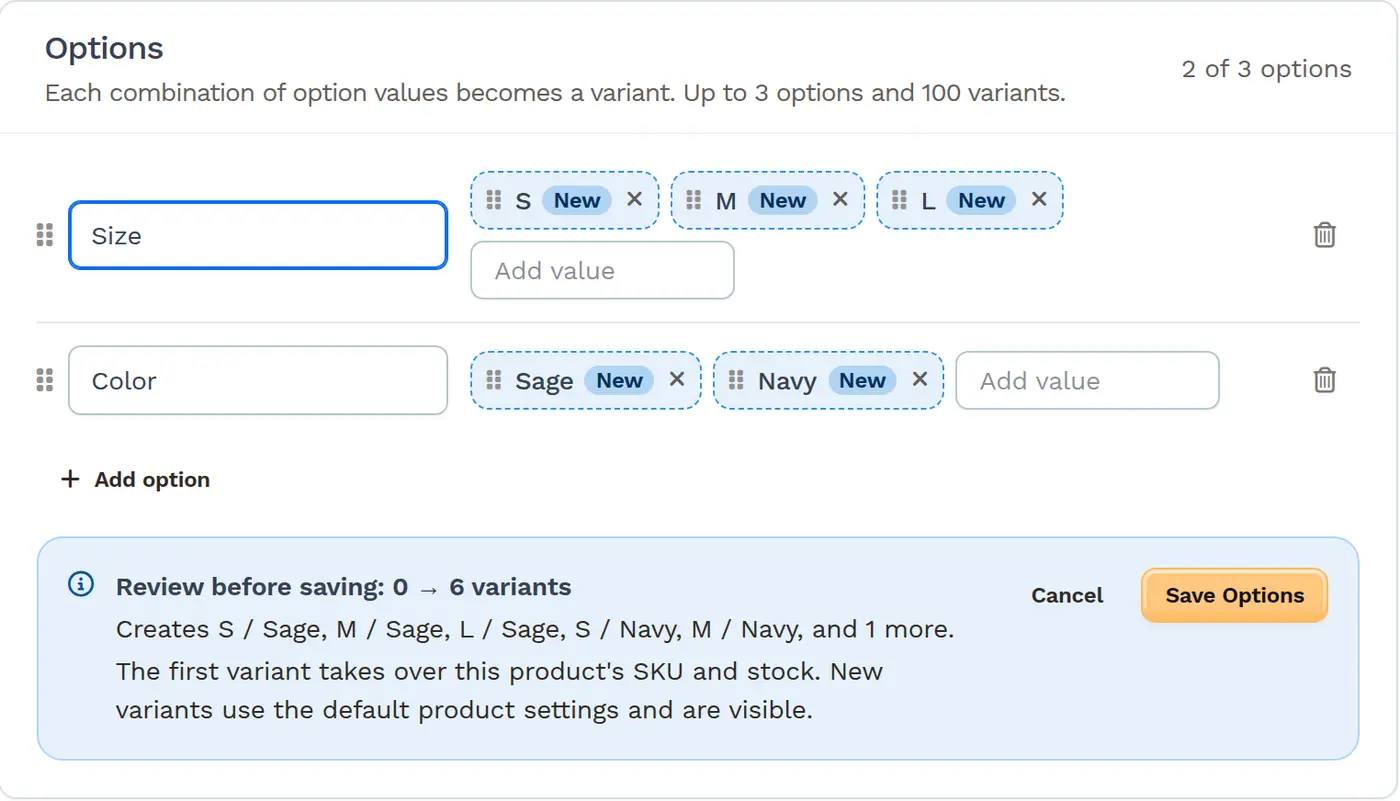
Section titled “Adding Options and Values”Each combination of option values becomes a variant. For example, a Size option with Small, Medium and Large and a Color option with Blue and Green create six variants.
-
In the Options card on the Variations tab, click Add option, then enter an Option name, such as
Size. -
In the Add value field next to it, type a value, such as
Small, and press Enter (or type a comma). Each value is added as a chip. Repeat for every value. -
To add another option, such as
ColororMaterial, click Add option and repeat the steps above. -
Before you save, review the Review before saving summary below the options. It shows how many variants the product goes from and to (for example, “Review before saving: 0 → 6 variants”) and exactly which variants will be created, renamed or deleted:
-
The first variant takes over this product’s SKU and stock. When a product gets its first options, the product-level SKU and stock move to the first variant.
-
New variants use the default product settings and are visible. If the product tracks stock, new variants start with 0 stock at your locations.
-
Existing variants keep their SKUs, stock, and order history.
-
-
Click Save Options. Click Cancel to discard your changes instead.
Editing Options and Values
Section titled “Editing Options and Values”-
On the Variations tab, go to the Options card.
-
Make your changes:
-
Rename a value: Click the value’s chip and type the new name. Every variant that uses this value is renamed.
-
Add a value: Type it in the Add value field and press Enter. It’s marked New until you save.
-
Remove a value: Click the × on the value’s chip.
-
Remove an option: Click the remove option icon at the end of the option’s row.
-
Reorder: Drag options and values by their handles to change their order.
-
-
Check the Review before saving summary, then click Save Options.
Editing a Variant
Section titled “Editing a Variant”Variants inherit the product’s default settings. You can override any of them for a single variant.
-
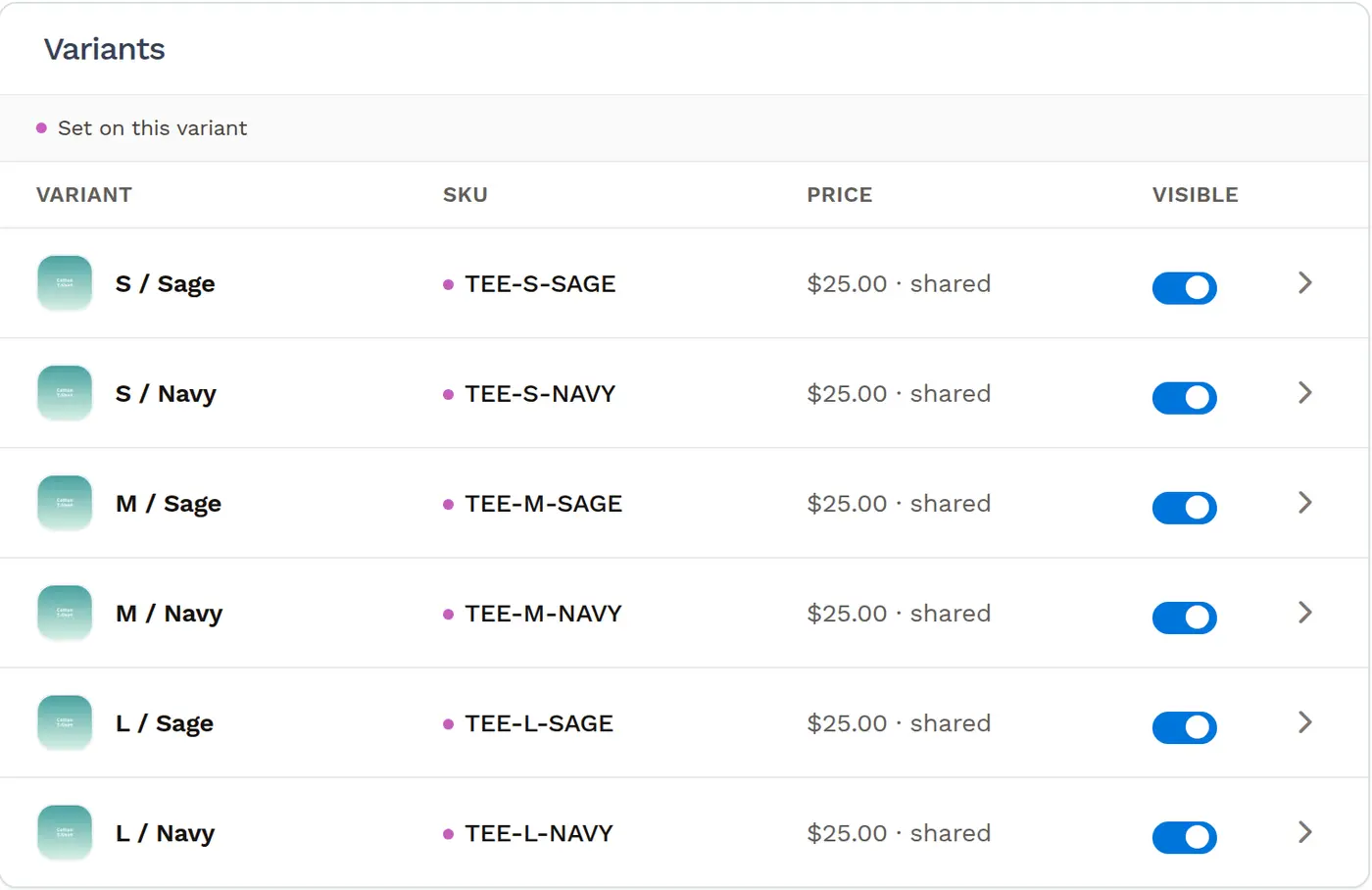
On the Variations tab, find the variant in the Variants table. The table shows each variant’s SKU, Price, Available stock (for tracked products) and a Visible switch.
-
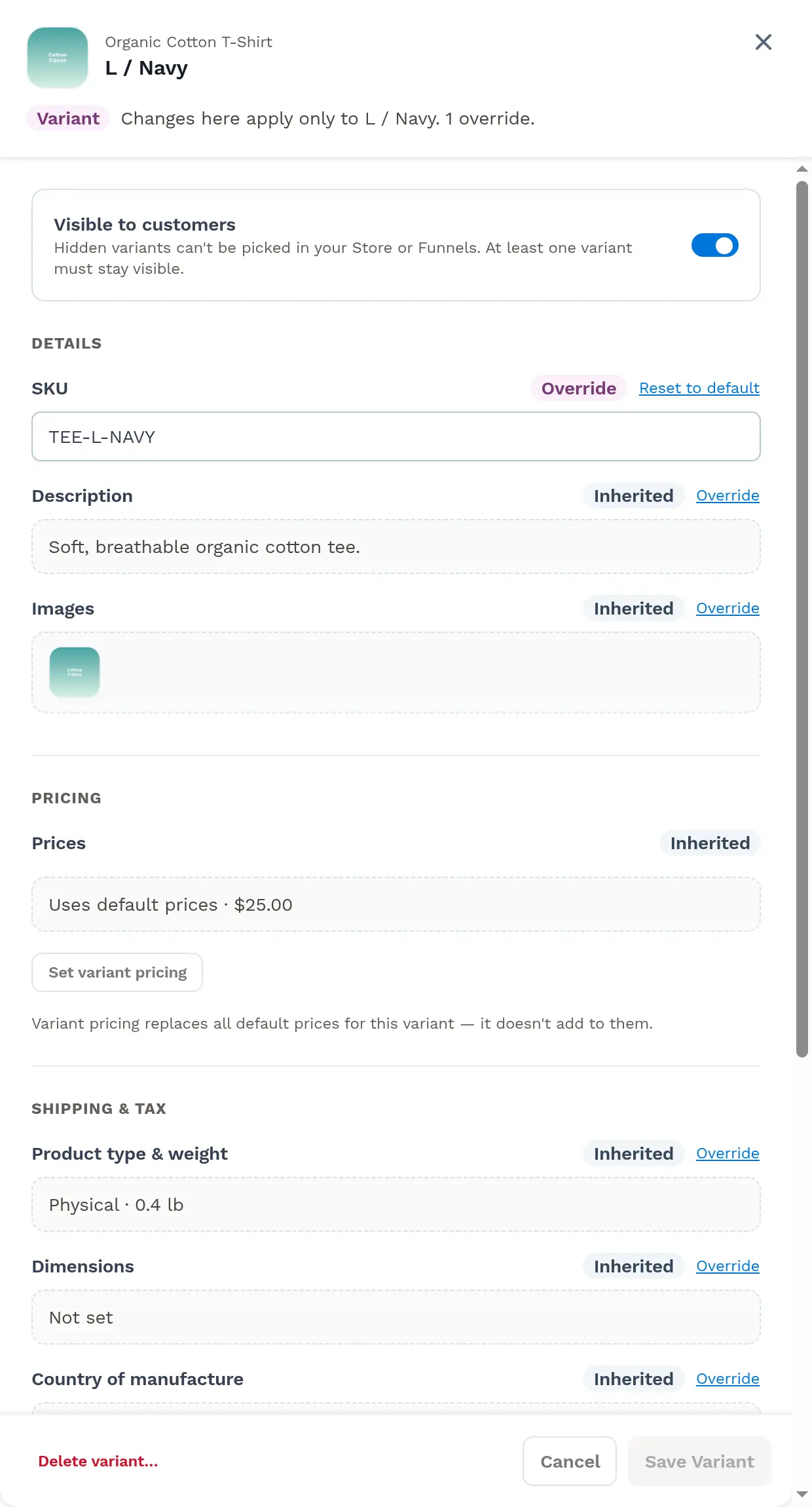
Click the variant’s name, or the arrow at the end of its row, to open the variant’s settings in a drawer. The drawer shows “Changes here apply only to [variant].” and how many overrides the variant has.
-
For each inherited setting, select Override to give this variant its own value, or Reset to default to go back to the product’s setting. The drawer is organized into these sections:
-
Visible to customers: Hidden variants can’t be picked in your Store or Funnels. At least one variant must stay visible.
-
Details: SKU, Description and Images. Variant images replace the product’s images for this variant.
-
Pricing: By default a variant uses the product’s prices (“Uses default prices”). Click Set variant pricing to add prices for this variant only. Variant pricing replaces all default prices for this variant; it doesn’t add to them. To go back, click Use default prices again. Learn more in How to Manage Pricing.
-
Shipping & tax: Taxable and tax category, and for physical products the Product type & weight, Dimensions and Country of manufacture.
-
Fulfillment & stock: Requires fulfillment, Track quantity and Keep selling when out of stock, plus the stock at each location. Click Adjust next to a location to add or remove stock.
-
Additional access: Courses, communities or downloads that only this variant grants. This adds to the access the product grants by default and never removes it. Changes here save right away. Learn more in How to Manage Product Access.
-
-
Click Save Variant.
Deleting Variants
Section titled “Deleting Variants”Delete a single variant:
-
On the Variations tab, click the variant’s name to open its settings.
-
Click Delete variant….
-
In the dialog, click Delete variant to confirm. Customers will no longer be able to buy it. Past orders aren’t affected. If the variant can currently be bought in your Store or in funnels, the dialog lists those places so you can review them first.
Delete options or values:
-
In the Options card, remove the option or the values you no longer need.
-
The Review before saving summary lists the variants that will be deleted, with the warning “Past orders that include these variants aren’t affected. Are you absolutely sure you want to proceed?”
-
Click Save Options to delete them.
Previewing Product Variants in an Order Page
Section titled “Previewing Product Variants in an Order Page”-
Create or Edit a Funnel:
-
Create a new funnel or edit an existing one.
-
Add an order page to the funnel.
-
-
Add Checkout Element:
- Alternatively, if you’re working on an existing page, insert a Checkout element in the page editor.
-
Add Product with Variants:
- In the funnel, add a Product to the order page that includes variants.
-
Preview the Page:
-
Click Preview or access the page link to view the page.
-
The variant selector will automatically populate, allowing users to select their preferred options.

-
Learn more in the Funnels - How to Attach a Product to a Funnel Step and Smart Checkout Guide - How to Add a Smart Checkout articles.