
Course Lesson Settings
Published: Updated:
This article explains the options in the Lesson Settings, where you can set your lesson settings preferences. With options to adjust the Lesson Path, Style, Title, and more, you can customize lessons to deliver engaging and cohesive learning experiences.
Requirements
Section titled “Requirements”-
An active ClickFunnels account
-
The “Courses” App added to the Workspace
-
A Course
-
A Lesson
Accessing Course Lessons Settings
Section titled “Accessing Course Lessons Settings”-
Click on Courses from the left navigation menu.
-
Click the Title of the course you wish to manage.
-
Under the Outline tab, locate the lesson you want to edit, then click the three-dot icon to the right of the lesson.
-
Click Edit Lesson.
Lesson Info
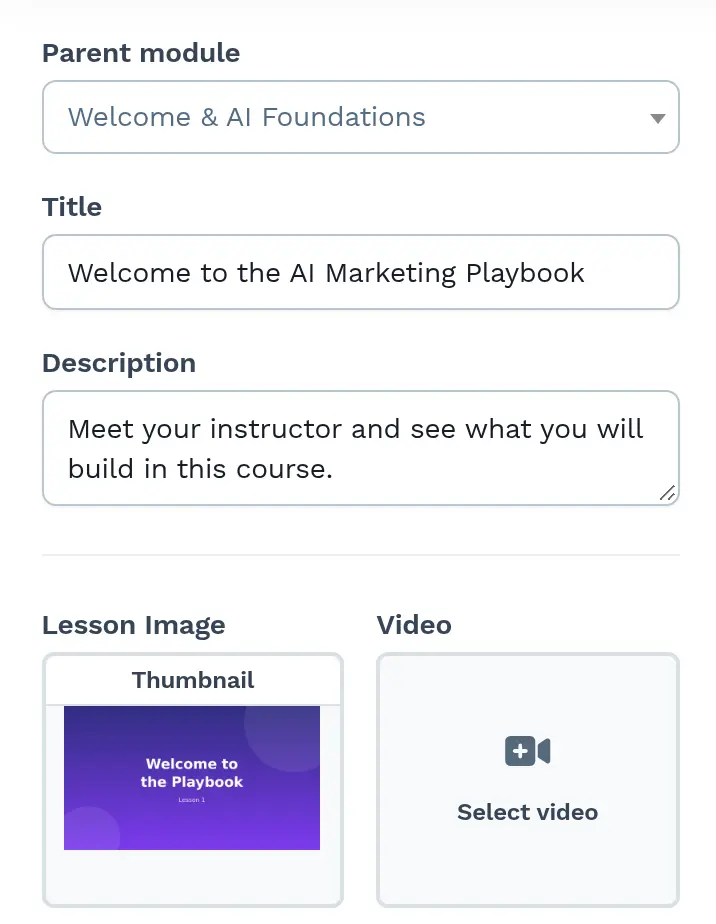
Section titled “Lesson Info”The top of the lesson settings is where you can easily change your lesson’s parent module, title, and description. These simple adjustments allow you to organize your course and tailor each lesson to meet your learners’ needs.
-
Parent Module: Click the drop-down, then review or select the parent module of the lesson.
-
Title: Edit the title of the lesson in this field.
-
Description: Fill out the description field to optionally describe the lesson content.
Lesson Media
Section titled “Lesson Media”Below the title and description, you can update your lesson with an image, a video, or an audio file. These options enhance your lesson content and create engaging learning experiences for your audience.
-
Lesson Image: Click Select Image to choose your preferred image.
-
Video: Click the Select video button to upload a video.
-
Audio File: Click the Select audio button to upload an audio file to the lesson.
Current Path
Section titled “Current Path”The Current Path is where you can customize the web address for your lesson. Easily change the lesson path to make it accessible and easy to find for your learners. The domain the lesson uses is shown above the path and can’t be edited here.
- Current Path: Edit the Lesson’s Path URL through this input field. After you edit the path and leave the field, the app tells you whether it’s available.
Advanced Settings
Section titled “Advanced Settings”The Advanced Settings section appears only when the course uses a course theme (Advanced Customization). Here you can override your lesson’s appearance and layout. You can personalize your lesson to match your branding and design preferences with options to adjust the Style Guide and Template Page.
-
Style: The Style is an option that lets you change the style layout of the lesson you are editing. Click the drop-down, then select the style guide you want the lesson to use.
-
Template Page: The template page lets you choose the template page you want the lesson to use. Click the Select page button, then select the template page you want to use. The template page is where you add lesson navigation buttons, such as Mark Complete and Go to Next Lesson; learn more in Using the Page Editor to Design Your Course.