
How to Add and Manage Contact Attributes
Published: Updated:
Contact Attributes are customizable fields that allow you to store additional information about your contacts, beyond the default fields. Attributes allow you to customize and organize your contact data by adding specific fields to suit your needs. This article will walk you through adding and managing contact attributes. 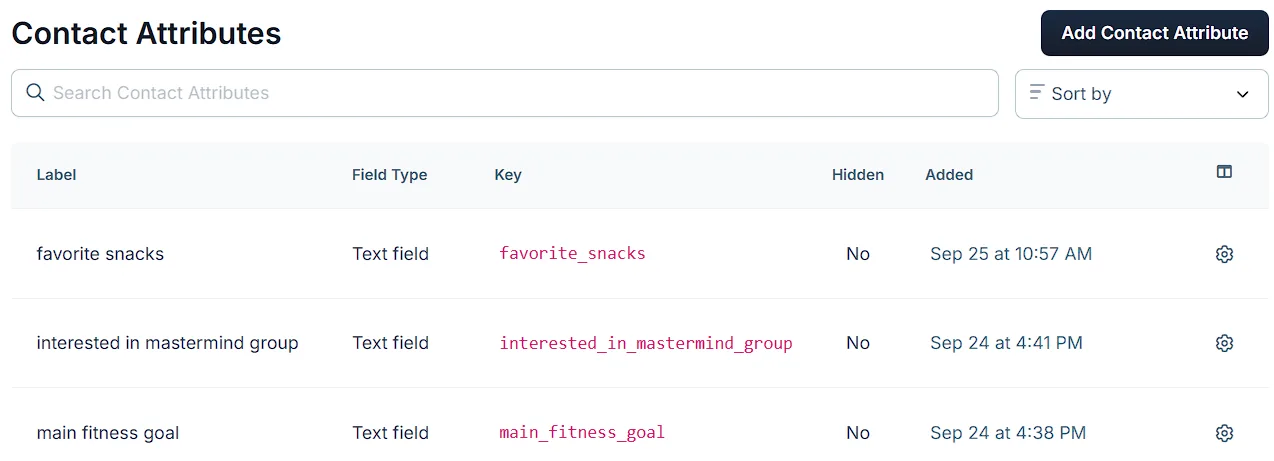
Requirements:
Section titled “Requirements:”- An active ClickFunnels account
Adding a New Contact Attribute
Section titled “Adding a New Contact Attribute”-
Go to Workspace Settings on the left-side menu.
-
Click Contact Attributes under Workspace Settings.
-
Select Add Contact Attribute at the top-right corner.
-
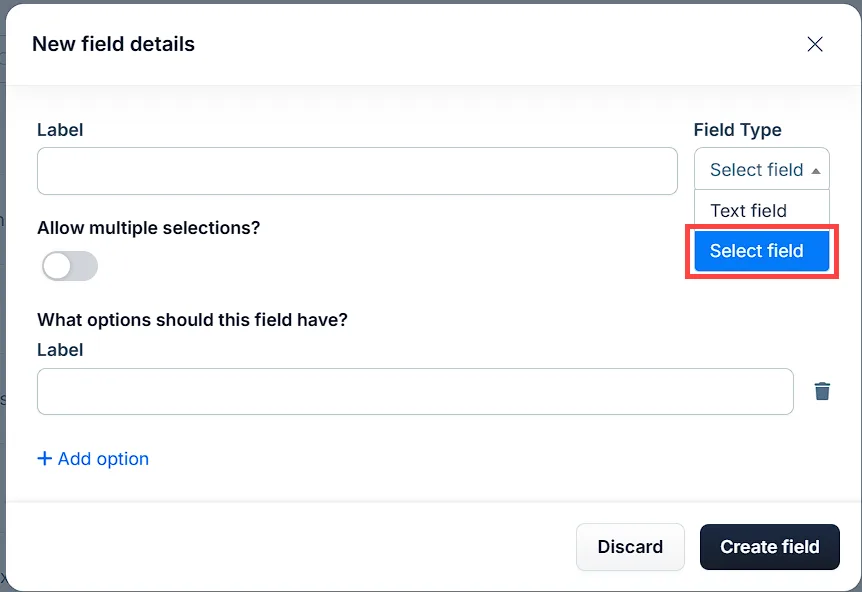
In the New field details window:
-
Enter a Label for the attribute (e.g., “Favorite Snack”).
-
Choose the Field Type:
-
Text field: Allows free text input.
-
Select field: Creates a dropdown list with predefined options.
-
Enable Allow multiple selections? if you want users to select more than one option.
-
Add options under What options should this field have? (e.g., “Beginner,” “Intermediate,” “Advanced”).
-
-
-
-
Click Create field to save the new attribute.
Managing Contact Attributes
Section titled “Managing Contact Attributes”Edit an Attribute:
Section titled “Edit an Attribute:”-
From the Contact Attributes list, locate the field you want to modify.
-
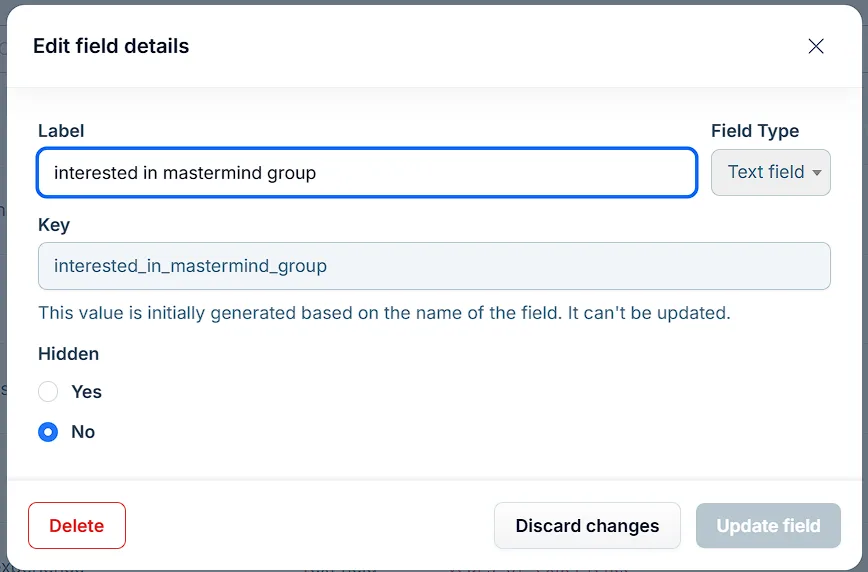
Click the gear (⚙) icon on the right.
-
Modify the Label, set Hidden to Yes or No, or, for a select field, add or remove options. The field type, the Allow multiple selections? setting, and the Key cannot be changed after the attribute is created.
-
Click Update field to save changes.
Delete an Attribute:
Section titled “Delete an Attribute:”-
Click the gear (⚙) icon next to the attribute you want to remove.
-
Select Delete in the Edit field details window.
-
Type
DELETEwhen prompted and confirm the deletion.