
MessageHub Integrationss: Google Translate
Published: Updated:
This article will review the Google Translate Chat Application. This tool helps you translate any conversation you receive in a different language.
Using a translator helps you to expand your scope of support to people who don’t speak your language, and it’s a valuable tool for your agents.

Requirements
Section titled “Requirements”-
An active ClickFunnels account
-
The MessageHub App
-
A Google Cloud Account
-
A project created in Google Cloud
Access your Project Information:
Section titled “Access your Project Information:”-
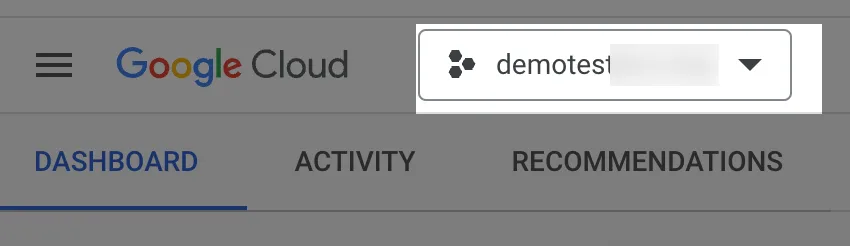
Inside your Google Console, select your Project.
-
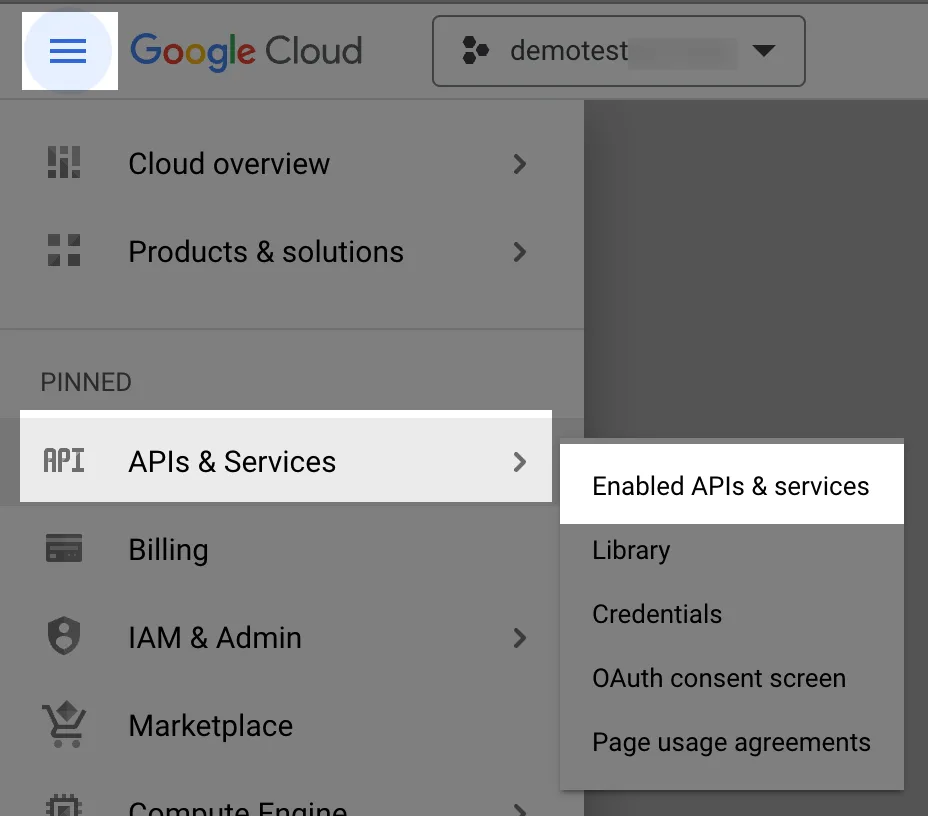
From the main menu, click on APIs & Services and then click on Enabled APIs & Services.
-
Click on the Enable APIs and Services tab.

-
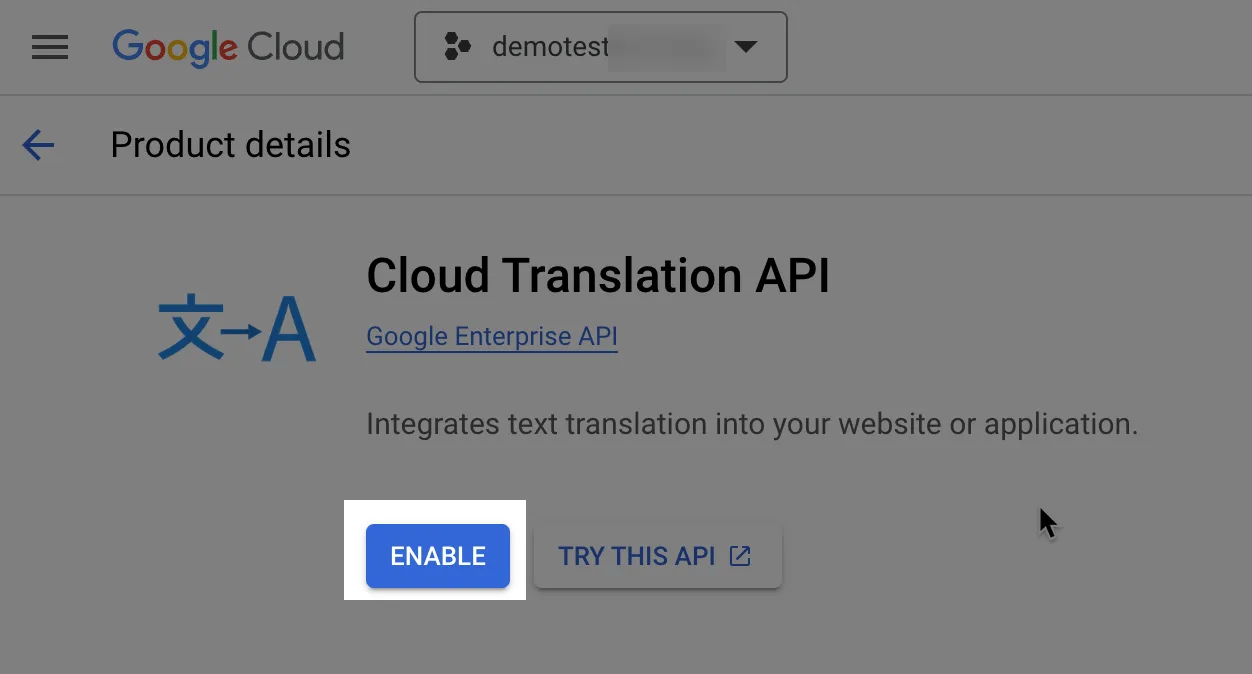
Select the option Cloud Translation API.

-
Click on Enable to obtain your API Key. This key will be used in the following steps.
Integrate Google Translate and MessageHub:
Section titled “Integrate Google Translate and MessageHub:”-
From MessageHub, click on Chat Settings, then Chat Integrations.
-
Click on Configure.
-
Click on Connect.
-
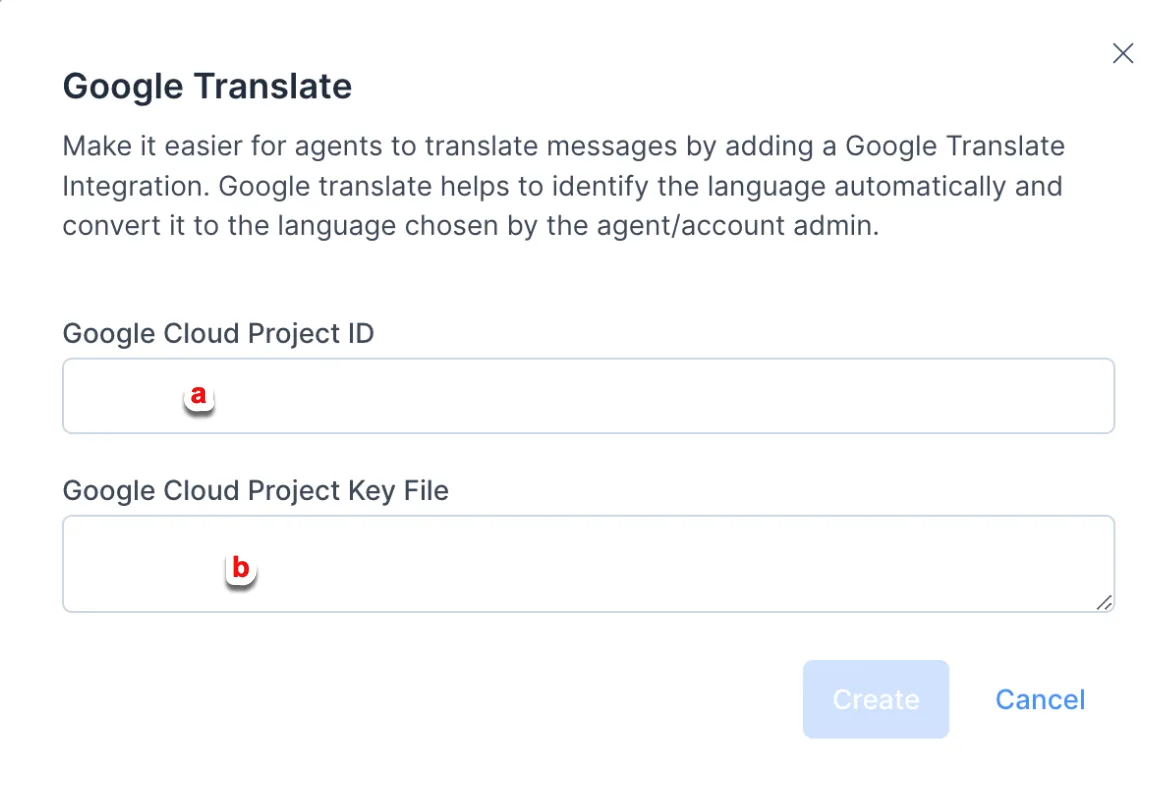
Complete the following using the information from your Google Project.
-
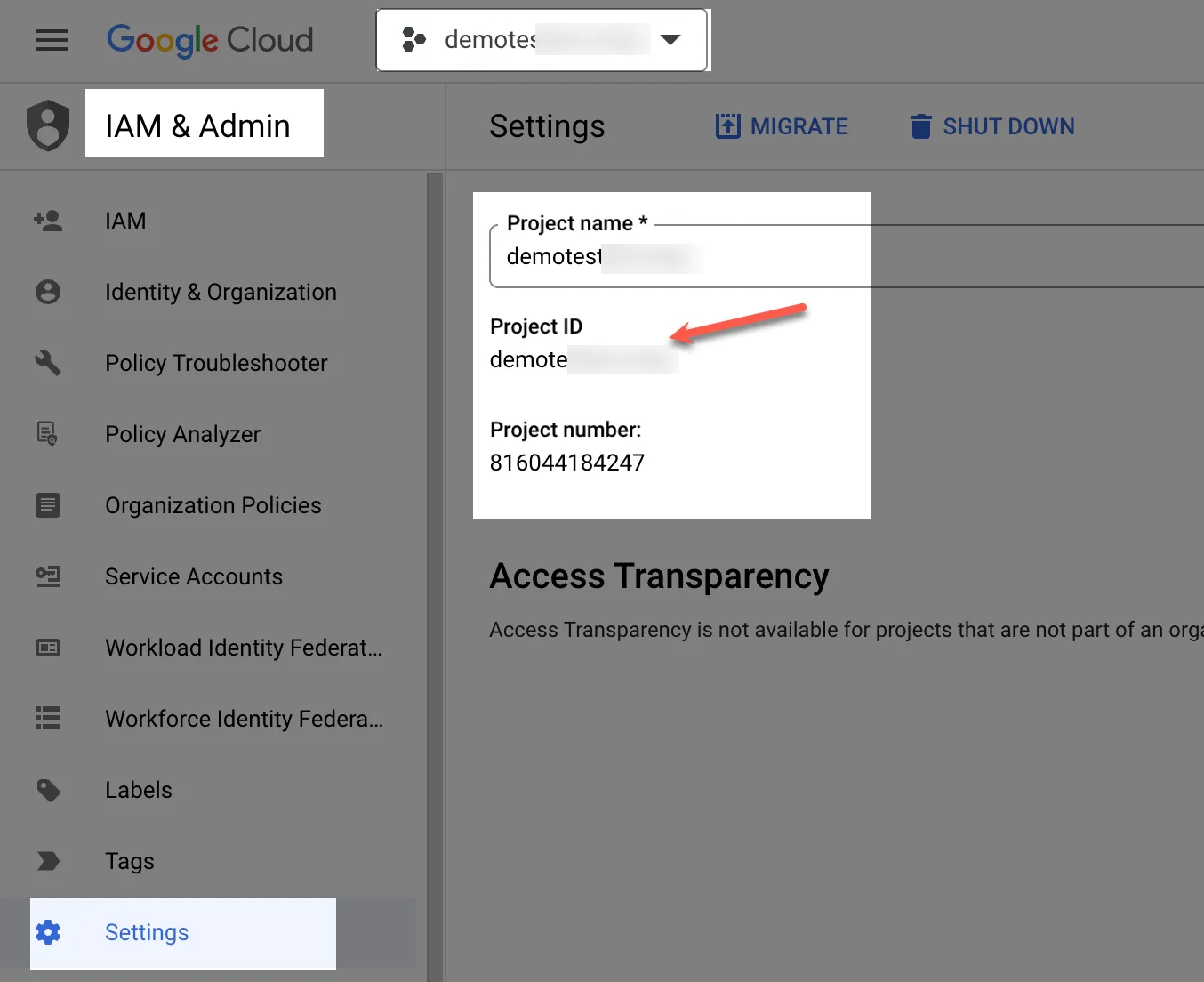
The Google Cloud Project ID is available in the Settings area of your Google Project. (See image below for reference)
-
The Google Cloud Project Key File is the one we generated in step 5 of Access your Project Information.
-
How to Change the Translation Language:
Section titled “How to Change the Translation Language:”-
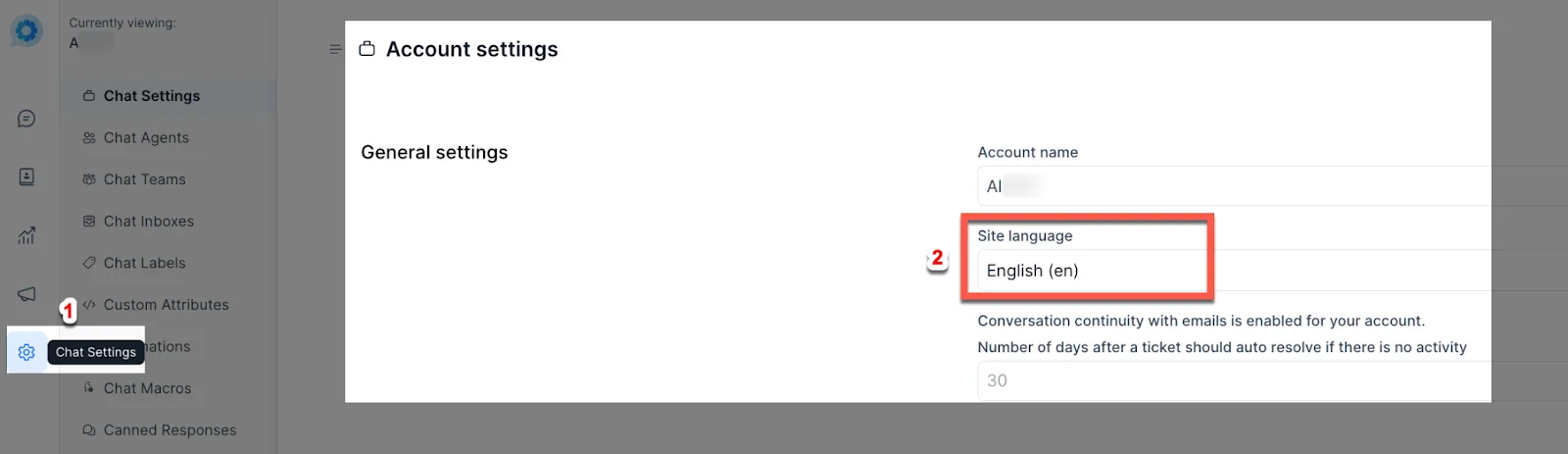
In your MessageHub account, click Chat Settings to access your Account Settings.
-
Select your preferred language from the dropdown.
How to Translate Incoming Messages:
Section titled “How to Translate Incoming Messages:”-
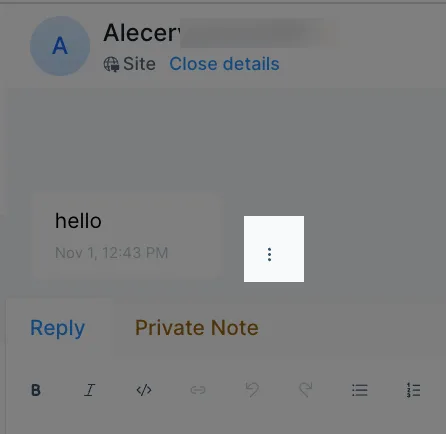
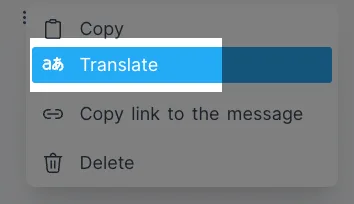
Click on the three-dot menu that appears next to the message.
-
Click on Translate.
-
The translated message will appear in a new pop-up tab on the right side of the screen.