
How to Unpause An Account
Published: Updated:
If you’ve paused your ClickFunnels account and are ready to get back to building and managing your funnels, unpausing your account is a straightforward process. This article will show you how to unpause your account, allowing you to resume your work smoothly with all your data preserved. Follow these steps to unpause your account and get back on track.
Requirements
Section titled “Requirements”-
A paused ClickFunnels account
-
You must be the team owner. Team members see “Subscription paused. Contact owner to resume.” and need to ask the owner to follow these steps.
How to Unpause An Account
Section titled “How to Unpause An Account”-
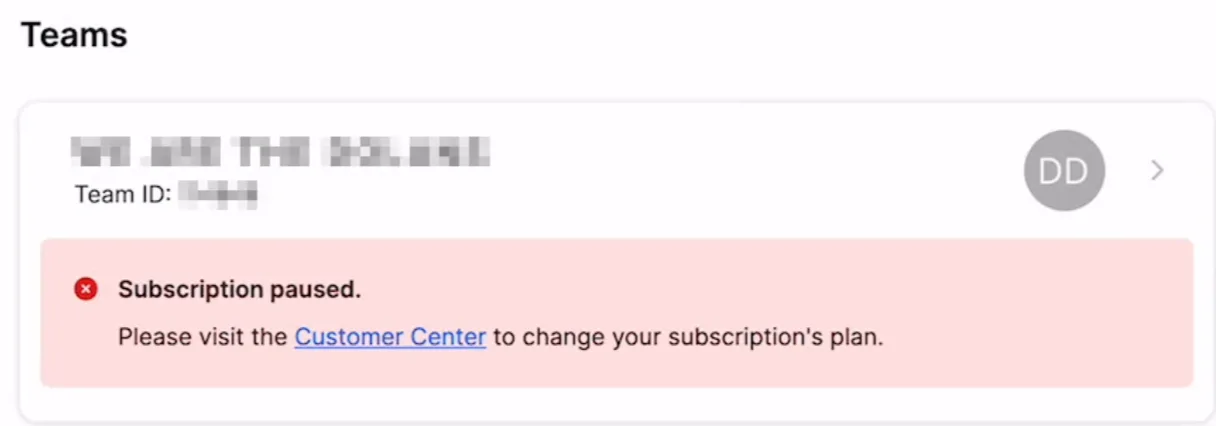
Log in to your paused account here. Instead of your regular ClickFunnels dashboard, you are taken to the Teams page with this message: “The subscription for [team name] has been paused. Please update your plan to regain access, using the link below.”
-
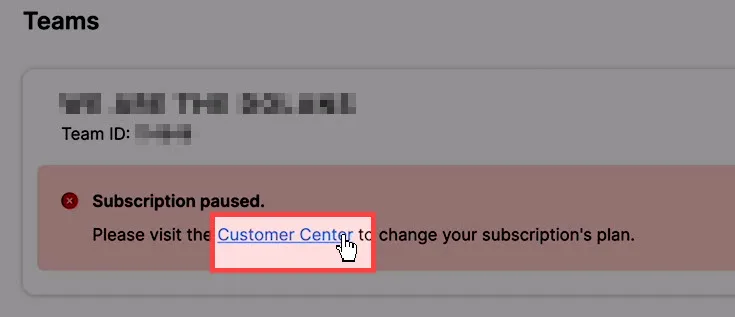
Find your team’s card. It shows a Paused badge and the text “Subscription paused. Change plan”.
-
Click Change plan. Your subscription opens in the ClickFunnels Customer Center in a new tab.
-
Select one of the subscription plans by clicking the button for your desired plan.
-
This will immediately restore your account and take you back to your ClickFunnels dashboard.