
Adding JavaScript and Tracking Code for Advanced Features
Published: Updated:
ClickFunnels allows you to add JavaScript and tracking code to your pages to implement advanced features such as custom interactivity, third-party tools, and analytics. In this guide, you’ll learn how to add custom JavaScript and tracking code to your pages effectively.
Requirements
Section titled “Requirements”-
An active ClickFunnels account
-
A page created in your workspace
-
External JavaScript or tracking code
Adding JavaScript Code Using the HTML/JS Element
Section titled “Adding JavaScript Code Using the HTML/JS Element”The HTML/JS Element is ideal for adding custom JavaScript for specific features or interactivity on your page. This method is perfect for embedding widgets, animations, or interactive elements.
-
Inside the page editor, add a Section where you want to place the element.
-
Add a Row within that section.
-
Click the orange + Plus or Add New Element button inside the row to insert a new element.
-
From the Misc category, select the HTML/JS element.
-
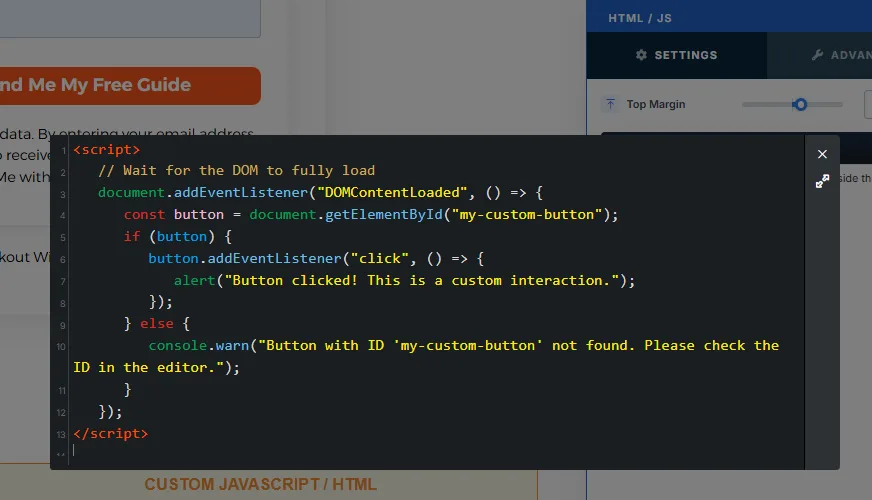
Click on the Open Code Editor button in the element’s settings panel.
-
Wrap your JavaScript code within
<script> </script>tags and paste it into the editor.
💡 Learn more: HTML/JS: Insert Custom HTML and JavaScript Code.
Adding Tracking Code in the Page Header or Footer
Section titled “Adding Tracking Code in the Page Header or Footer”The Header Code and Footer Code sections in ClickFunnels are designed to add tracking scripts or global JavaScript that apply to the entire page. These are commonly used for analytics tools like Google Analytics or Facebook Pixel.
-
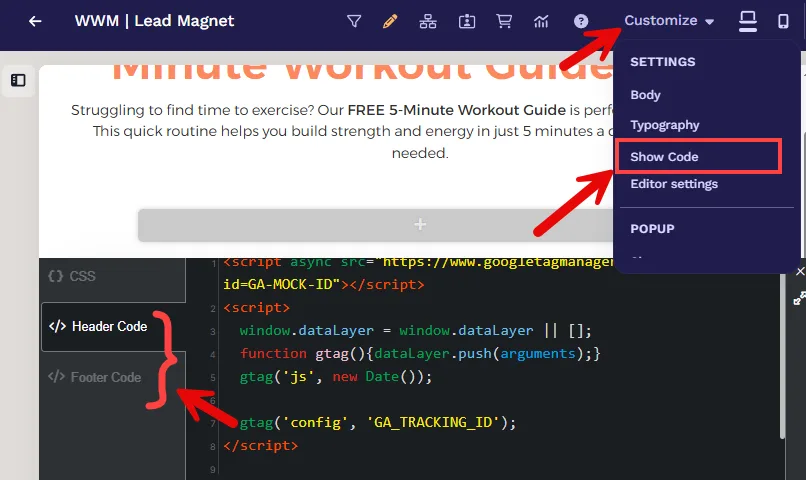
Inside the page editor, go to Settings > Show Code, then select the Header Code or Footer Code tab. When you edit a funnel page, Settings is under the Customize (gear) icon.
-
Choose Header or Footer Code:
-
Use the Header Code section for scripts that need to load early in the page lifecycle, such as analytics or CSS-based scripts.
-
Use the Footer Code section for JavaScript, which interacts with page elements or scripts that can load after the content.
-
-
Wrap the JavaScript code in
<script> </script>tags and paste it into the appropriate section.
-
Save your changes and test the page by previewing or using browser developer tools to verify the script’s execution.
When to Use Header vs. Footer Code
Section titled “When to Use Header vs. Footer Code”-
Header Code: Add tracking or external scripts that must load before the page content.
Example: Google Analytics or third-party CSS libraries. -
Footer Code: Add scripts that depend on the page being fully loaded.
Example: Custom JavaScript or scripts that interact with HTML elements.