
How to Delete Test and Draft Orders From Your Workspace
Published: Updated:
Managing your workspace’s data cleanliness is essential, and test or draft orders can clutter your workspace if left unattended. ClickFunnels provides an option to delete test and draft orders, which helps maintain accurate order data. In this article, we’ll walk you through the process and explain the different types of orders you can delete.

Requirements
Section titled “Requirements”-
An active ClickFunnels account.
-
The Team administrator role. Other team members cannot delete test and draft orders.
-
Your workspace contains test or draft orders that you want to delete. The Delete Test Orders section only appears when it does.
Understanding Test and Draft Orders
Section titled “Understanding Test and Draft Orders”In the Delete Test Orders section, you will notice three categories, Draft Test Orders, Total Test Orders and Draft Live Orders. Here’s a breakdown of what each count includes:
-
Draft Test Orders:
- Test mode orders that have not been paid yet (a draft, pending, or unpaid billing status).
-
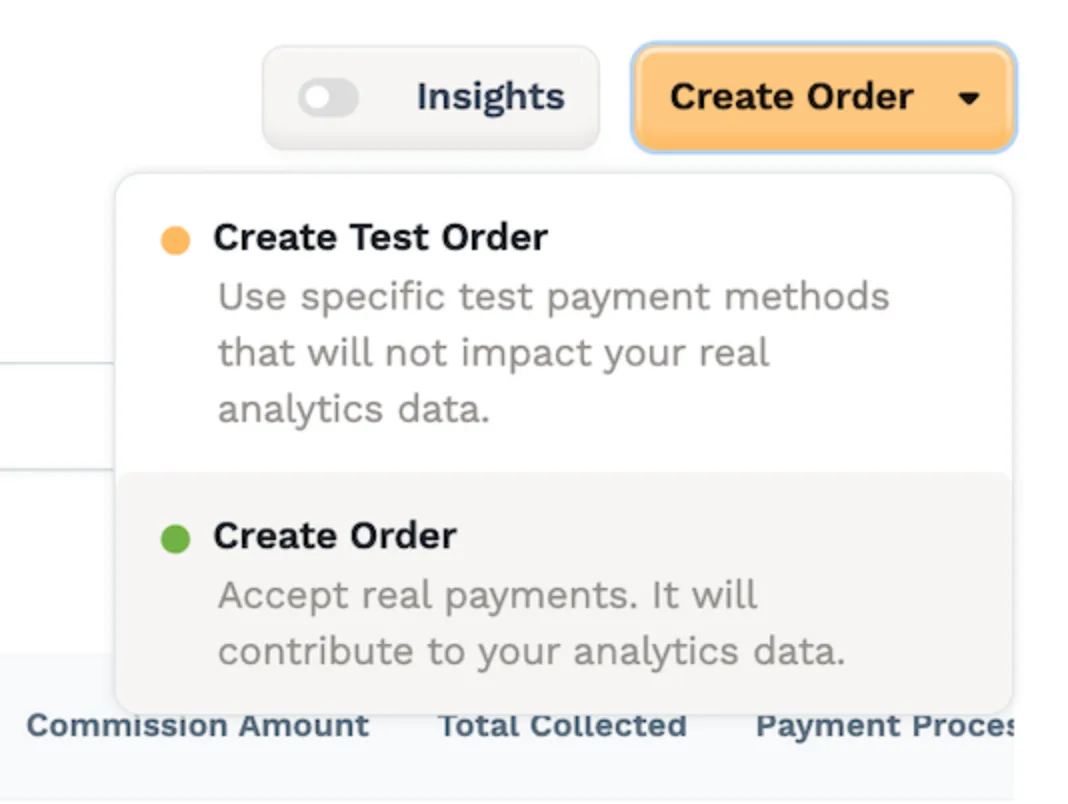
Total Test Orders:
-
Every order created in Test Mode, whatever its billing status. This includes test orders manually created in the “Orders” menu and test orders submitted from funnels or stores.
-
-
Draft Live Orders:
-
Live orders that have not been paid yet (a draft, pending, or unpaid billing status).
-
An order stays in this category until the payment is either marked as paid manually or the customer completes the payment by paying the invoice.
-
How to Delete Test and Draft Orders
Section titled “How to Delete Test and Draft Orders”-
Navigate to Workspace Settings > General.
-
Scroll down to the Delete Test Orders section, where you will see the counts for
Draft Test Orders,Total Test OrdersandDraft Live Orders. -
Click the Delete Test & Draft Orders button.
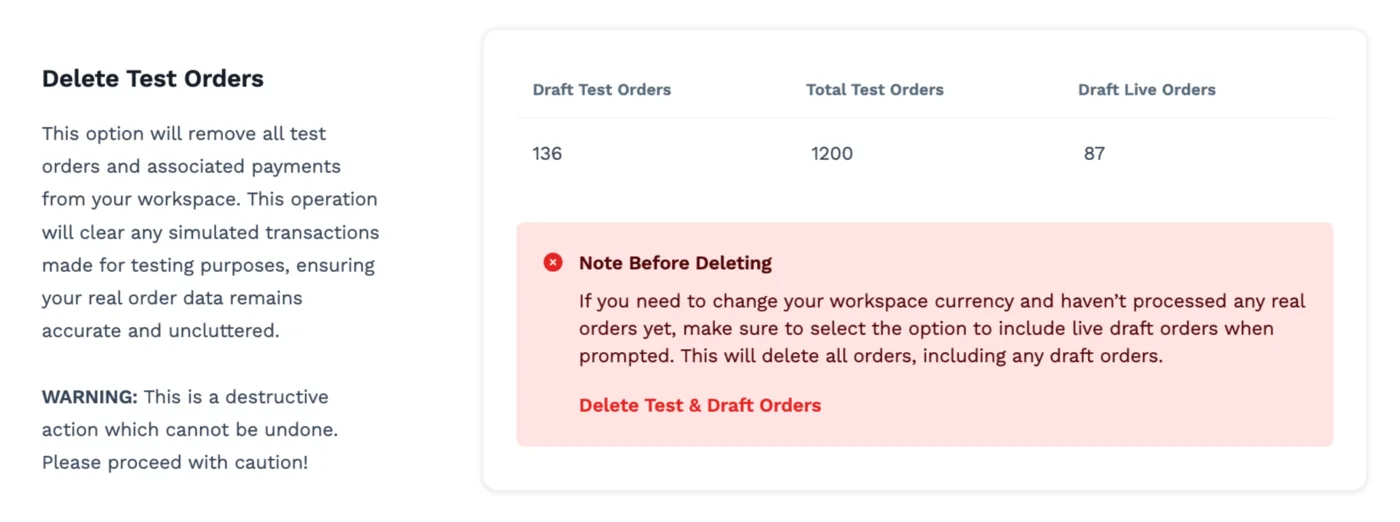 In the open widget, it will display all the test orders. You can select the checkbox “Include LIVE draft orders” if you also want to remove unpaid live orders. If your workspace has no test orders, the widget lists the draft live orders and the checkbox is already selected.
-
Click “Delete Orders” to confirm the action. The orders are removed in the background, so they may take a moment to disappear.